Table of Contents
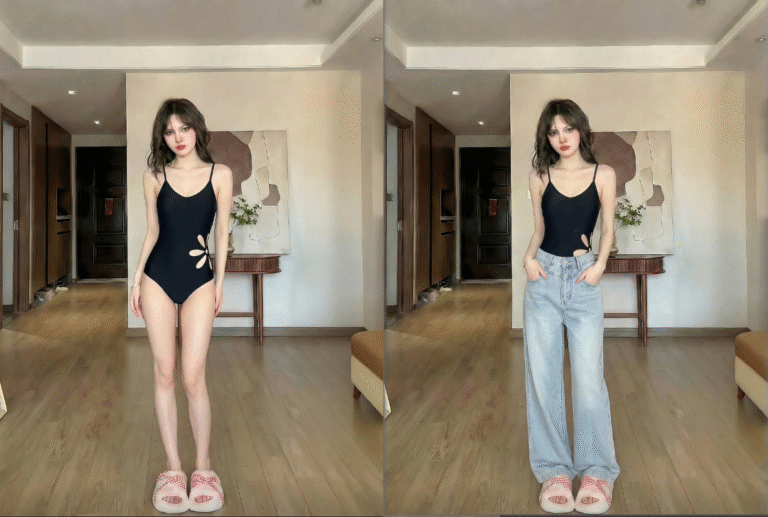
Changing model clothes without reshooting is highly demanded in fashion e-commerce and photo retouching. However, manually changing clothes in traditional PS is extremely difficult and time-consuming.
Native PS requires precise cutout, liquify, mask, curve adjustment and manual wrinkle creation. Clothes often deform, textures get lost, lighting looks fake, and the whole process takes 30+ minutes per image.
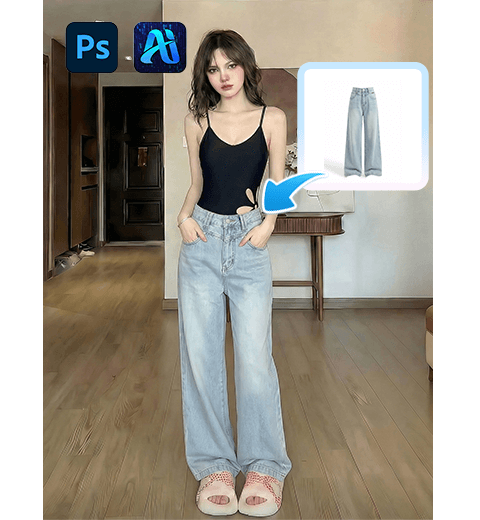
Psaide Nano Banana Pro uses AI to intelligently recognize body shape, auto-fit clothes, simulate natural folds and match lighting. Beginners can achieve professional clothing swap in seconds.
1.Pain Points of Traditional PS Clothing Editing
- Complex and time-consuming workflow
- Easy to deform clothes and lose details
- Unnatural lighting and fake “pasted” effect
- Extremely high skill threshold.
2.How to Change Model Clothes with PS + Psaide Nano Banana Pro (Pants Example)
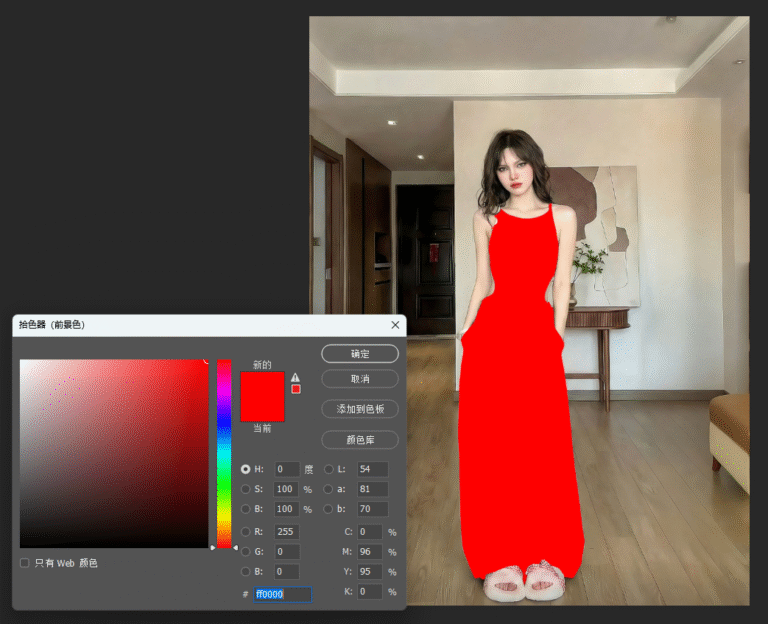
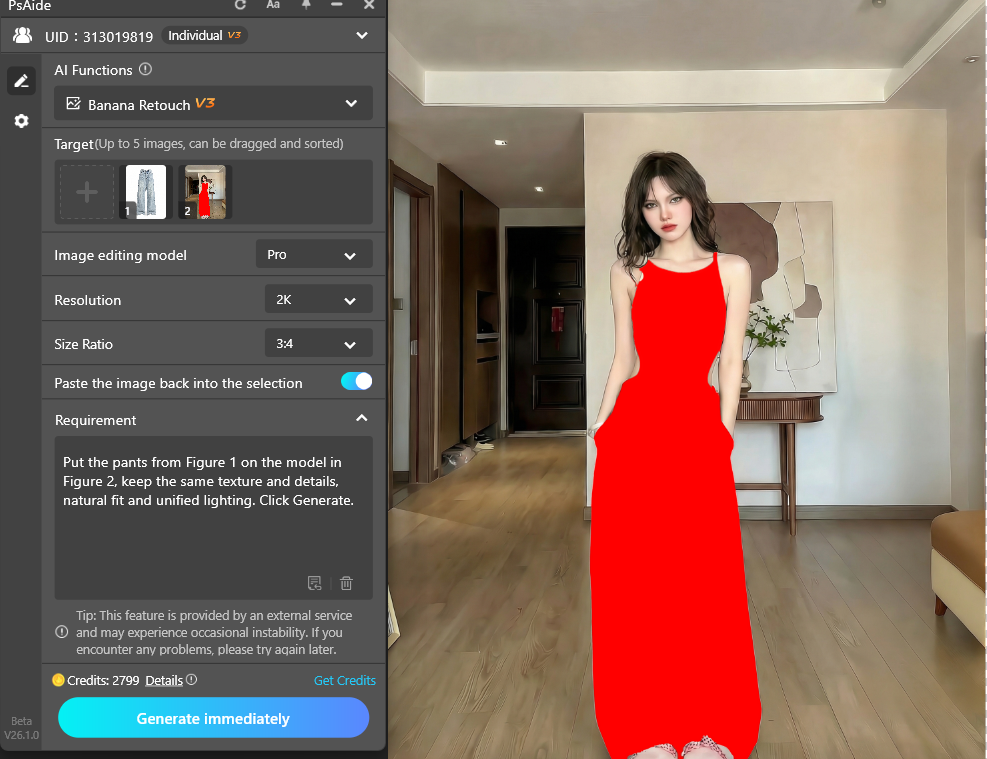
- Prepare & mark in PS Open the model image, duplicate the layer. Use the Lasso Tool to select the pants area and fill it with red to mark the replacement zone.
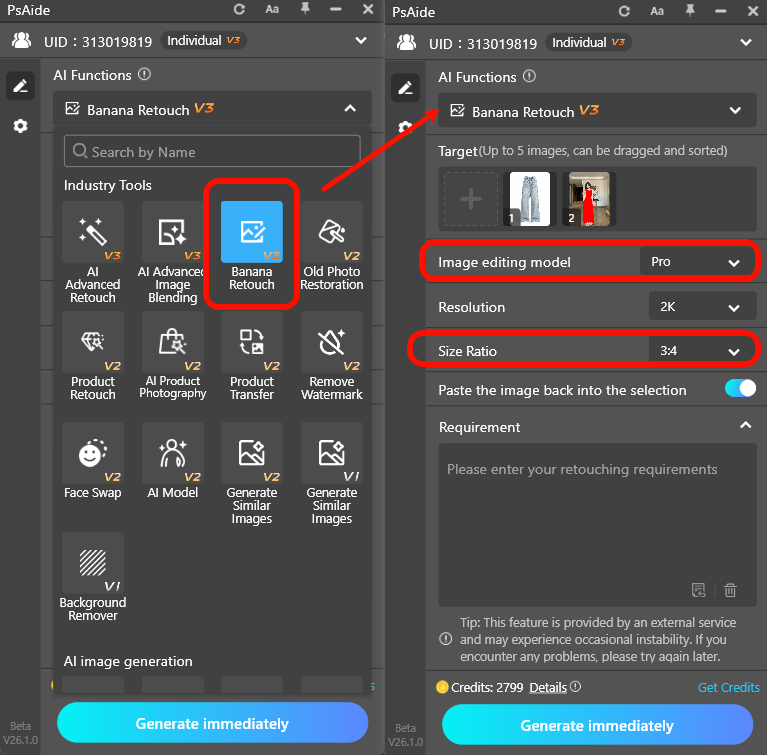
- Open Psaide & select Pro Go to Window > Extensions and open Psaide. Choose Nano Banana Retouch > Pro Version.
- Upload & set ratio Upload the marked model image and the target pants image. Set the ratio to 3:4 (e-commerce standard).
- Enter prompt & generate Use this prompt: Put the pants from Figure 1 on the model in Figure 2, keep the same texture and details, natural fit and unified lighting. Click Generate.
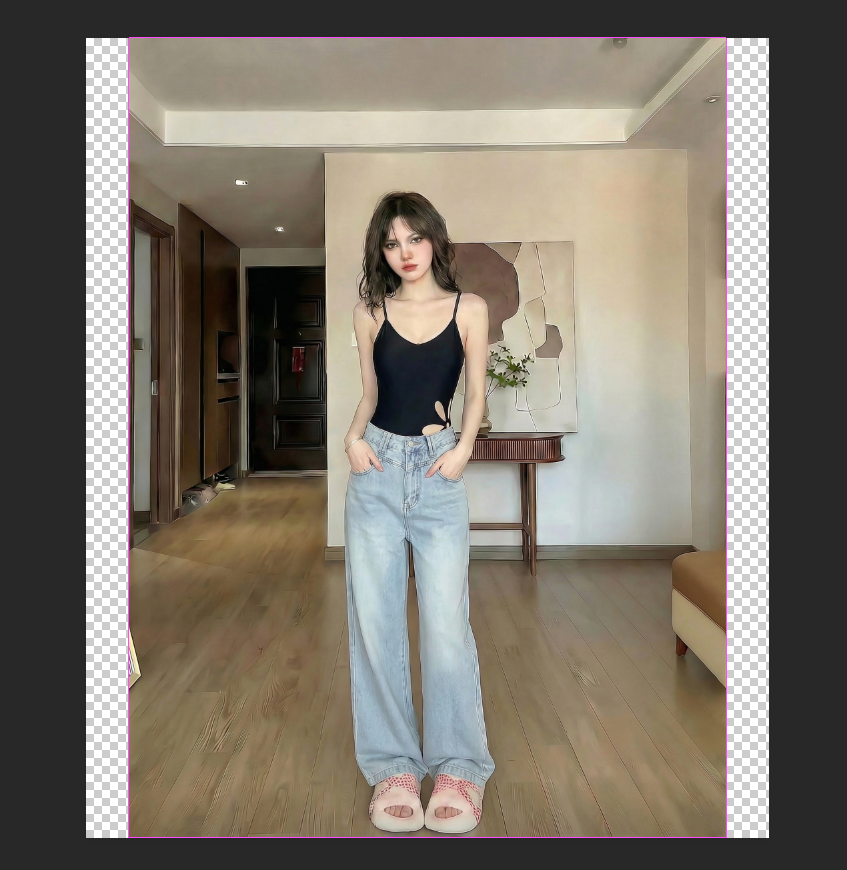
AI automatically:
- Replaces pants in the red area
- Fits the body shape with natural wrinkles
- Matches lighting for realistic blending
Apply the result to PS layers for direct commercial use.
3.Common Issues & Solutions
- Clothes deformed or details lost
- Refine the red selection
- Add to prompt: keep texture, pattern and color, no deformation
- Unnatural lighting and fake look
- Add to prompt: natural lighting, realistic shadows and folds
- Use model and clothing images with similar light direction
Achieve fast, natural, professional clothing swaps for fashion e-commerce with PS and Psaide Nano Banana Pro.
Download link

https://psaide.com/?sfrom=A86R4u
Invitation Code: A86R4u