
Table of Contents
In e-commerce design, product retouching and content creation, changing image backgrounds with natural blending is essential—especially for mugs, cosmetics and small appliances. However, traditional PS background replacement requires manual cutout, light adjustment and shadow creation, which is complex and often produces fake-looking results.
Psaide’s Nano Banana Retouch Pro solves all pain points of traditional PS background replacement. No complex cutout or color grading needed. AI automatically recognizes products, matches lighting and blends into the environment. One reference background is enough for fast, realistic and zero-threshold background replacement.
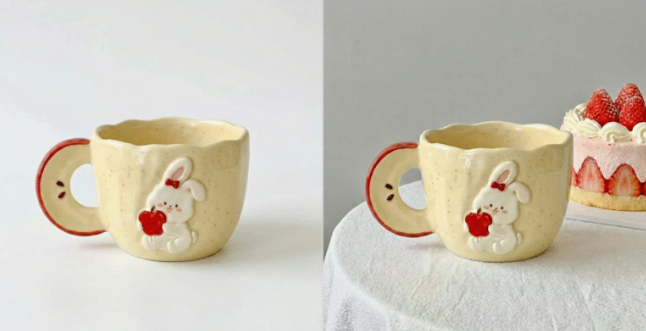
1.Pain Points of Native PS Background Replacement
- Slow cutout: Complex, reflective or curved products often have stiff edges or white borders.
- Unnatural lighting: Product light does not match the new background.
- Missing real shadows: Products look like they are “floating”.
- High skill barrier: Requires selection, mask, curve and blend mode skills.
Nano Banana Pro only needs one product image + one reference background. AI automatically replaces background, matches light and adds shadows.
2.Step-by-Step PS + Psaide Background Replacement (Mug Example)
- Prepare material
- Figure 1: Your product mug image
- Figure 2: Reference background image with a mug
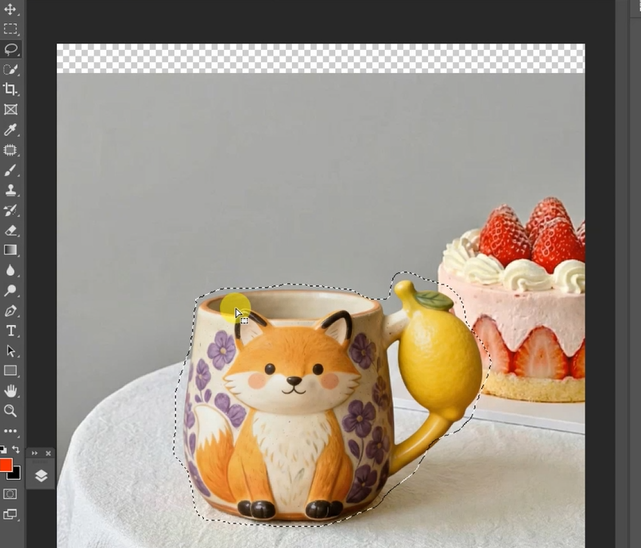
- Mark the area in PS
- Open the reference background in PS.
- Use Marquee or Lasso Tool to select the original mug area.
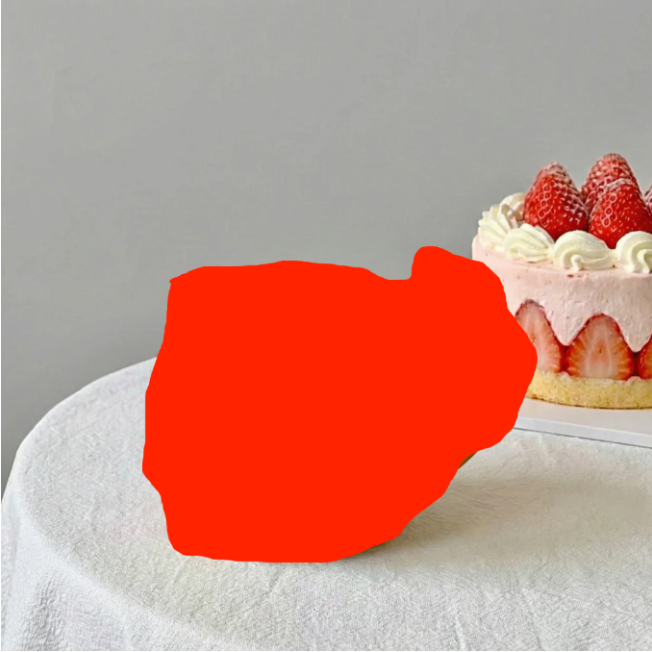
- Fill the selection with red to help AI identify the replacement zone.
- Open Psaide → Nano Banana → Pro Mode
- Upload the marked reference image.
- Upload your product mug image.
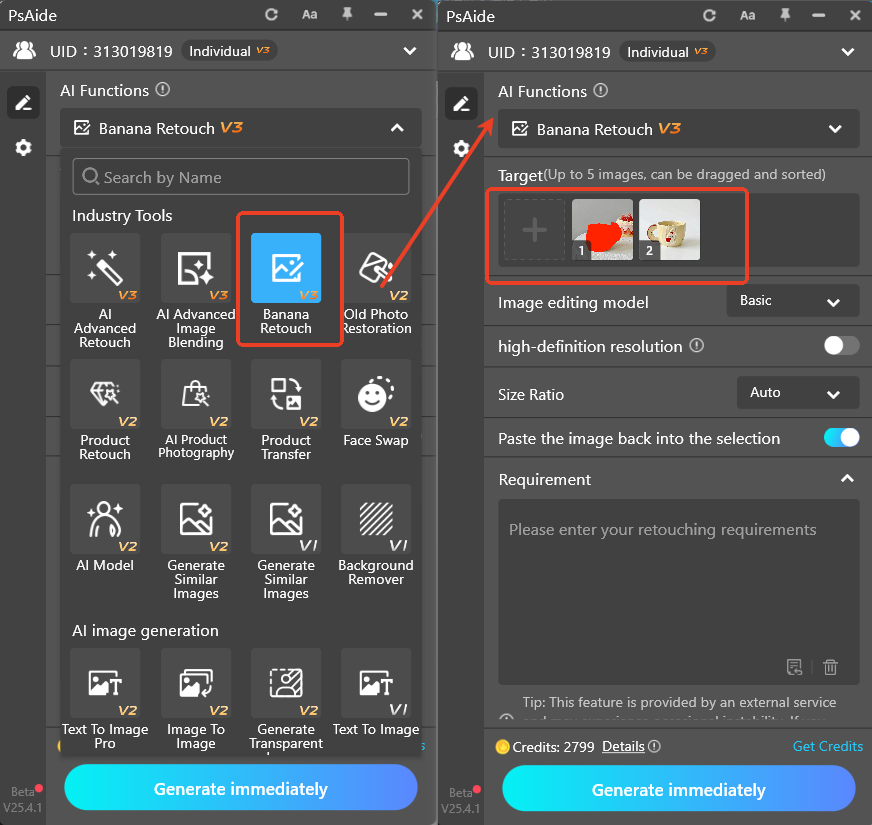
- Enter prompt (copy & use)Replace the mug in Figure 2 with the mug in Figure 1, keep details of Figure 1, natural blending and natural lighting.
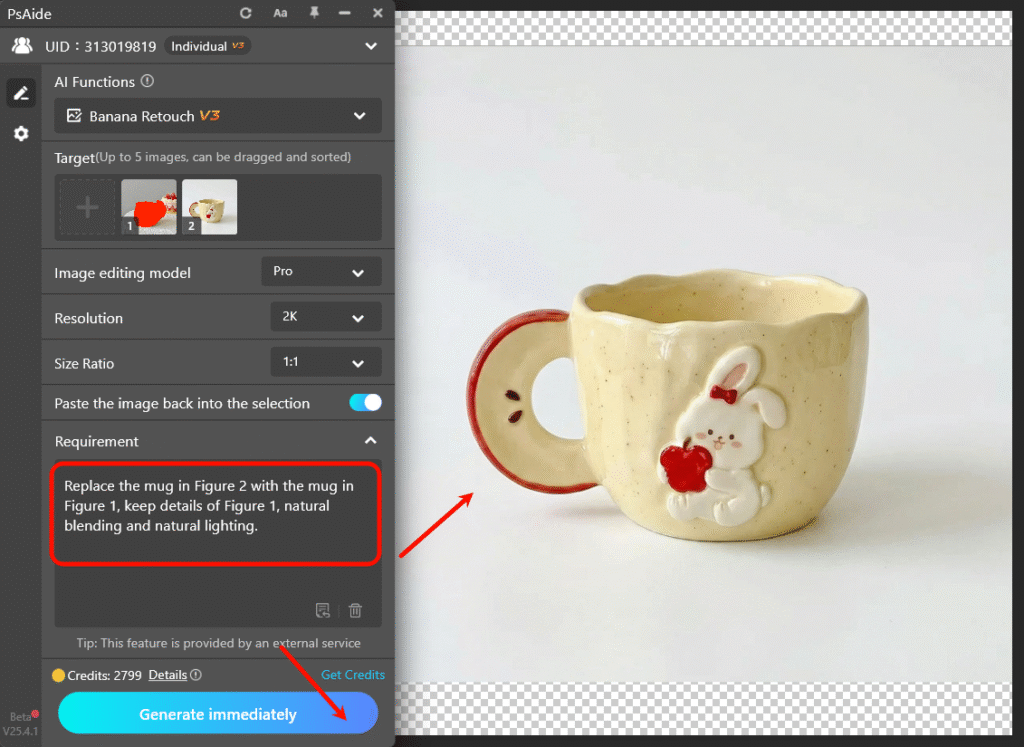
- c:
- Recognizes the red replacement area
- Places your product accurately
- Matches background light, color and shadow
- Creates natural, realistic blendingResult is applied directly to a new PS layer, ready for use.
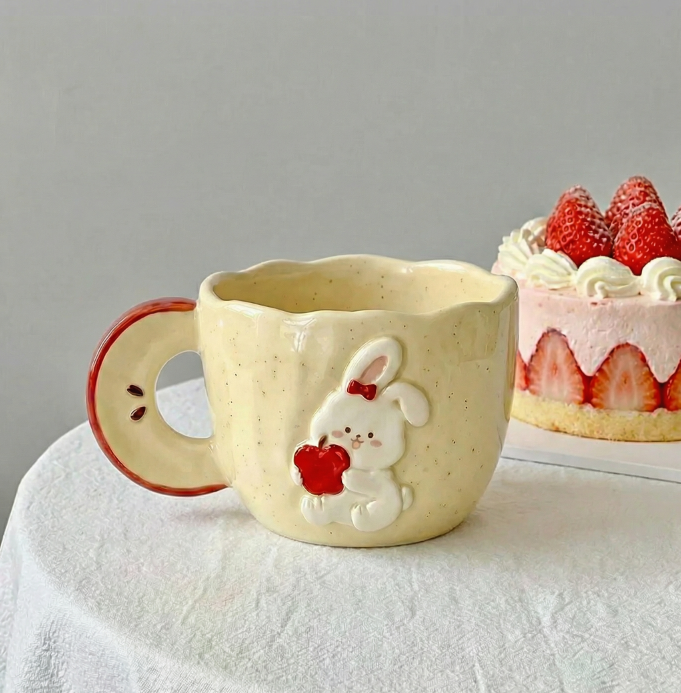
3.Common Issues & Fixes
- Wrong position or size
- Refine the red selection.
- Use similar-angle reference images.
- Add to prompt: centered position, matched size.
- Unnatural blending
- Use Nano Banana Pro mode.
- Add to prompt: unified lighting, environmental blending, real shadows.
Want fast, natural background replacement in PS? Use PS + Psaide Nano Banana Pro for professional e-commerce product blending in 60 seconds.
Download link
https://psaide.com/?sfrom=A86R4u
Invitation Code: A86R4u

