
Table of Contents
Quick Q&A: Nano Banana Glasses Replacement in PS
Q: Can Nano Banana replace model’s glasses naturally in PS?
A: Yes. It uses AI to fit new glasses to facial contours seamlessly.
Q: Need professional PS skills?
A: No. Simple steps with red marking make it accessible for beginners.
1. The Pain of Traditional PS Glasses Replacement & Nano Banana’s Solution
Yet traditional PS glasses replacement is tedious and error-prone: it requires precise outlining with the Pen Tool, warping new glasses to fit facial contours, and adjusting lighting/reflections—often taking 30+ minutes per image, with unnatural results like mismatched proportions or clashing reflections. PsAide’s AI-powered Nano Banana solves this by revolutionizing PS workflows, enabling fast, seamless glasses replacement.
Nano Banana uses advanced AI to fix manual PS flaws. It analyzes the model’s facial structure, original glasses angle, and new eyewear texture, ensuring natural fitting with realistic reflections and lighting that blends with the photo. Suitable for both optical frames and sunglasses, it delivers authentic results and saves professionals significant time.
2. 3-Step Guide to Change Model’s Glasses with Nano Banana in PS
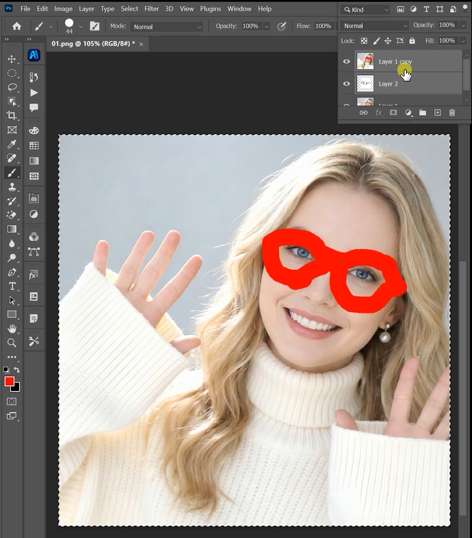
1.Prepare the Model Image with Red-Colored Eyes Area:
- Open the model photo in PS (compatible with 2015+ versions).
- PsAide plugin installed.
- Select the Brush Tool , set the color to red, and carefully paint the area around the model’s eyes where the glasses are located. This red marking helps Nano Banana’s AI quickly identify the target replacement region.

2.Launch Nano Banana and Upload Images:
- Navigate to the “Plugins” menu in PS and select “Nano Banana.”
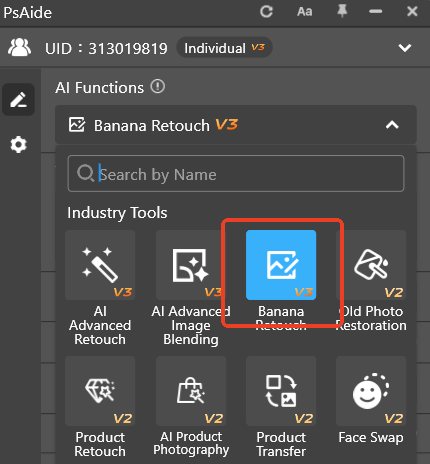
- In the plugin interface, click “Upload Images” to add two files: Figure 1 (the new glasses product photo, preferably on a plain background) and Figure 2 (the red-marked model image).
- Locate the prompt box and type: “Change the glasses worn by the character in Figure 2 to those in Figure 1.”

3.Generate and Preview the Result:
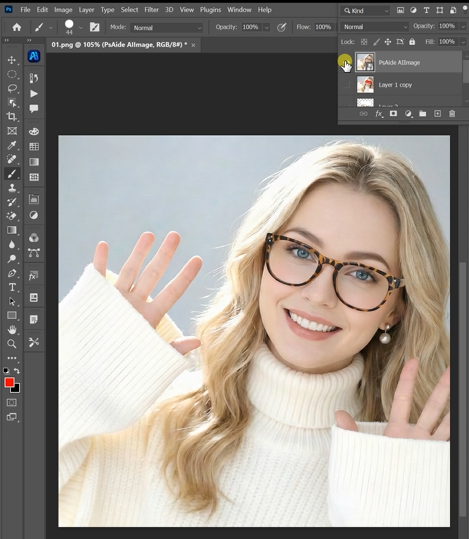
Click the “Generate” button. Nano Banana’s AI processes the request in 20–30 seconds, seamlessly applying the new glasses from Figure 1 to the model in Figure 2. The AI automatically adjusts the glasses’ size, angle, and reflections to fit the model’s face. Preview the natural-looking result, then click “Export to PS” to save the edited image as a new layer in your original project.
3. Key Advantages of Nano Banana for PS Glasses Replacement
For e-commerce brands showcasing multiple eyewear styles or designers refining portrait visuals, Nano Banana is a game-changer. Download the PsAide plugin today to unlock Nano Banana and elevate your PS glasses replacement workflow!orm tool for minor refinements on the generated layer.
Download link
https://psaide.com/?sfrom=A86R4u
Invitation Code: A86R4u

