
Table of Contents
Imagine discovering a precious family photo from decades ago, only to find it marred by time—faded colors, deep scratches, and chemical stains that obscure the faces of loved ones. Traditional restoration methods require expert-level Photoshop skills involving hours of meticulous cloning, healing brush work, and manual color matching. Even professionals struggle with maintaining facial consistency during restoration, often creating results that look “over-restored” and lose the original photograph’s soul.
1.The Intelligent Solution: AI-Powered Historical Restoration
What if you could achieve professional-grade restoration without years of Photoshop experience? Nano Banana Pro introduces intelligent photo restoration that understands historical context. Unlike basic photo editing tools, this advanced AI feature recognizes the difference between damage that needs repair and authentic period details that should be preserved. It maintains the delicate balance between restoration and preservation, ensuring your photos retain their historical authenticity while looking revitalized.
2.What Makes Nano Banana Pro Different?
Context-Aware Restoration: The Pro version analyzes your photo holistically, understanding fabric textures, facial structures, and period-specific elements that standard tools might misinterpret as damage.
Identity-Preserving Technology: Advanced facial recognition algorithms ensure that restored faces maintain their original characteristics—the unique features that make your ancestors recognizable are preserved through the restoration process.
Intelligent Colorization: Instead of applying generic color filters, the AI researches period-appropriate colors and applies them contextually, understanding that 1940s clothing had different color palettes than 1970s fashion.
3.Professional Restoration in Three Simple Steps
Step 1: Prepare Your Historical Photograph
Begin by scanning your old photo at high resolution (minimum 300 DPI) and opening it in Photoshop. For best results, ensure your scan captures all details, even damaged areas. The AI works with what you provide—no preliminary editing required.
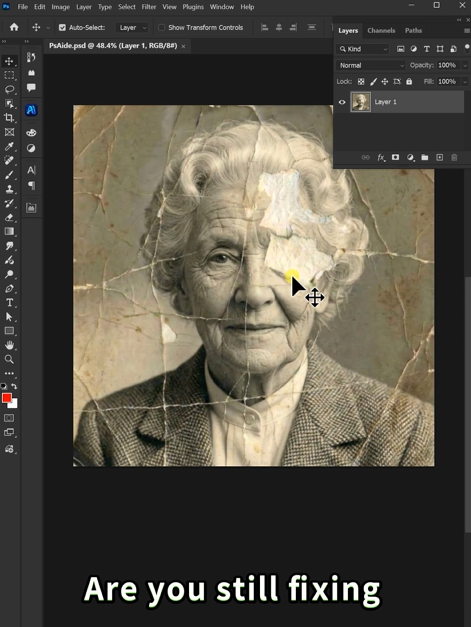
Step 2: Command with Precision
Navigate to the PsAide panel and launch Nano Banana. Select the Pro version for its enhanced historical restoration capabilities.
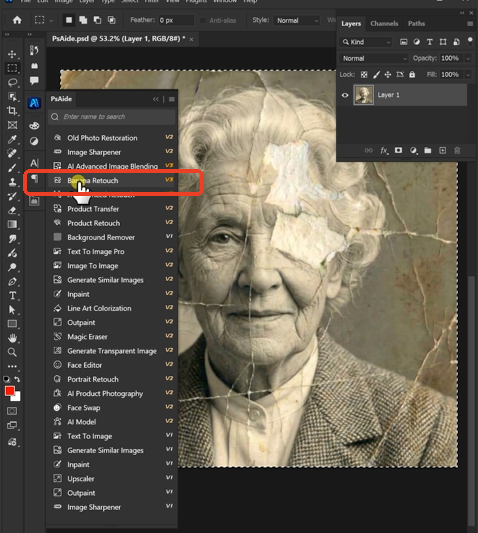
Upload your single photograph, then enter this comprehensive command in the prompt box:
“Restore the photo by repairing damages and scratches Colorize it and ensure the charcater’s facial identity remains consistent.”
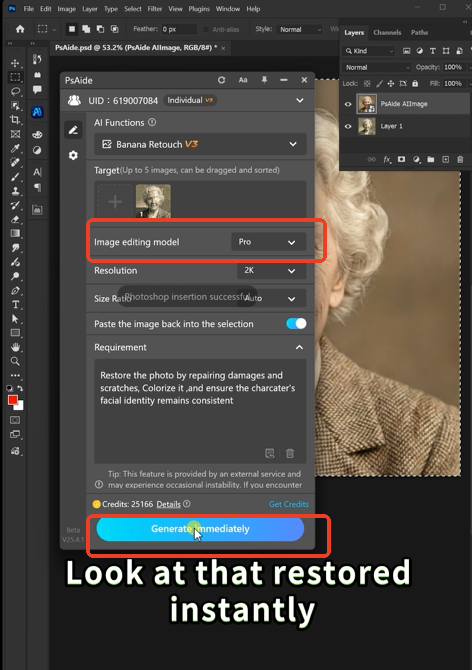
Step 3: Witness the Transformation
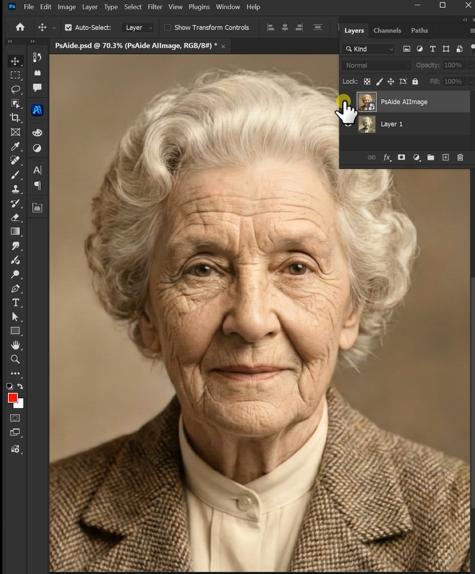
Click “Generate” and observe the intelligent restoration process unfold. Within 60-90 seconds, the AI performs multiple sophisticated operations:
- Damage Analysis & Repair: Identifies and removes scratches, stains, and tears while reconstructing missing details using contextual information from surrounding areas
- Facial Preservation: Maintains original facial features, expressions, and unique characteristics while enhancing clarity
- Historical Colorization: Researches and applies era-appropriate colors to clothing, backgrounds, and skin tones
- Texture Enhancement: Preserves original photographic textures while removing degradation caused by time
- Consistency Maintenance: Ensures all restored elements work together harmoniously, maintaining the photo’s original atmosphere
4.Technical Considerations for Professional Use
Resolution Requirements: Minimum 300 DPI for standard prints, 600 DPI for detailed restoration work
File Formats: Work with TIFF or high-quality JPEG files to preserve detail
Color Management: The AI automatically adjusts for different historical photographic processes (sepia tones, black-and-white, early color processes)
Batch Processing: Restore multiple photos with consistent settings for archival projects
Download link
Begin your restoration journey today and rediscover your history with clarity and color that honors the original moment while making it accessible for future generations.
https://psaide.com/?sfrom=A86R4u
Invitation Code: A86R4u

