
Table of Contents
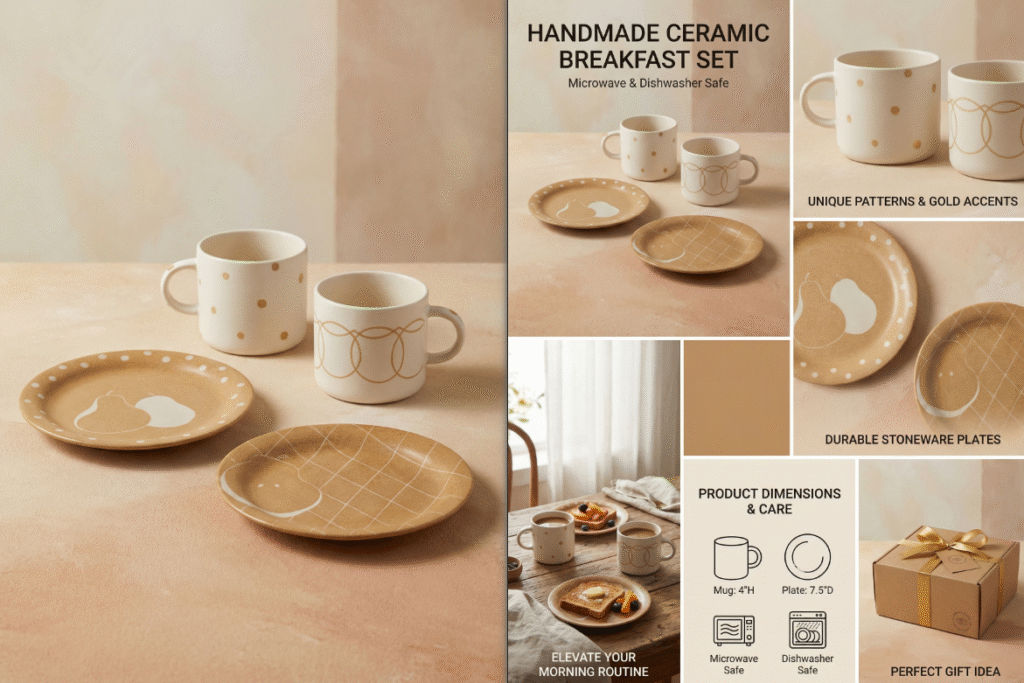
Want to create beautiful e-commerce detail pages for tableware sets without a studio or professional layout skills?
With Psaide Nano Banana Pro, you can efficiently finish everything in 3 steps — from white-background product images to photography-style scene images, and then a full set of detail page designs.
1.Part 1: Create Photography-Style E-commerce Display Images
Intelligently blend white-background tableware into a unified, atmospheric photography scene to make product displays more attractive.
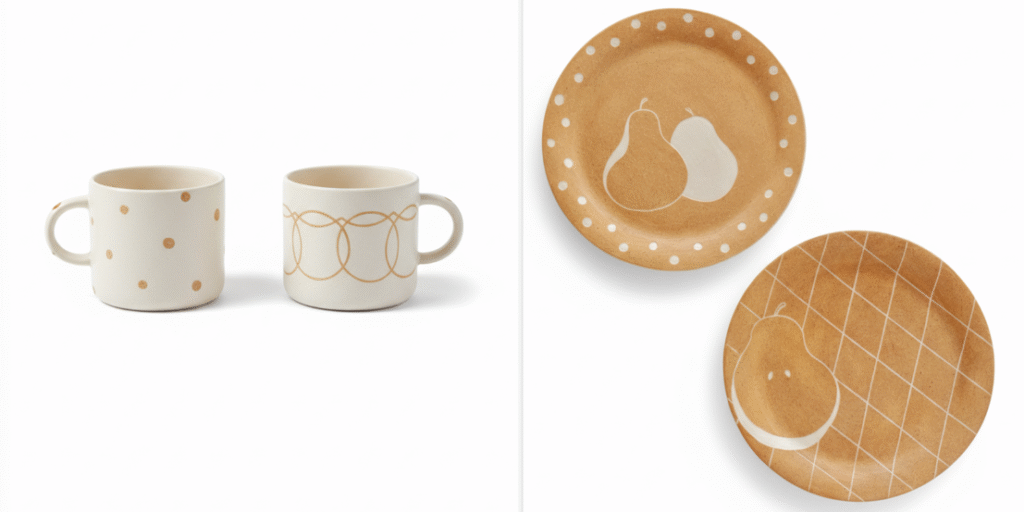
Step 1: Upload White-Background Tableware Images
Prepare two white-background tableware product images.
Open them in Photoshop, then upload to the Nano Banana retouching panel via layer upload or local upload.
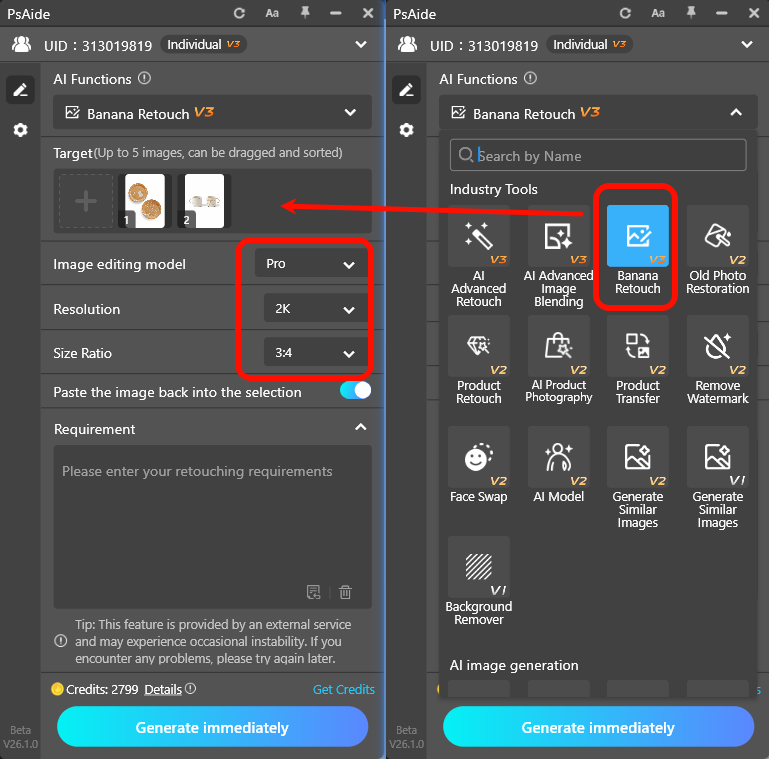
Step 2: Set Professional Blending Model Parameters
- Select Pro Version for accurate recognition of ceramic gloss, metal texture, lighting fusion and scene atmosphere.
- Set resolution to 2K for clear textures and efficient generation.
- Use 3:4 ratio, the golden ratio for e-commerce detail page main images.
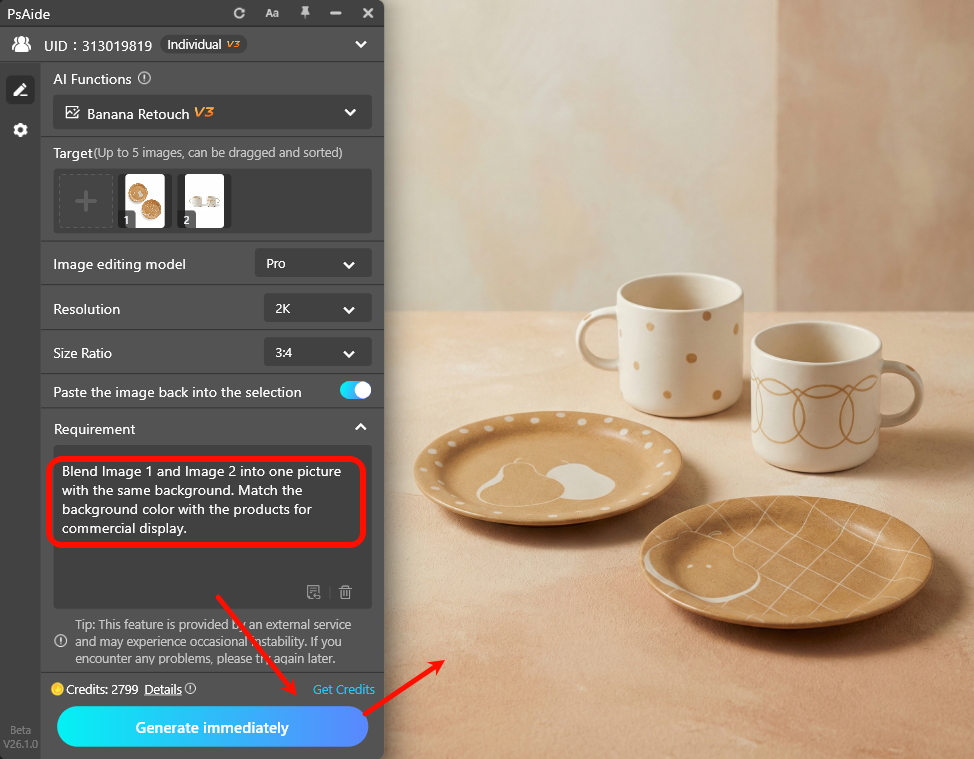
Step 3: Enter Blending Prompt & Generate Photography-Style Image
Sample prompt:
Blend Image 1 and Image 2 into one picture with the same background. Match the background color with the products for commercial display.
Click Generate.
AI will analyze the style and color of the tableware, create a unified photography scene with soft lighting, just like a professional studio shot.
2.Part 2: Create a Full Set of E-commerce Detail Page Images
Based on the generated photography-style image, expand it into a complete e-commerce detail page with one click.
Step 1: Upload the Photography-Style Reference Image
Upload the finished display image as a style reference to Nano Banana.
Step 2: Set Detail Page Generation Parameters
- Continue using Pro Version to ensure high design quality.
- Set resolution to 2K or 4K for clear details and text.
- Choose 3:4 or 9:16 for standard detail page dimensions.
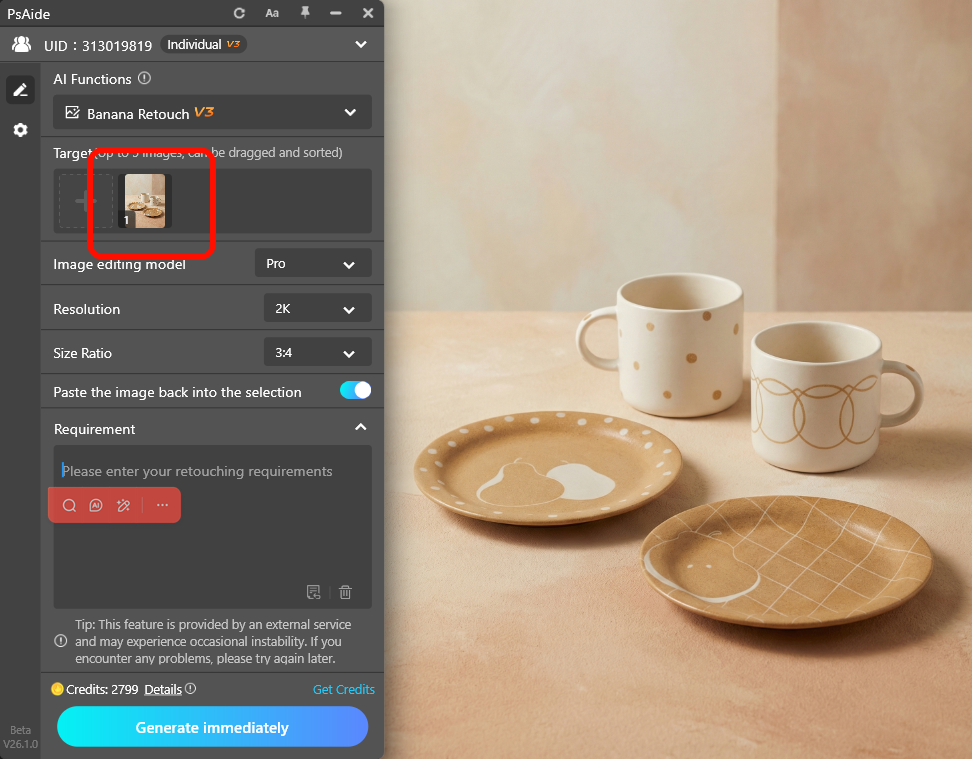
Step 3: Enter Detail Page Prompt & Generate Multiple Versions
Sample prompt:
Based on Reference Image 1, create a high-quality Taobao-style e-commerce detail page set with matching colors and professional layout.
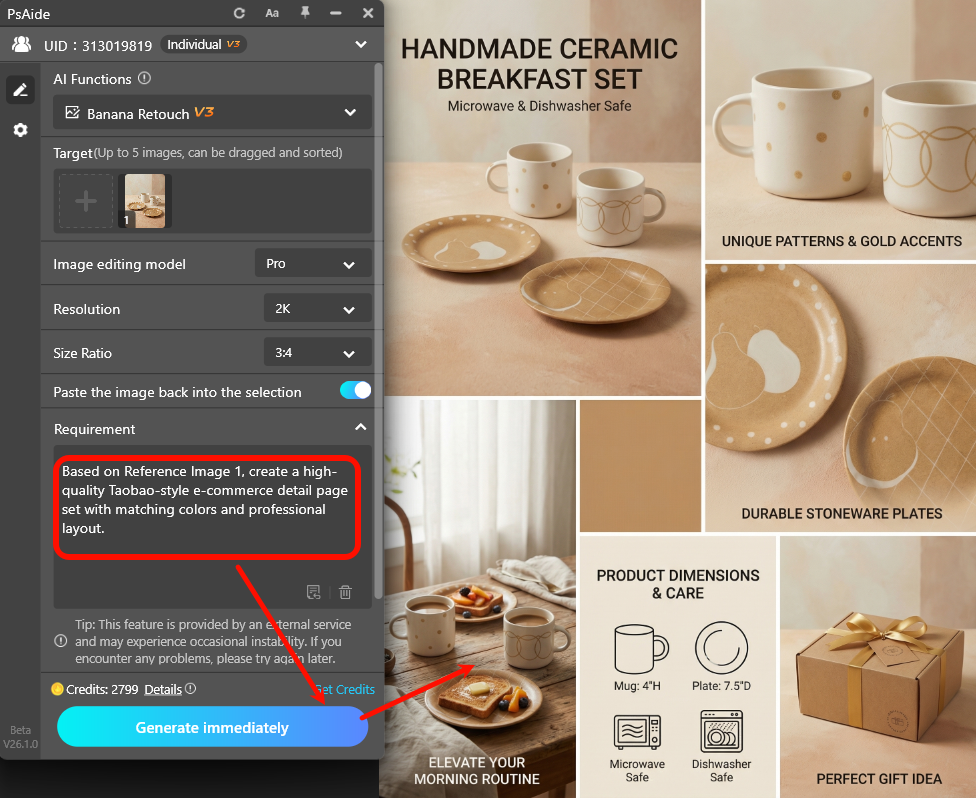
Pro Tips:
- Generate 3–5 times and pick the best version.
- Combine favorite modules from different results.
- Refine in PS by adding logos and adjusting text.
AI will automatically create a complete vertical long-detail page with unified colors, clear hierarchy and professional layout, ready for e-commerce platforms.
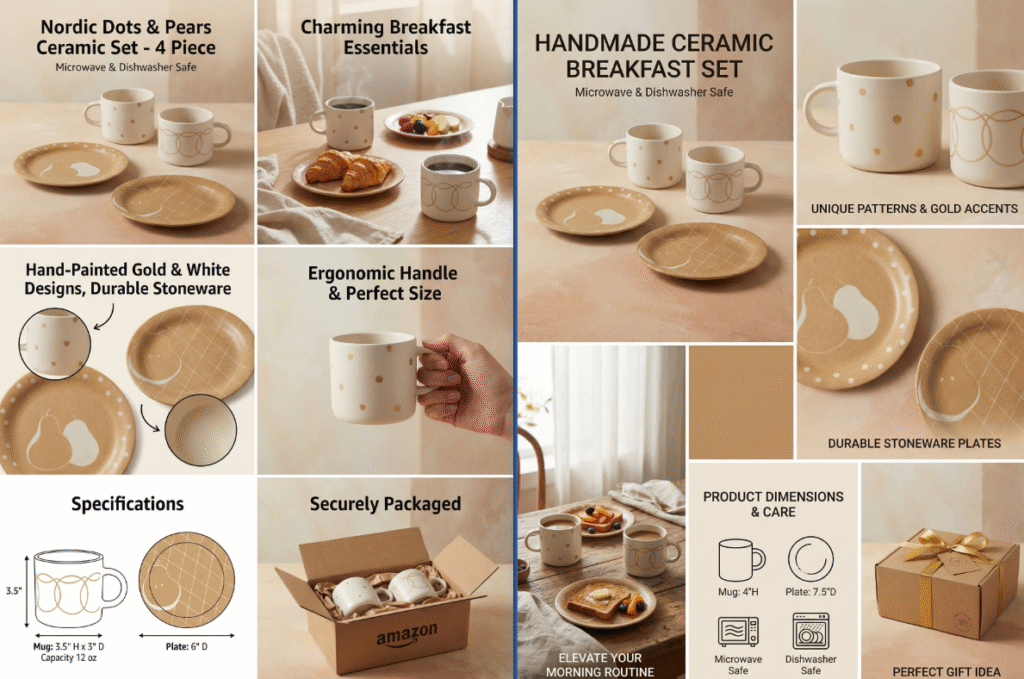
3.Key Optimization Tips for Best Results
- Emphasize color matching in prompts for consistent tones.
- Generate multiple versions to select the best layout.
- Use 3:4 for main images and 9:16 for detail pages.
- Combine modules flexibly for custom design.
4.Post-Editing Workflow in PS
After AI generation, you can optimize in Photoshop:
- Add brand logo and custom fonts.
- Replace with real product parameters and selling points.
- Use 4K upscale to improve clarity.
- Rearrange modules for better browsing logic.
Create professional, studio-quality tableware displays and detail pages easily with PS and Psaide Nano Banana. PS and Psaide Nano Banana.ily with PS and Psaide Nano Banana.
5.Download link

https://psaide.com/?sfrom=A86R4u
Invitation Code: A86R4u

