
Table of Contents
1.The Shoe Replacement Challenge
Manually changing dress shoes in Photoshop presents multiple technical hurdles. Achieving perfect perspective matching with the foot’s angle, recreating realistic leather textures and reflections, and generating accurate floor shadows that match the scene’s lighting are complex tasks. Even with advanced tools, the process can take 15-25 minutes and often results in shoes that appear flat or poorly integrated with the original photograph.
2.Why AI Transforms This Complex Task
Nano Banana’s AI-powered approach revolutionizes shoe replacement. Instead of manually adjusting each element, the intelligent system analyzes both images holistically. When you mark the existing shoes in red, the AI understands exactly what needs replacement. It then analyzes the new shoes’ design, calculates the correct perspective based on foot position, matches lighting conditions automatically, and generates appropriate shadows—all while maintaining natural integration with the floor surface and surrounding environment.
3.What You’ll Need
- Adobe Photoshop with PsAide plugin installed
- Click to Download
- Full-body or lower-body model photograph
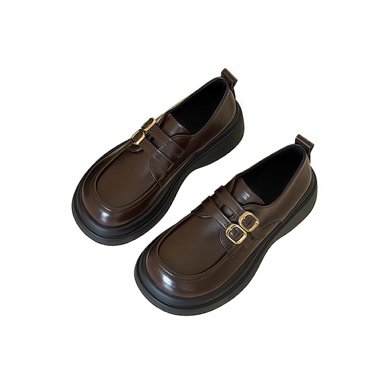
- Clear image of replacement dress shoes
- 2-3 minutes total processing time
4.The 3-Step Shoe Transformation Process
Step 1: Prepare with Strategic Marking
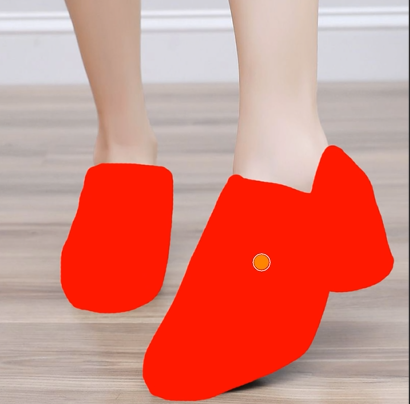
Open both your model photo and shoe product image in Photoshop. Create a duplicate layer of your model photo. Using a bright red brush, carefully paint over both existing shoes. Ensure complete coverage while avoiding socks and surrounding floor area. This marking provides clear visual guidance for the AI.
Step 2: Upload and Command Precisely
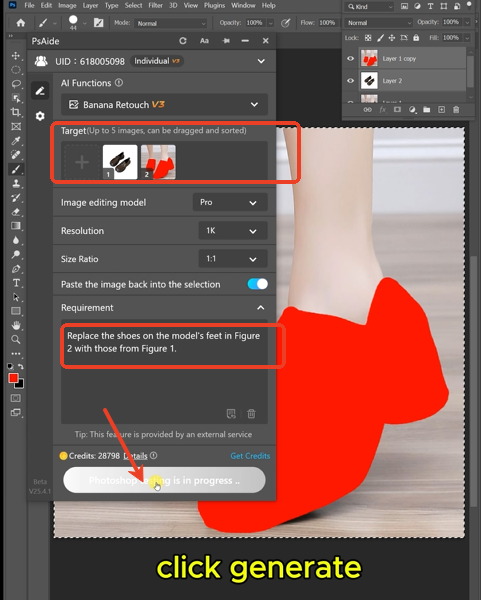
Launch Nano Banana and select the Pro version for enhanced understanding. Upload your prepared images:
- Figure 1: Your replacement dress shoes
- Figure 2: Your model photo with red-marked shoes
Enter this specific prompt:
“Replace the shoes on the model’s feet in Figure 2 with those from Figure 1, maintaining natural perspective and lighting.”
Step 3: Generate Perfectly Integrated Results
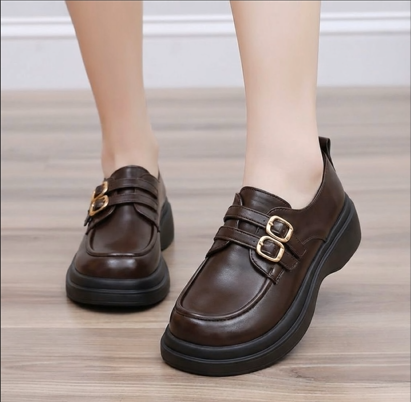
Click “Generate” and wait 30-45 seconds. The AI will: identify and remove the red-marked shoes, position the new dress shoes with correct foot angle alignment, adapt leather textures to match original lighting, create realistic floor shadows, and blend everything seamlessly. The result appears as if the model wore the new shoes during the original photoshoot.
5.Professional Applications & Tips
This technique is ideal for:
- Fashion E-commerce: Showcase multiple shoe styles with the same outfit
- Product Photography: Update catalog images without reshooting
- Marketing Campaigns: Create different footwear variations from single photos
- Personal Projects: Experiment with style options in personal photos
Pro Tips: For optimal results with dress shoes, ensure your replacement image shows the shoes from a similar angle to your model’s foot position. The AI handles various materials including patent leather, suede, and brogues effectively. If the initial placement needs adjustment, use Photoshop’s Transform tool for minor refinements on the generated layer.
Download link
https://psaide.com/?sfrom=A86R4u
Invitation Code: A86R4u

