
Table of Contents
In Photoshop post-processing, low-resolution or blurry images are a common challenge for designers, photographers, and e-commerce professionals. Traditional methods often require manual restoration, which is time-consuming and may produce limited results.
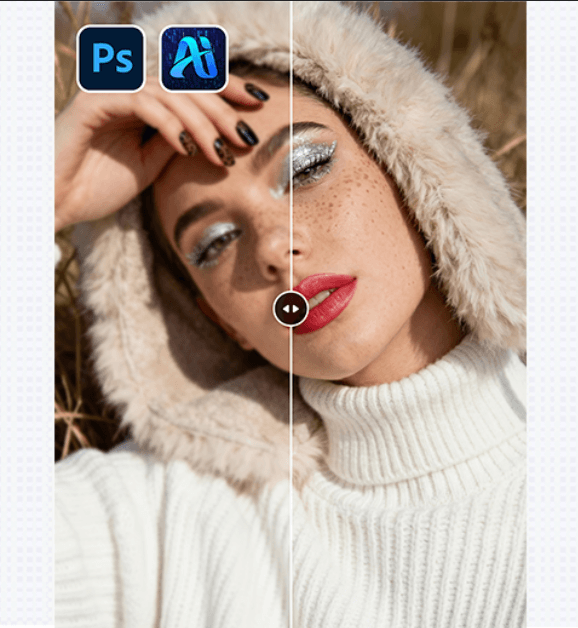
The PSAide plugin integrates the Nano Banana Pro feature directly into Photoshop, leveraging AI image enhancement technology to restore blurry or low-resolution images to high definition, dramatically improving workflow efficiency and image quality.
1. Why Choose Nano Banana Pro?
(1) High-Precision Detail Restoration
Nano Banana Pro uses advanced AI technology to automatically identify details and textures in images, accurately filling in even fine textures and edges.
(2) Easy to Use
One-click HD restoration without complex manual operations, allowing even beginners to achieve professional results quickly.
2. 3-Step Workflow: Easily Restore Low-Resolution Images to HD
Step 1: Prepare Your Image in Photoshop
Before AI HD restoration, performing basic Photoshop preprocessing can yield the best results.
(1) Adjust Exposure and Brightness
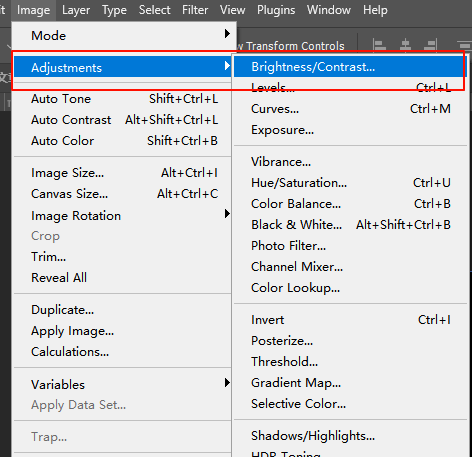
① Open Photoshop and go to Image > Adjustments > Brightness/Contrast.
② Adjust brightness and contrast to make blurry areas easier for Nano Banana Pro to recognize.
(2) Sharpen Image Edges (Optional)
Use Filter > Sharpen > Smart Sharpen to slightly enhance edges, helping the AI plugin identify boundaries more accurately.
(3) Remove Noise
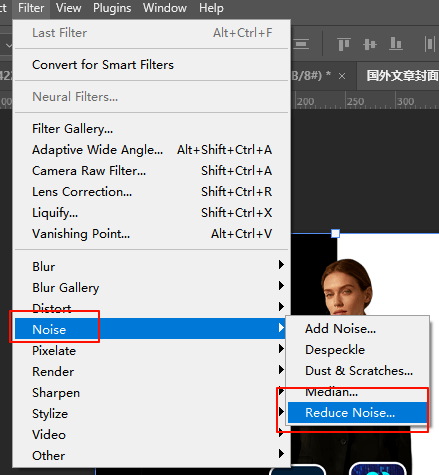
① For images with high noise levels, use Filter > Noise > Reduce Noise to help the AI better restore image details.
Step 2: Use Nano Banana Pro in PSAide Plugin
(1) Launch PSAide Plugin
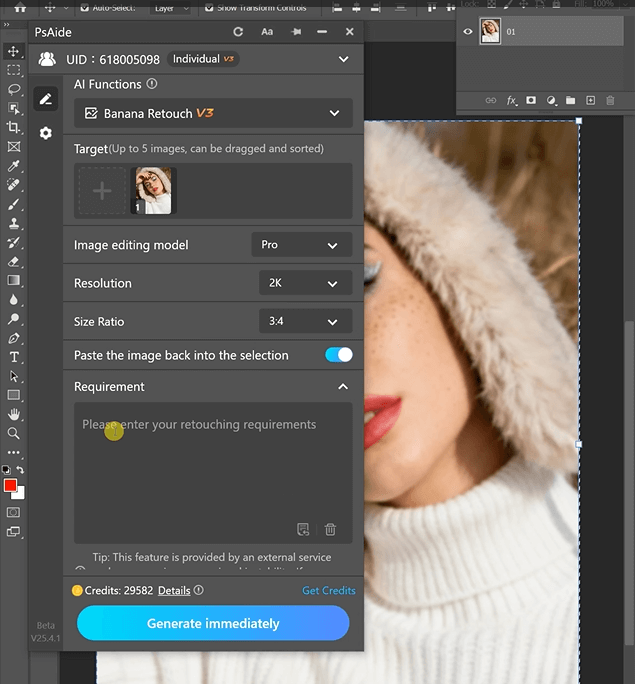
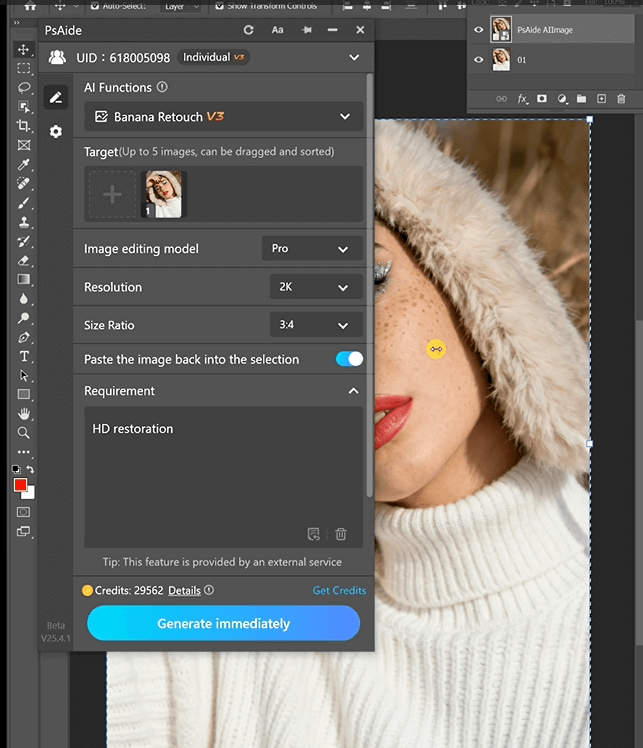
Open the PSAide plugin in Photoshop and locate the Banana Retouch feature.
(2) Import the Image
Import the low-resolution or blurry image into the plugin. Enter the prompt “HD restoration”.
Step 3: Export the HD Image
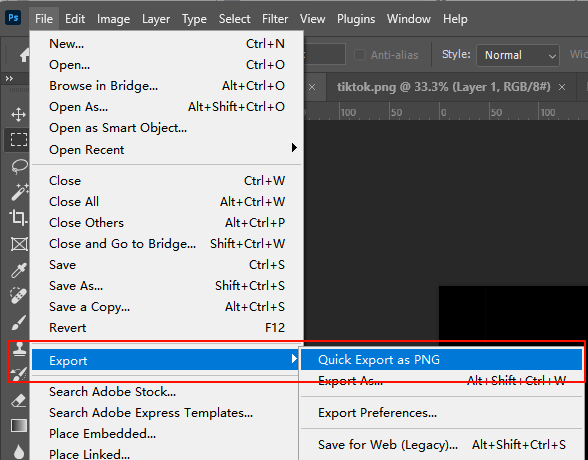
Click File > Export > Export As in Photoshop. Choose PNG or JPEG, and adjust the resolution as needed.Click Export to complete the HD restoration.
3. Conclusion
Download PSAide plugin now and experience AI-driven HD image restoration, bringing every image to life!
Download Link: https://psaide.com/?sfrom=ZfhxUK
Invitation Code: ZfhxUK

