
Table of Contents
Gradient effects are core elements to boost the layering and visual appeal of designs, widely used in poster creation, UI design, and artwork decoration. However, many designers struggle with mismatched colors, harsh transitions, and endless parameter adjustments when making gradients in PS. Fortunately, besides manual PS operations, Psaide plugin’s Nano Banana feature can easily solve these pain points, helping you add smooth gradients to your work in no time.
1. Traditional PS Gradient Creation: Tedioud Steps & Painful Limitations
Creating gradients manually in PS requires precise control over color selection and parameter adjustment, demanding solid design skills and proficient operation.
Step-by-Step Process
- Open your target artwork in PS, select the layer to add gradients to, and unlock it if locked.
- Press shortcut G to activate the Gradient Tool. Long-press the tool to switch between linear, radial and other gradient types, then click the gradient preview bar in the property panel to open the Gradient Editor.
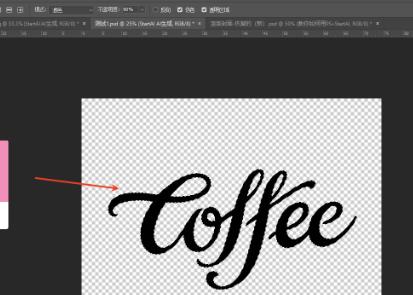
- Add color stops, select colors, adjust stop positions and midpoint sliders repeatedly to control transition ratios, and check the “Dither” option to reduce color banding.
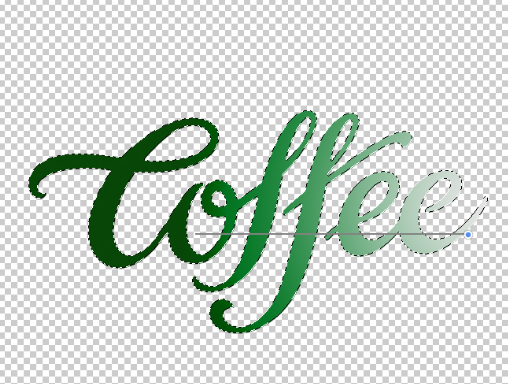
- Drag your mouse across the artwork to apply the gradient. Re-apply if the direction or range is unsatisfactory, and adjust blend modes and opacity for optimization. The whole process takes 15–20 minutes of constant tweaks, often resulting in jarring colors and stiff transitions—hard for beginners to master quickly.
2. Efficient Alternative: 3-Step Gradient Generation with Psaide’s Nano Banana
Targeting the pain points of traditional PS gradient creation, Nano Banana in Psaide leverages advanced AI algorithms to match your artwork’s original colors and generate natural gradients automatically—no complex parameter adjustments needed.
Step-by-Step Process
- Import Artwork to PS: Launch PS, click “File > Open” to import your high-resolution artwork (HD quality ensures finer gradient details). Select the target layer directly without any pre-processing.

- Launch Nano Banana & Set Prompts: Locate the installed Psaide panel in your PS interface Expand the function list and click Nano Banana. Enter the prompt in the text box: “Generate a cartoon handwritten style with round, plump strokes, elastic Q-like texture, surface highlights, 3D dimensionality and vividness, paired with natural green gradients”. No extra parameters needed—the AI will automatically recognize the artwork’s color properties and add 3D effects simultaneously.
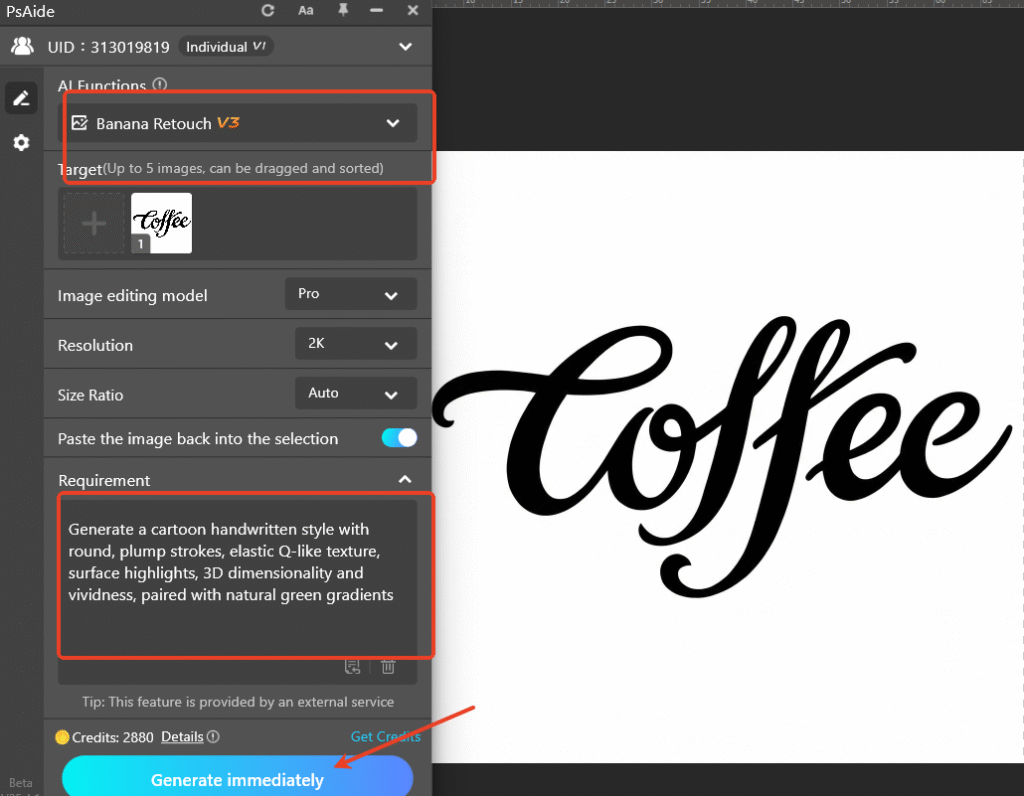
- One-Click Generate & Preview: Click the “Generate” button in the plugin interface. The AI will finish processing in 10–15 seconds, and PS will automatically create a new layer with the gradient effect. Hide the original layer to preview: the generated gradient blends seamlessly with the artwork, no color banding at all—ready to use in your design without further tweaks.

3. Core Advantages of Nano Banana Gradient Creation
Compared with traditional PS methods, Nano Banana has distinct edges:
- Precise Color Matching: AI intelligently aligns with your artwork’s colors to avoid jarring transitions.
- Ultra-Simple Operation: 3 steps to get professional results—zero learning curve for beginners.
- Unbeatable Efficiency: The whole process takes less than 1 minute, far faster than manual editing.
- Natural Effects: AI optimizes transition details to eliminate color banding, meeting professional design standards.
Pro Tips
- Keep your artwork’s original color information intact—avoid pre-coloring to ensure AI matching accuracy.
- Add descriptions like “warm tones” or “cool tones” to your prompts if you need specific gradient styles.
- Fine-tune gradient intensity by lowering the gradient layer’s opacity in PS—no impact on overall color harmony.
Download link
Struggling with “how to create gradient effects in PS”? Ditch the tedious parameter tweaks and try Nano Banana in Psaide! No professional design skills required—generate natural, harmonious gradients with one click, and boost your design efficiency and work quality dramatically.
https://psaide.com/?sfrom=A86R4u
Invitation Code: A86R4u

