
Table of Contents
As the demand for image quality enhancement continues to grow, HD image restoration has become a common task for designers, e-commerce professionals, and content creators. When users search for nano banana pro, one key question often comes up:
Can I restore image quality directly inside Photoshop without exporting files or switching tools?
To address this need, the psaide plugin integrates Nano Banana Pro into Photoshop under the feature name banana retouch, enabling one-click HD restoration directly within PS.

1.Banana retouch: Using Nano Banana Pro Inside Photoshop
In the psaide plugin, banana retouch is the feature powered by Nano Banana Pro. Its key advantages include:
①Fully integrated into the Photoshop plugin
②Simple and streamlined workflow
③No complex parameter adjustments required
This turns HD restoration into a one-click process inside Photoshop.
2.How to Restore Images in HD with banana retouch (3 Steps)
(1)Open the psaide Plugin
Launch the psaide plugin inside Photoshop and access the feature panel.
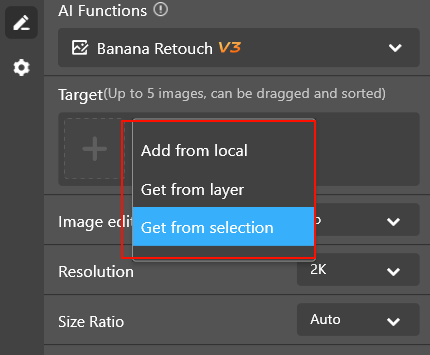
(2)Import the Image into the Plugin
You can import images in two ways:
①Canvas Selection Mode: restore a selected area of the canvas
②Layer Input Mode: restore the currently selected layer
This allows both full-image and partial HD restoration.
(3)Enter the Prompt and Generate
In the prompt input box, enter:
HD restoration
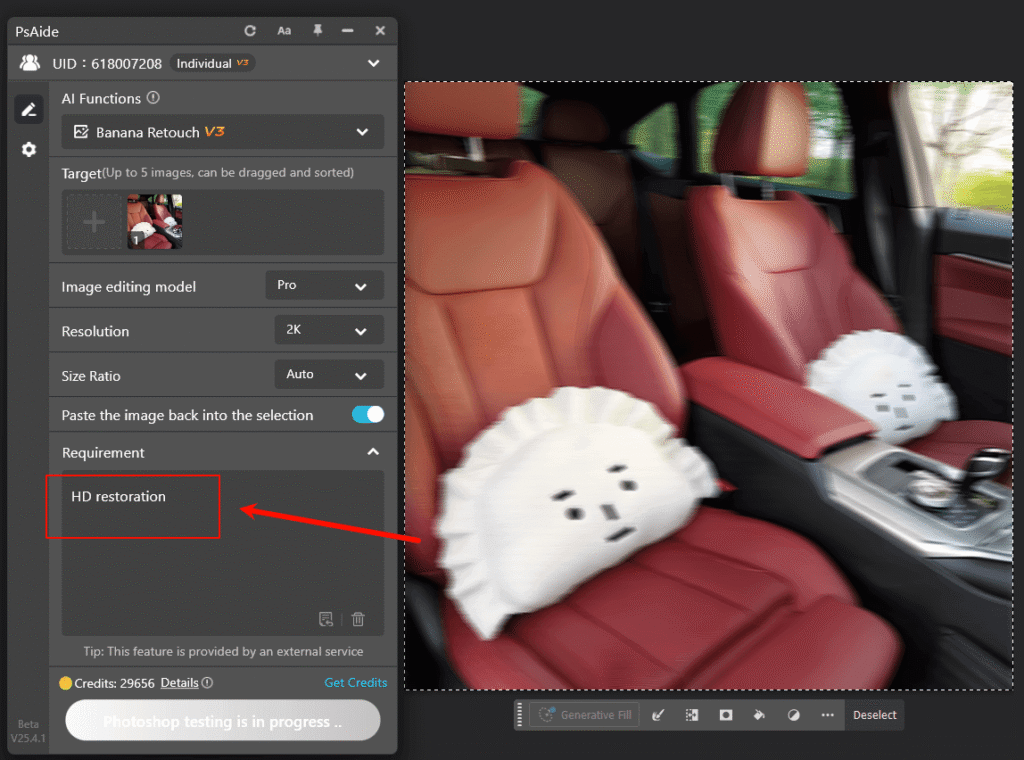
Then click “Generate Immediately”. banana retouch will invoke Nano Banana Pro to automatically restore image quality and output a clearer result.

3.Who Is banana retouch Best For?
①Restoring old or historical photos
②Enhancing blurry product images for e-commerce
③Improving compressed or web images
④Increasing clarity of design assets
If you frequently search for nano banana pro HD restoration, Photoshopimage enhancement, or restore blurry images, this plugin-based workflow can significantly improve efficiency.
4.Conclusion
Traditional HD image restoration often requires multiple tools and repeated exports. With banana retouch in the psaide plugin, powered by Nano Banana Pro, HD restoration becomes fast and seamless.
By opening the plugin, importing an image, entering HD restoration, and clicking Generate Immediately, you can complete HD image restoration entirely within Photoshop.

For users looking to restore image quality efficiently inside PS, nano banana pro combined with banana retouch offers a practical and streamlined solution.
Download Link: https://psaide.com/?sfrom=ZfhxUK
Invitation Code: ZfhxUK

