
Table of Contents
In Photoshop, the Pen Tool is a powerful tool, especially suited for tasks that require precise selections. With the Pen Tool, we can outline the object and achieve a perfect cutout effect.
1. Why Choose the Pen Tool for Cutouts?
The Pen Tool allows us to draw paths with precision, making it ideal for objects with clear edges and distinct outlines. It’s especially useful in scenarios like product photography, architectural design, or any situation where edge control is critical.
2. Steps to Perform Pen Tool Cutout in Photoshop
Step 1: Select the Pen Tool (shortcut P) and start clicking on the image to create anchor points, connecting them to form a path.
Step 2: Continue adding anchor points and adjust the direction lines to refine the path, outlining the shape of the object.

Step 3: Right-click on the path and select “Make Selection”, then press Ctrl + J to duplicate the selection to a new layer.
3. Enhancing with Psaide Plugin
Plugin download link: Click to Download
While the Pen Tool is very precise, it can become cumbersome when dealing with complex backgrounds. In such cases, you can use the Psaide plugin’s Background Remover feature, which can quickly recognize the subject of the image and remove the background.
4.Steps for Using Psaide Background Remover:
Step 1: Install and launch the Psaide plugin.
Step 2: Select the Background Remover function, and the AI will automatically analyze the image.
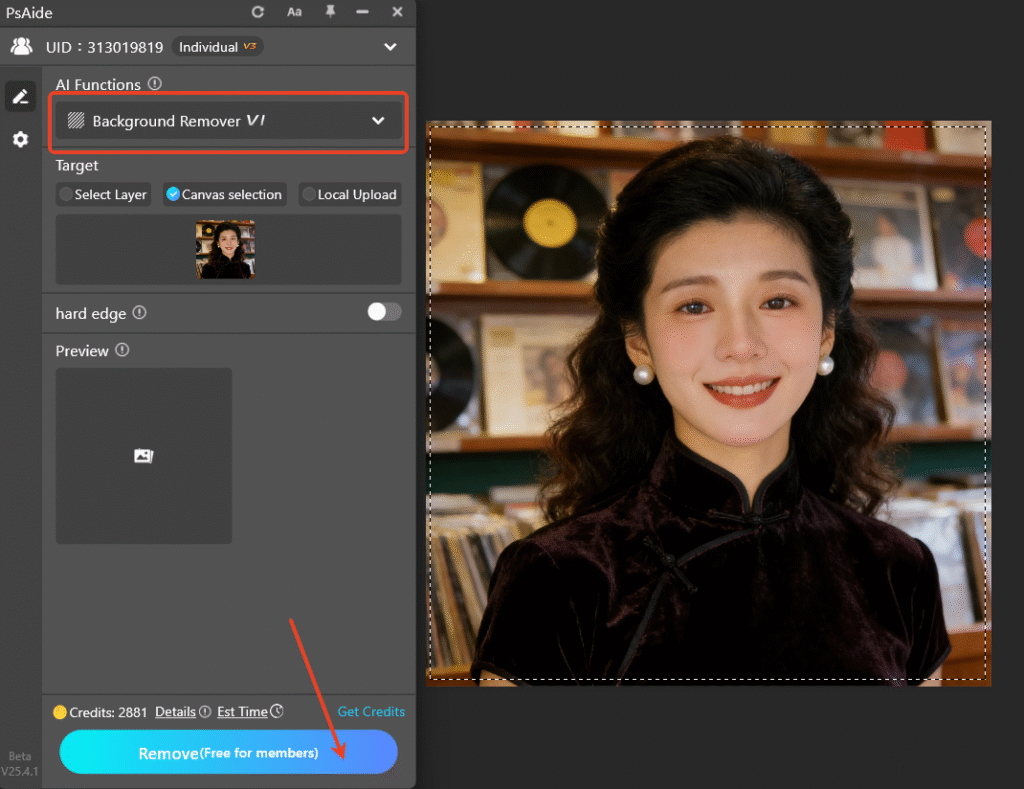
Step 3: Within a few seconds, the plugin will automatically remove the background, leaving a clean subject image.

Combining the Pen Tool with Psaide Background Remover for Enhanced Efficiency
By combining the Pen Tool and Psaide Background Remover, you can complete cutout tasks more efficiently. The Pen Tool ensures precision, while Psaide’s Background Remover provides a fast solution when dealing with complex backgrounds, allowing you to work more quickly and save valuable time.
Download link
Download Psaide now to experience its fast background removal feature and boost your Photoshop workflow!
https://psaide.com/?sfrom=A86R4u
Invitation Code: A86R4u

