
Table of Contents
In fields such as design, e-commerce, and photography post-processing, background removal in Photoshop is a core skill used almost every day. Whether it’s removing backgrounds from portraits, product images, or replacing image backgrounds, the quality of background removal directly affects the professionalism of the final result.
This article introduces common Photoshop background removal methods and focuses on how to use the Background Remover feature in the psaide plugin to complete background removal more efficiently within Photoshop.
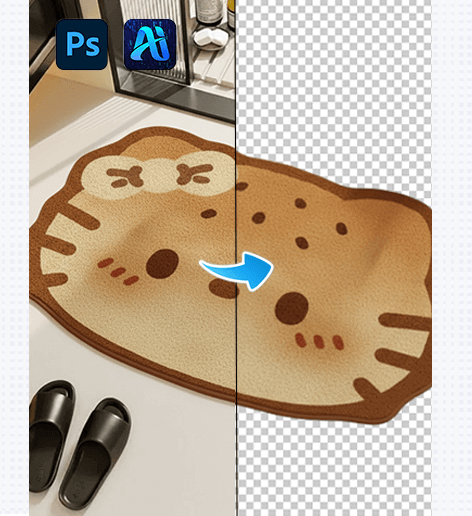
1.Common Photoshop Background Removal Methods
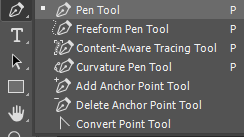
(1)Pen Tool Background Removal
The Pen Tool is one of the most traditional and precise methods for background removal in Photoshop. It is commonly used for:e-commerce product images or objects with clear and regular edges
① Advantages
Clean and precise edges and high level of control
② Disadvantages
Complex operation and slow workflow, not suitable for large volumes of images
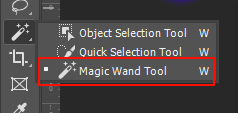
(2)Quick Selection Tool / Magic Wand Tool
When the background color is relatively simple, the Quick Selection Tool or Magic Wand Tool can be used for background removal.
① Advantages
Easy to learn and suitable for simple backgrounds
② Disadvantages
Limited performance on complex backgrounds and poor handling of fine details such as hair
2.Why Choose psaide for Photoshop Background Removal?
If you want to maintain high-quality results while significantly improving efficiency, the psaide plugin is a great option.
Psaide is an intelligent plugin built directly into Photoshop, allowing you to remove backgrounds without leaving PS. It is especially suitable for high-frequency, everyday background removal tasks.
3.How to Use psaide Background Remover in Photoshop
The Background Remover workflow in psaide is extremely simple and can be completed in just three steps.
(1)Step 1: Place the Image on the Photoshop Canvas
Open Photoshop and load the image you want to process:
①Drag the image directly into the Photoshop canvas
②Or use File → Open to import the image
Make sure the image is visible on the current canvas or layer.
(2)Step 2: Open the psaide Plugin and Select a Removal Mode
Open the psaide plugin in Photoshop and choose the appropriate input mode based on your needs:
① Layer Upload Mode
Applies background removal to the currently selected layer.
Ideal for quick processing of single images.
② Canvas Selection Mode
Applies background removal to a selected area on the canvas.
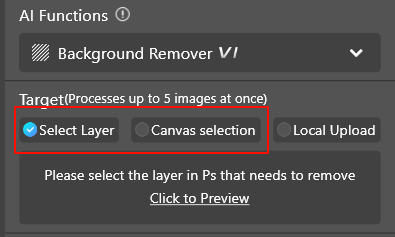
Suitable for partial background removal or complex compositions.
(3)Step 3: Click Generate to Remove the Background Automatically
After selecting the mode, simply click the “Generate” button. The psaide Background Remover will automatically complete:
Subject detection\Background separation\Output of the background-removed result
No manual outlining or repeated edge refinement is required, saving a significant amount of time.

- Conclusion
Although Photoshop offers multiple native background removal tools, efficiency is often more important than complexity in real-world workflows.
With the Background Remover feature in the psaide plugin, you can quickly achieve high-quality background removal directly in Photoshop, reduce repetitive work, and spend more time on creativity and design.

If you are looking for a simpler and more efficient Photoshop background removal solution, psaide has become a trusted choice for more and more designers and e-commerce professionals.
Download Link: https://psaide.com/?sfrom=ZfhxUK
Invitation Code: ZfhxUK

