
Table of Contents
Many users encounter AI-generated, translucent or large-area watermarks on e-commerce images, which are not suitable for commercial use.
Removing watermarks with native PS often causes blurry textures, damaged skin or patterns, especially on complex backgrounds. Manual tools like Content-Aware Fill and Clone Stamp are slow and leave obvious traces.
With Psaide’s AI watermark removal, you can Remove watermark quickly without damaging the original texture.
1.Pain Points of Native PS Watermark Removal
- Slow and inefficient for large or complex watermarks
- Easy to blur skin, fabric and product details
- Hard to fully erase translucent AI watermarks
- Beginners often get obvious repair traces
2.Steps to Remove Watermark with PS + Psaide
- Open the watermarked image in PS and launch Psaide.
- Choose the watermark removal tool:
- Fast Mode: for small & simple watermarks
- Pro Mode: for complex backgrounds, large AI watermarks and portraits
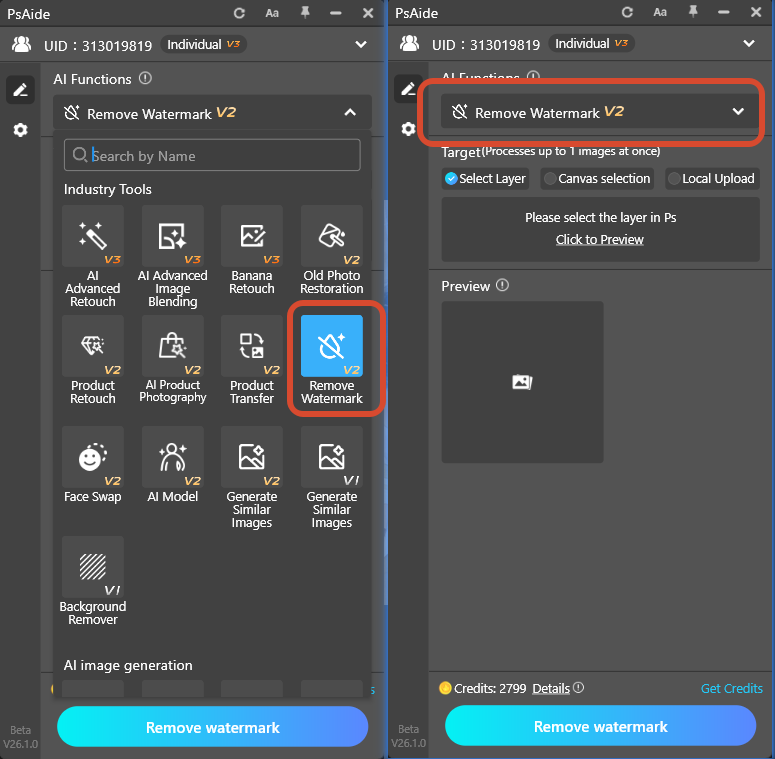
- Select the watermark area with a selection tool.
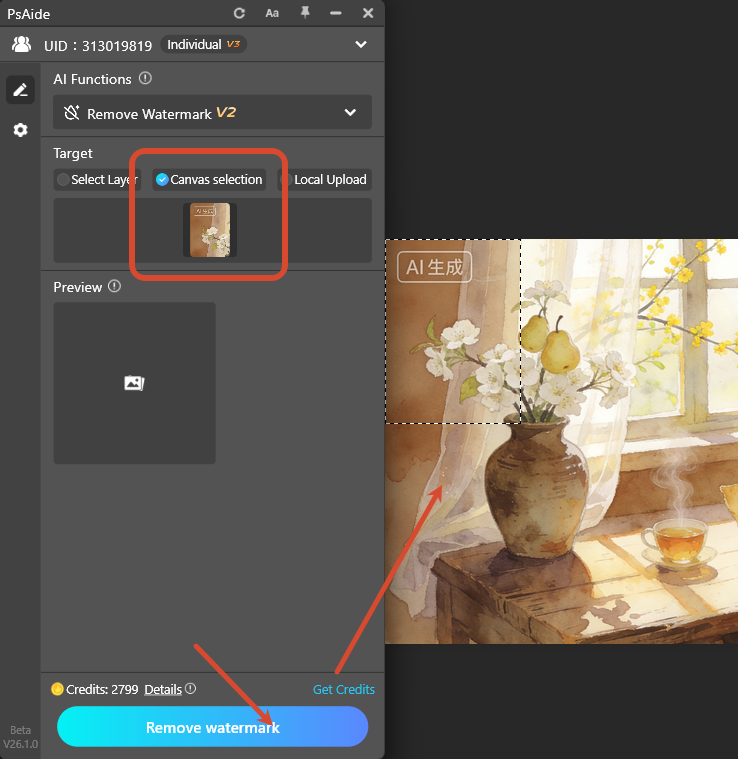
- Click Generate.AI removes the watermark and restores background texture naturally.

3.Alternative PS Methods (Backup Solutions)
- Content-Aware Fill: for simple watermarks on solid backgrounds
- Clone Stamp Tool: for uniform textures like fabric and walls
- Patch Tool: for text and small watermarks
- Mask & Gradient: for translucent light watermarks
Remove any watermark cleanly with PS and Psaide, for ready-to-use commercial images.ercial-ready outfit images easily with PS and Psaide Nano Banana.
4.Download link

https://psaide.com/?sfrom=A86R4u
Invitation Code: A86R4u

