
Table of Contents
You have a great lifestyle photo. The model is looking away from the camera, maybe toward a sunset. The lighting is perfect. The mood is right.
But the baseball cap is wrong. The logo is outdated. The color doesn’t match the new collection. Or maybe the client simply changed their mind.
Now what?
Reshoot? That means rebooking the model, the photographer, the location. Thousands of dollars. Days of waiting.
Manually edit in Photoshop? A baseball cap has a structured crown, a curved brim, and often a visible logo. Matching the head angle is difficult. Positioning the brim to look natural is guesswork. Making the cap sit at the correct depth on the forehead takes trial and error. And shadows where the cap meets the hair? Those are even harder.
There’s a faster way.
1、The Solution: Nano Banana Pro in 3 Steps
Here’s how to replace any baseball cap or hat on a model using AI inside Photoshop.
What You Need
- Adobe Photoshop with PsAide plugin
- One model photo (wearing original cap)
- One product photo (your new cap)
- 60 seconds
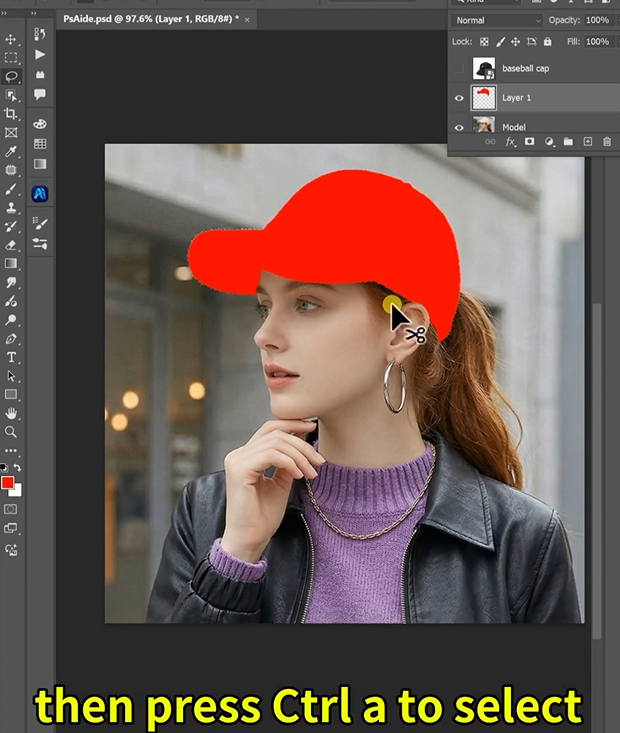
Step 1: Mark the Old Cap in Red
Open your model photo in Photoshop. Grab the Lasso Tool. Draw a rough selection around the entire cap — crown, brim, and any visible side panels. Fill the selection with bright red (RGB: 255, 0, 0).
Don’t worry about perfect edges around the hair. Just cover the cap’s main shape. The red color tells the AI exactly what to replace.
Step 2: Write Your Prompt
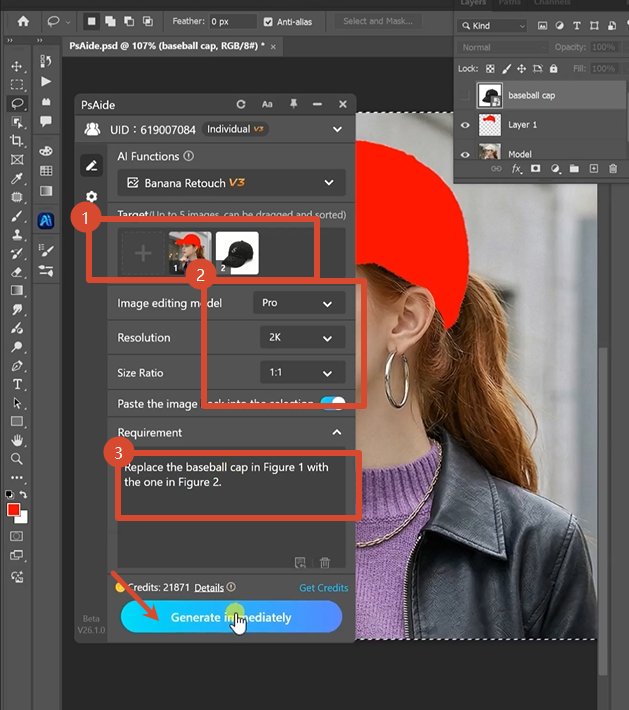
Open the PsAide panel. Launch Nano Banana and select the Pro version. Set output resolution to 2K — sharp enough for cap fabric and logos, fast enough for quick processing.
Upload your two images:
- Figure 1: Your new cap product photo
- Figure 2: Your model photo with the red marking
Type this exact command:
“Replace the baseball cap in Figure 1 with the one in Figure 2.”
Click Generate. Wait 45-60 seconds.
Step 3: Get Your Result
The AI removes the red area. It analyzes the model’s head angle, hairline, and face position. It places the new cap at the correct depth on the forehead. It adjusts the brim curve to match the head’s orientation. It generates realistic shadows where the cap meets the hair.
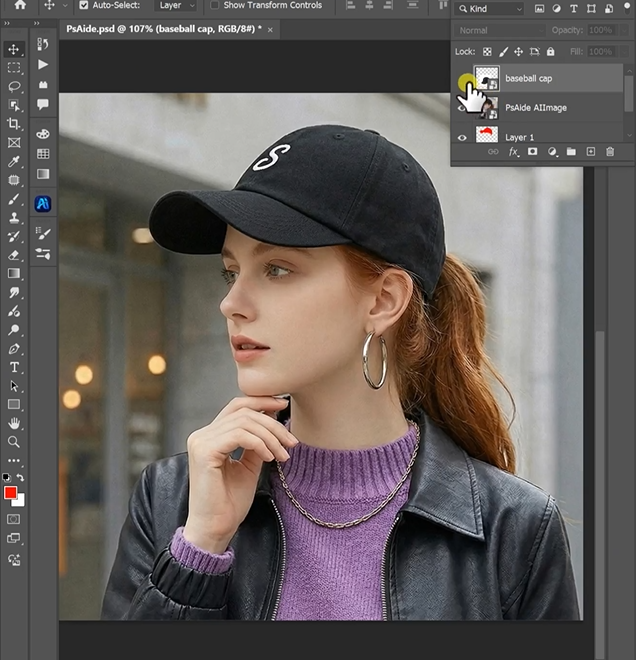
The model is now wearing your new cap. Same pose. Same photo. Different headwear.
2、Pro Tips for Perfect Cap Swaps
1. Mark the entire cap. Include the brim, crown, and any visible side details. Don’t leave gaps.
2. Consider the brim direction. If the original cap has the brim forward and your new cap has it backward, mention it in your prompt: “Replace the cap, keeping the brim facing forward.”
3. Match the angle. Choose a product photo where the new cap is shown from a similar angle as the original. Front views work best for front-facing caps.
4. 2K resolution is ideal. Hat fabrics and embroidered logos look clean at 2K. 4K is unnecessary for web catalogs and slows down processing.
5. Keep your original layers. Save the PSD with your red marking. You can reuse the same model photo to swap multiple cap styles in seconds.
6. For logos: If your cap has a specific logo placement, add “preserve the logo position” to your prompt.
7. For different head sizes: The AI automatically scales the cap to fit. You don’t need to measure or adjust.
3、Summary
You don’t need a second photoshoot. You don’t need to match head angles by eye. You don’t need to guess where the brim should sit.
One red marker. One clear prompt. One minute.
Your model wears any baseball cap you want. The fit looks natural. The lighting matches. The shadows fall correctly.
That’s the difference between hours of manual editing and working with AI.
4、Download link

https://psaide.com/?sfrom=A86R4u
Invitation Code: A86R4u

