
Table of Contents
AI advanced retouch technology, paired with professional Photoshop plugins, offers a new and efficient solution to the challenges of image editing.
For graphic designers, e-commerce designers, and brand marketers, editing text content in images directly affects the professionalism and impact of visual materials.

1. PsAide Plugin for Effortless Image Text Editing
(1)AI Advanced Retouch Technology: Image Text Editing Example
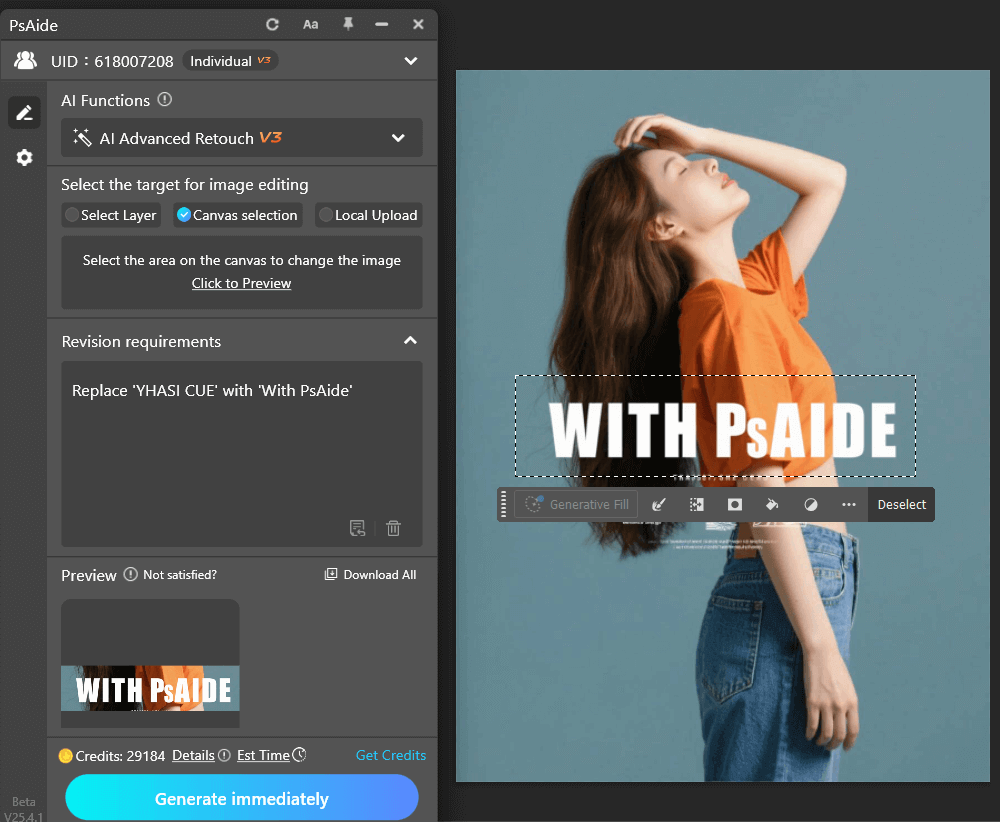
PsAide’s AI-powered image text editing feature outperforms traditional methods. For example, when changing “YHASI CUE” to “With PsAide,” the plugin preserves the original font style, stroke thickness, and letter spacing, while also matching color saturation, lighting, and background textures. The result blends seamlessly with the original design, eliminating issues like font mismatches and style disruption commonly found in manual editing.
(2)Advantages of Image Text Editing with AI Advanced Retouch
The core benefits of this feature align perfectly with the design industry’s need for “efficiency, accuracy, and consistency,” fully utilizing the power of AI advanced retouch:
① Significant Time Saving:
No need to manually erase or adjust font parameters—AI advanced retouch allows for quick editing of image text. The time-consuming process of finding matching fonts and manually aligning text to the background is completely eliminated. This reduces what would normally take 1-2 hours to just a few seconds, making it especially useful for urgent tasks such as e-commerce promotions or brand events.
② Perfect Font Preservation:
The AI algorithm automatically identifies the font type (serif, sans-serif, handwriting), size, weight, letter spacing, and special effects (such as stroke, shadow, gradient). After editing, the new text matches the original font 1:1, preventing visual inconsistencies that can arise from font differences. This ensures brand consistency.
2. How to Use PsAide AI Advanced Retouch for Image Text Editing
(1)Step-by-Step Process for Editing Image Text
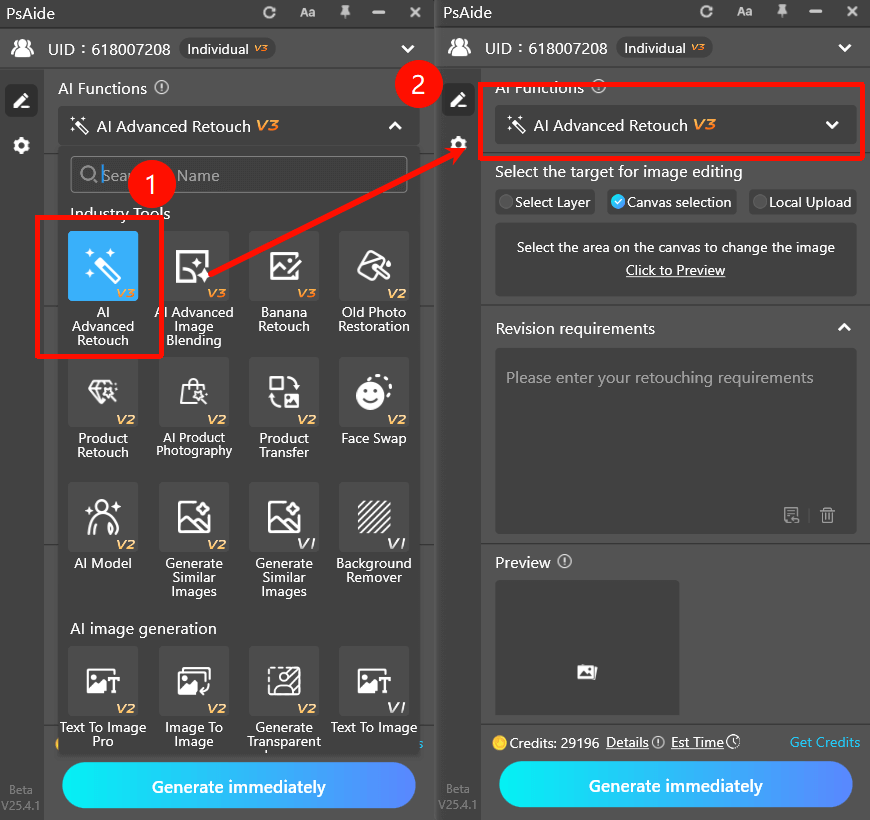
This AI advanced retouch plugin for Photoshop simplifies the editing process, even for beginner designers. In just 3 steps, you can achieve precise text modifications:
① Import the Image:
Open the image in Photoshop and use the selection tool to highlight the area that needs text editing.
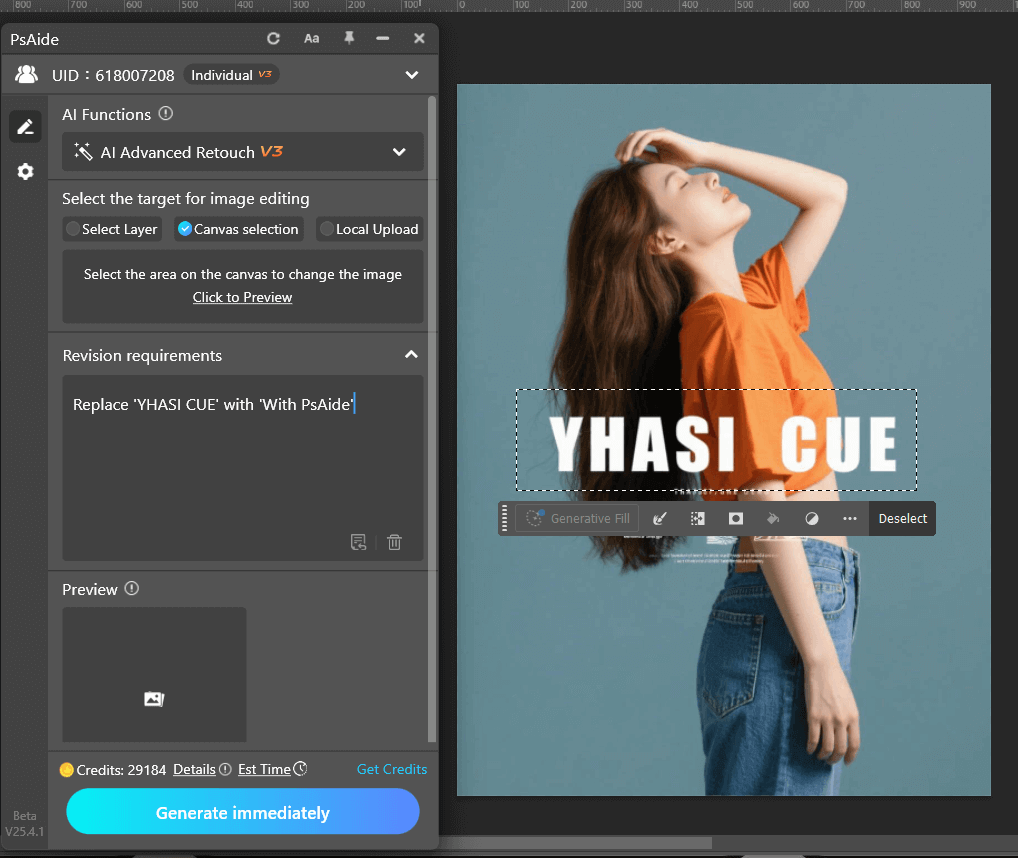
② Enter the Editing Prompt:
In the prompt box, clearly describe the text editing requirements, such as “Replace ‘YHASI CUE’ with ‘with PsAide’.”
③ Generate:
Click the “Generate immediately” button and wait a few seconds for the edited image to appear with the new text seamlessly integrated.
3. Why Choose AI Advanced Retouch for Image Text Editing?
(1)Significant Efficiency Boost
PsAide’s AI advanced retouch feature helps graphic designers, e-commerce designers, and brand marketers save significant time in image text editing. The manual search for fonts, alignment, and matching backgrounds is all automated, reducing the editing process from hours to seconds.
(2)No Skill Required for Beginners
Even if you are a beginner in design, AI advanced retouch enables quick and easy text modifications without the need for any advanced Photoshop skills.
(3)High Precision and Quality Results
PsAide’s AI ensures that the edited text matches the original design in terms of font, size, spacing, and integration with the background. This ensures that the final material maintains its professional look and brand consistency.
4.Conclusion
If you’re looking for a fast and efficient way to edit text in images using AI advanced retouch in Photoshop, PsAide is the perfect solution. With its precision, speed, and seamless background integration, it empowers designers to deliver high-quality visual content in record time.

Download Link: https://psaide.com/?sfrom=ZfhxUK
Invitation Code: ZfhxUK

