
Table of Contents
On e-commerce platforms, product image quality directly impacts customers’ purchasing decisions. Low-resolution, blurry, or over-compressed images can reduce product appeal and lower conversion rates.
Therefore, e-commerce sellers need efficient and precise methods for restoring these issues. This article introduces how to use the banana retouch feature in the psaide plugin in conjunction with Photoshop’s native tools to enhance e-commerce product image quality.
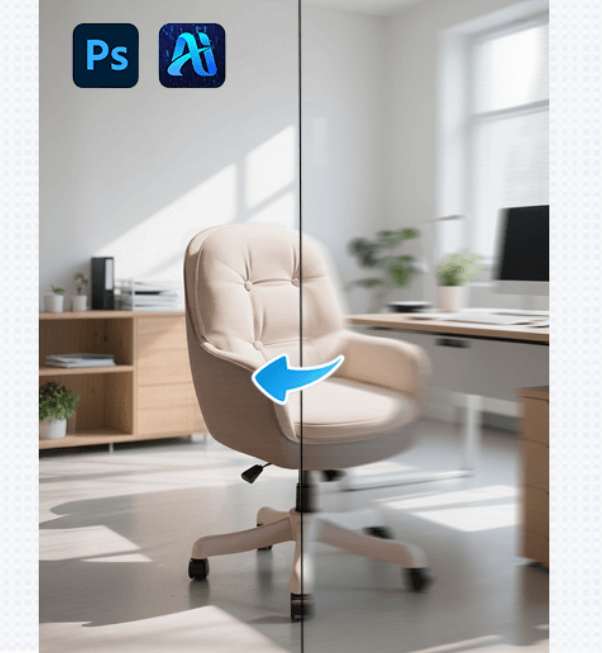
1.How to Improve Product Image Quality with psaide Plugin’s nano banana retouch
(1) What is banana retouch?
banana retouch is a high-definition restoration feature within the psaide plugin, powered by Nano Banana Pro technology, which helps users achieve one-click HD restoration inside Photoshop.
Compared to traditional restoration tools, banana retouch significantly improves restoration efficiency, especially for e-commerce sellers who need to handle a large number of product images quickly.
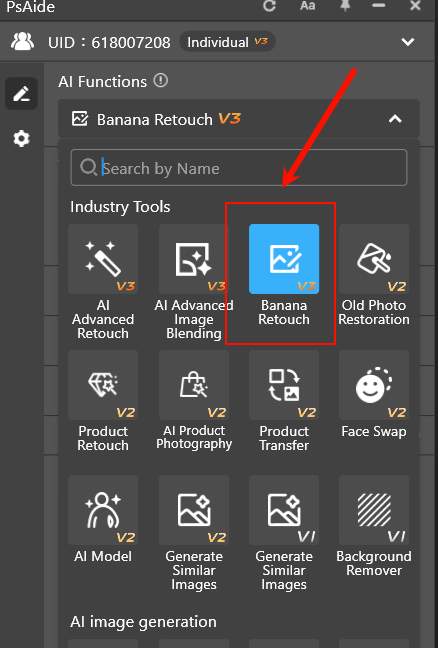
(2) Steps to Restore E-commerce Product Images Using banana retouch
With banana retouch, you can quickly restore low-resolution, blurry, or over-compressed e-commerce product images in just a few minutes. Here are the simple steps for using banana retouch to restore product images:
①Launch the psaide plugin
Open the psaide plugin in Photoshop and navigate to the feature interface.
②Import the image
Import the image to be restored using two methods:
Canvas Selection Mode: Select a specific area of the image for restoration
Layer Input Mode: Restore the entire selected layer
③Enter the prompt and generate
In the plugin’s prompt box, enter:
HD restoration
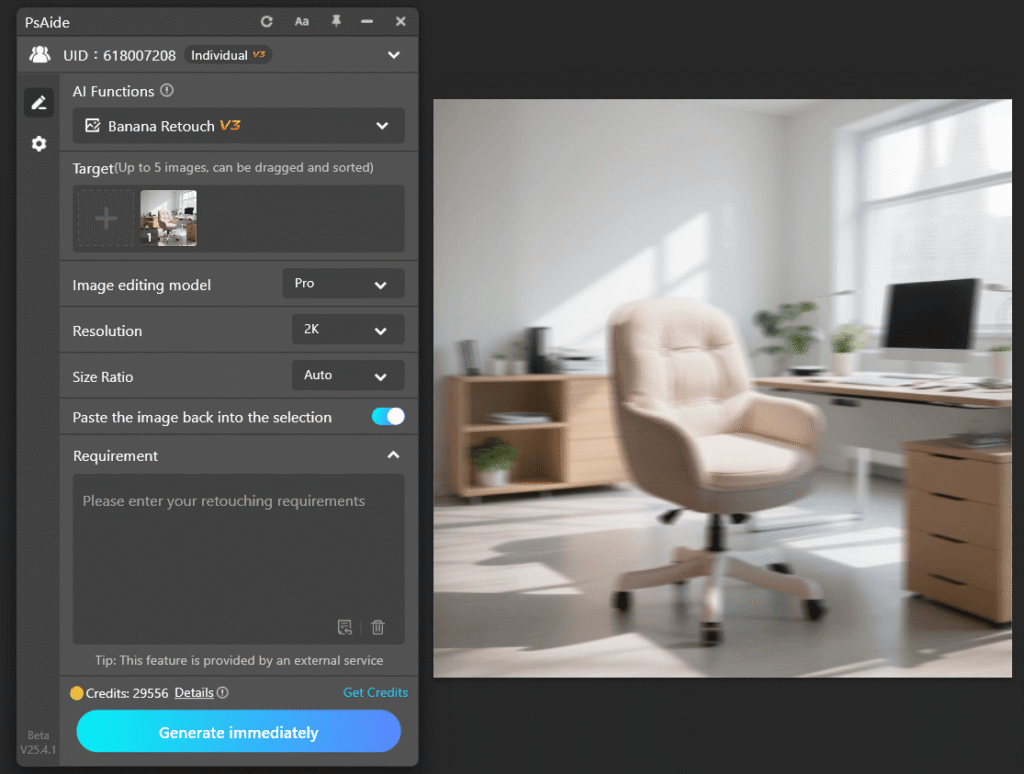
④ click “Generate Immediately”
banana retouch will automatically restore image clarity, enhancing the image details.
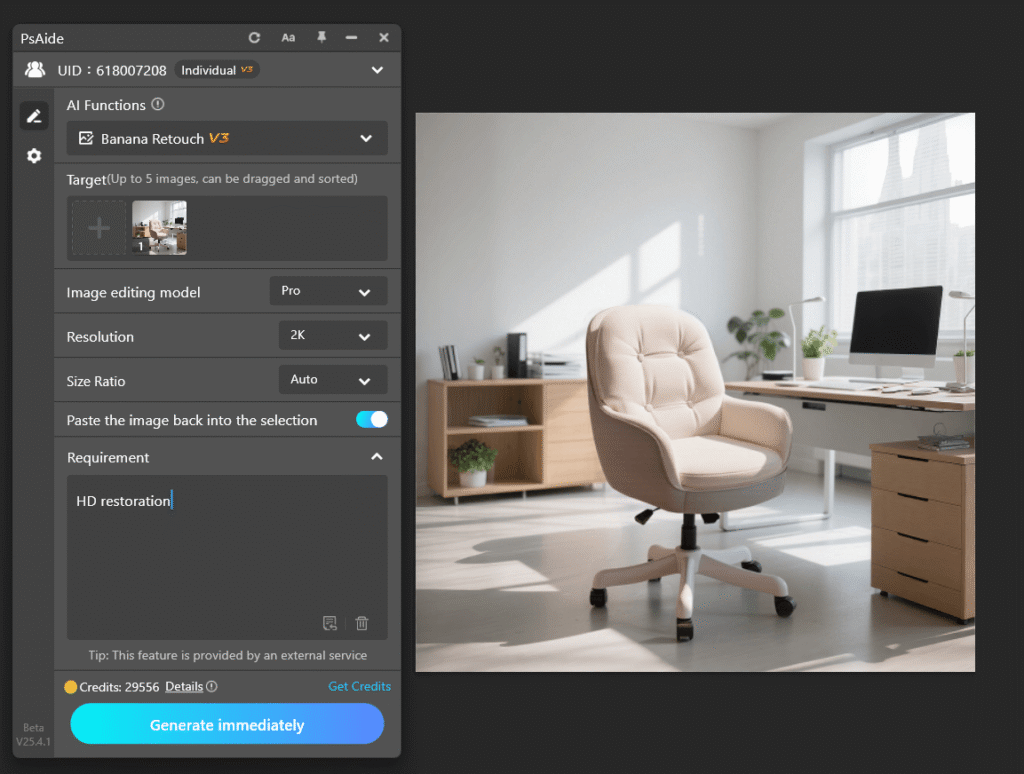
By following this process, banana retouch can efficiently restore low-resolution, blurry, or over-compressed product images, saving a significant amount of time.
2.Why Choose banana retouch?
(1) Enhancing Restoration Efficiency
When using traditional restoration tools like Camera Raw Filter or High Pass Sharpening, repairing an image often involves multiple manual adjustments and detail refinements. For e-commerce sellers, this process can be time-consuming and repetitive.
banana retouch streamlines the restoration process by automating the steps, making it much more efficient, especially for sellers needing to restore large quantities of product images. Simply input the restoration prompt, and the plugin will perform HD restoration automatically, saving valuable time.
(2)Suitable for Multiple Restoration Scenarios
banana retouch is applicable to various e-commerce product image restoration scenarios, particularly for:
①Low-resolution image restoration:
Enhances clarity and restores fine details
②Blurry image restoration:
Recovers lost details due to poor focus or shooting angles
③Over-compressed image restoration:
Reduces compression artifacts and recovers original details
In these scenarios, banana retouch can quickly solve the problem, without the need for time-consuming manual corrections.
(3) Ensuring Restoration Quality
While banana retouch provides one-click restoration, it still ensures high-quality, natural-looking results. Based on Nano Banana Pro, the plugin restores clarity without over-sharpening or leaving unnatural restoration traces on the image.
3.Conclusion
For e-commerce sellers, HD restoration is essential for ensuring product images are clear and appealing to customers. By using Photoshop’s native tools and banana retouch from the psaide plugin, you can efficiently restore low-resolution, blurry, or over-compressed product images, significantly improving image quality and reducing time spent on manual repairs.

Download Link: https://psaide.com/?sfrom=ZfhxUK
Invitation Code: ZfhxUK

