Table of Contents
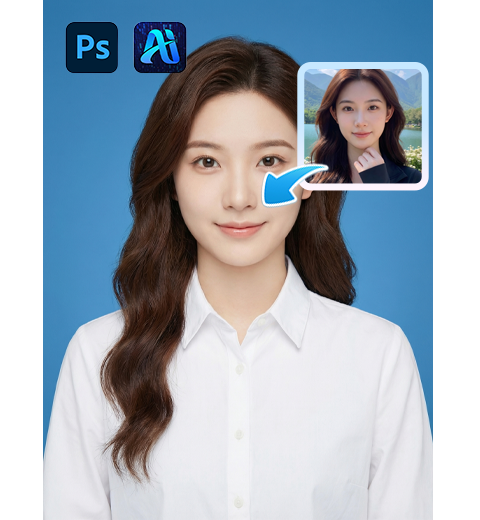
Making an ID photo with native PS is difficult for most beginners: background colors are off, hair edges are messy, changing clothes looks fake, and sizing often fails official requirements.
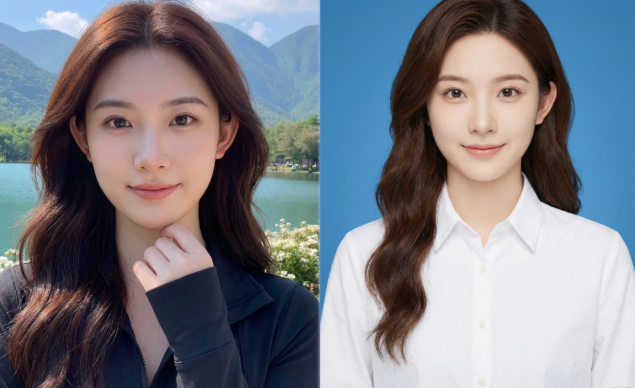
With Psaide Nano Banana, you can generate professional ID photos with just a prompt — no complex masking, cutout or color adjustment needed.
1.Pain Points of Native PS for ID Photos
- Non-standard background colors (blue, red, white)
- Fake-looking shirt replacement, easy distortion
- Hard to control 1-inch / 2-inch proportions
- Long, complicated workflow
2.4-Step ID Photo Creation with PS + Nano Banana
- Open your portrait in Photoshop (clear front-facing photo).
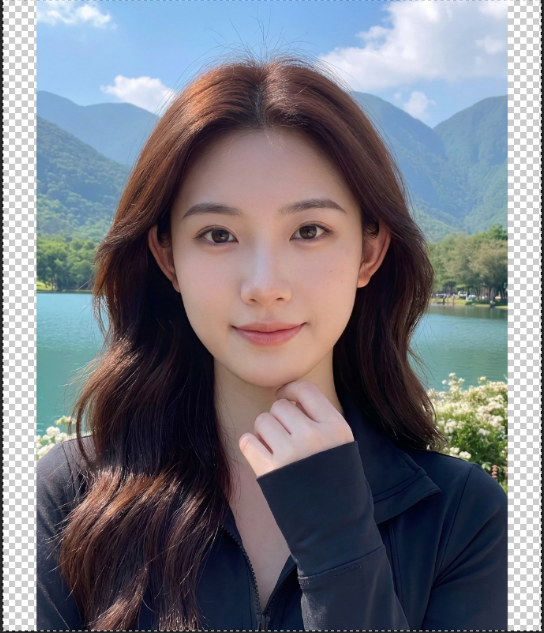
- Launch Psaide and open Nano Banana Pro for accurate results.
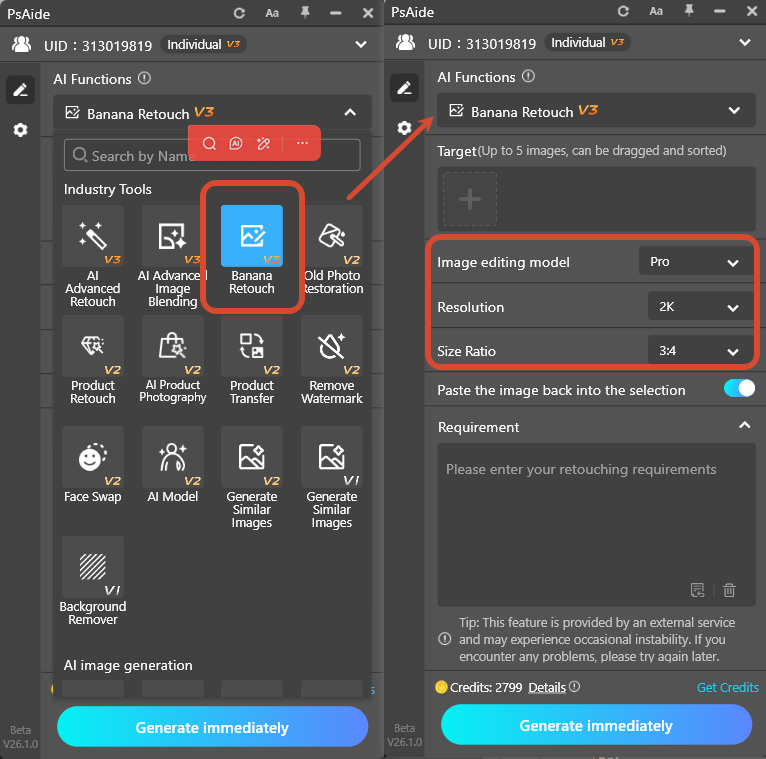
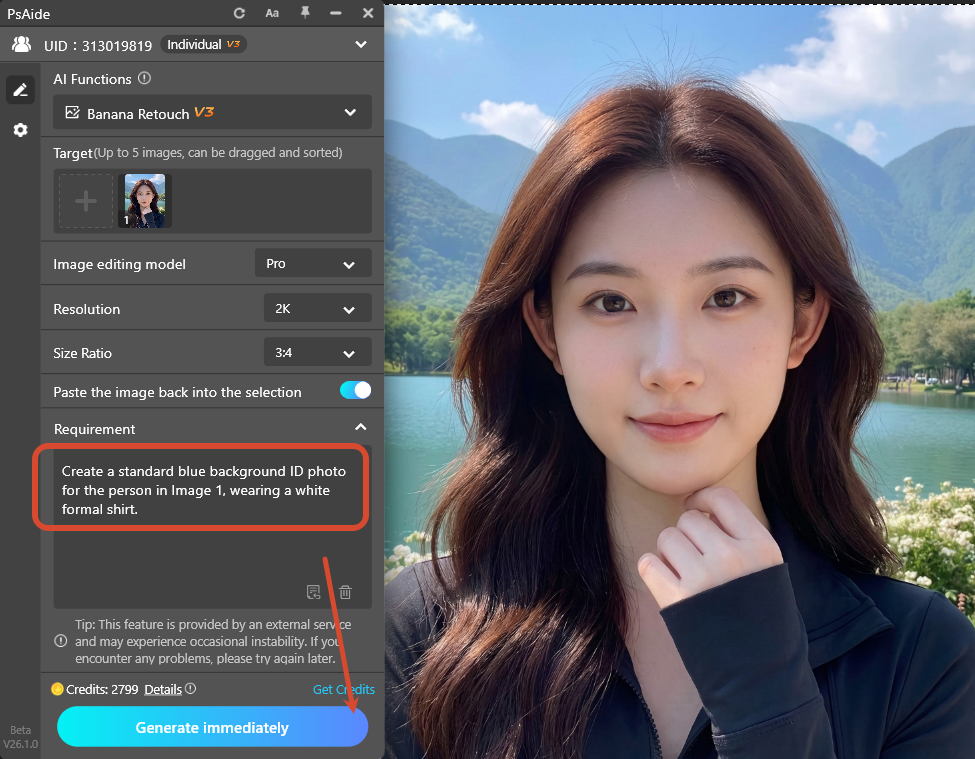
- Upload portrait and enter prompt:
- Create a standard blue background ID photo for the person in Image 1, wearing a white formal shirt.
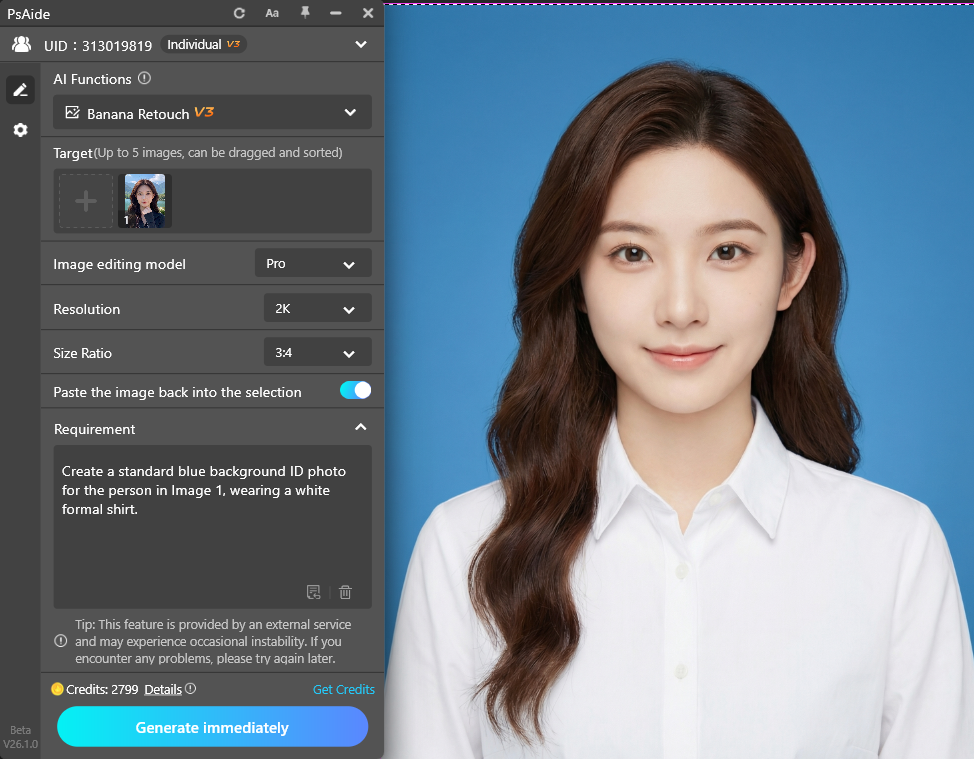
- Click Generate AI automatically cuts out hair, applies standard background, adds a shirt, evens skin tone and creates a ready-to-use ID photo.
3.Common Issues & Solutions
- Incorrect background color Use Pro version and specify RGB values in the prompt.
- Unnatural shirt fit Use a straight pose and add fit body, natural wrinkles to the prompt.
- Generation failed or blurry face Use a clear, unobstructed photo and restart PS.
- Poor proportion or off-center head Match output ratio to original and add head centered, standard ID photo composition.
Create official-standard ID photo quickly and easily with PS and Psaide Nano Banana.al hardware retouching easily with PS and Psaide Nano Banana.
4.Download link

https://psaide.com/?sfrom=A86R4u
Invitation Code: A86R4u