Table of Contents
For home appliance e-commerce sellers, kitchen brand marketers, and lifestyle content creators, realistic product-scene integration is the cornerstone of high-converting visuals. A sleek coffee machine placed naturally on a kitchen counter—blending with the countertop texture, matching the cabinet’s color tone, and aligning with the kitchen’s lighting—can instantly help consumers imagine the product in their own spaces. But how to blend two images with PS seamlessly? Traditional methods are riddled with inefficiencies, until NanoBanana, the AI-powered feature in the PsAide plugin, simplified the process into a few clicks. This article dives into how NanoBanana solves integration pain points and walks you through blending a coffee machine into any scene effortlessly.
The frustration of blending product and scene images manually in Photoshop is familiar to most visual creators. To integrate a coffee machine into a kitchen scene, you’d spend hours using tools like “Layer Mask,” “Warp,” and “Color Balance”—first isolating the coffee machine from its background, then resizing it to fit the scene, adjusting its brightness to match the kitchen’s light, and refining edges to avoid a “cut-and-paste” look. Even seasoned designers take 1–2 hours per image, and the result often feels forced: the coffee machine’s metal surface might reflect light that doesn’t exist in the scene, or its size might be slightly off compared to the counter’s other items. For brands launching multiple coffee machine models or updating scene visuals frequently, this manual workflow becomes a bottleneck—costing time, increasing labor costs, and compromising visual consistency.
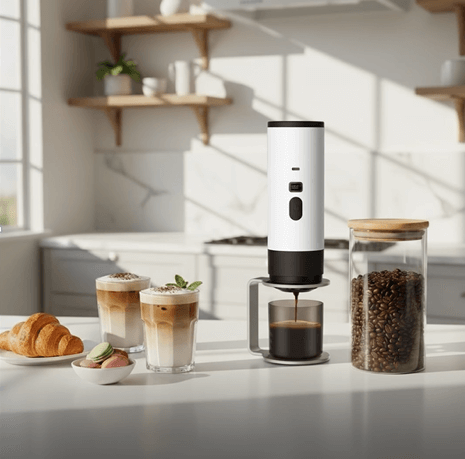
This is where NanoBanana transforms the game. As a built-in feature of the PsAide plugin for Photoshop, NanoBanana leverages advanced AI to handle the most complex aspects of image blending automatically. It doesn’t just “paste” the coffee machine into the scene—it analyzes both images deeply: identifying the scene’s light source to adjust the coffee machine’s shadow and reflection, matching the scene’s color temperature to ensure the machine’s finish (stainless steel, matte black) blends naturally, and even aligning the machine’s perspective with the counter’s angle. A recent test with a single-serve coffee machine and a modern kitchen scene proved its power: the machine sat flush on the counter, its chrome nozzle reflected the kitchen’s pendant light, and its size perfectly balanced the toaster beside it. The result looked like a professional photoshoot capture—no trace of digital editing, achieved in under a minute.
Tutorial materials that can be used for practice
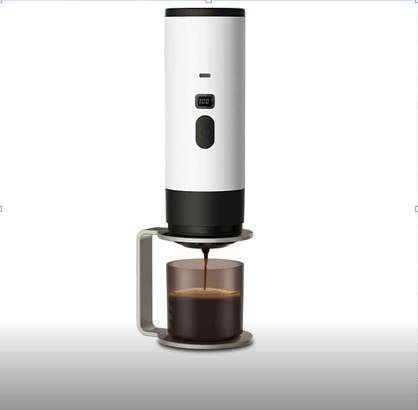
Before:
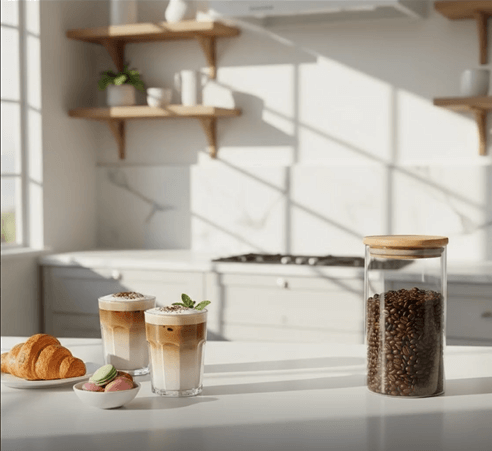
After:
3-step operation
The simplicity of NanoBanana is its greatest strength—even users with basic Photoshop skills can master image blending in three steps:
- Prepare Images and Launch NanoBanana: Open your two target images in Photoshop—Image 1 (the coffee machine product photo) and Image 2 (the kitchen scene image where you want to place the machine). Install the PsAide plugin (compatible with Photoshop 2015 and above), then launch NanoBanana from the plugin dropdown menu.
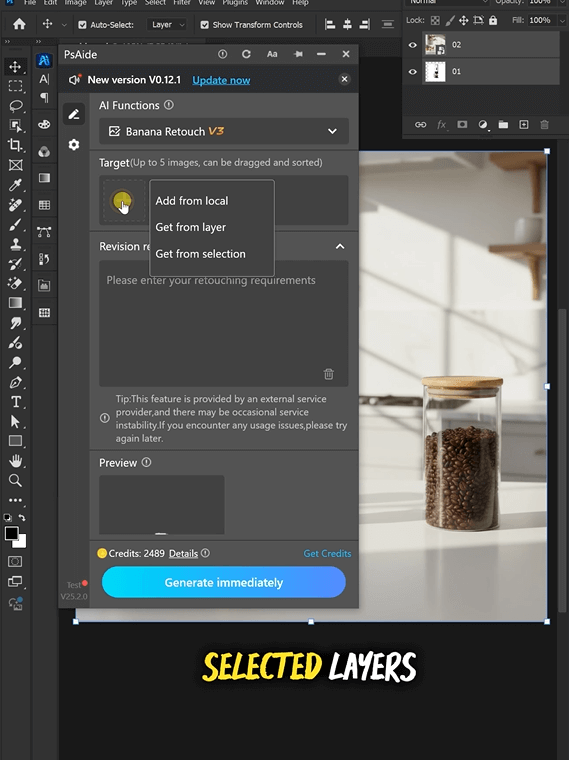
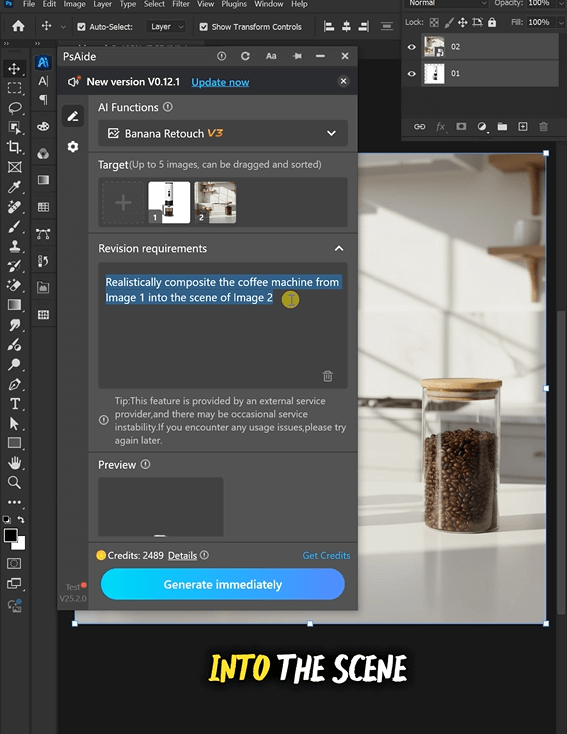
- Enter the Integration Prompt: Locate the prompt box in the NanoBanana interface and type the precise instruction: “Realistically composite the coffee machine from Image 1 into the scene of Image 2”. This prompt guides the AI to prioritize realism in size, lighting, and texture blending.
- Preview and Refine the Result: Click the “Blend Now” button—NanoBanana processes the integration in 3–5 seconds. Once satisfied, click “Apply to PS” to save the blended image directly to your Photoshop workspace.
IN The End
Beyond efficiency, NanoBanana delivers tangible value for brands across scenarios. For e-commerce sellers, it cuts visual production costs by 75%—no need for expensive studio setups or full-day photoshoots. For content creators, it enables rapid A/B testing (e.g., placing the same coffee machine in a rustic kitchen vs. a minimalist one) to see which resonates more with audiences. For marketers, it ensures brand consistency—every blended image maintains the coffee machine’s design details (like logo placement, control panel layout) while adapting to different scenes. Unlike generic blending tools, NanoBanana understands product-specific nuances: it preserves the coffee machine’s metallic sheen, avoids distorting its control buttons, and ensures the water tank’s transparency looks authentic in any light.
If you’ve ever struggled with how to blend two images with PS and achieve realistic, professional results, NanoBanana is the solution you need. It eliminates the guesswork of manual editing, speeds up workflows, and turns ordinary product photos into immersive scene visuals that drive engagement. Download PsAide today to unlock NanoBanana—and take your coffee machine marketing visuals to the next level!