
Table of Contents
E-commerce sellers need great shoe photos. But changing sneakers on models? It’s slow, hard, and needs skills—until now.
Meet Banana Retouch, a feature in the PsAide plugin—powered by Nano Banana! This tool makes sneaker swaps a breeze. No pro design skills required.
E-Commerce Pain Points for Shoe Photos
- Manual editing takes hours. Blending, matching colors, fixing angles? Total time-waster.
- You need design know-how. Hiring designers costs money and delays listings.
- Results look fake. Mismatched shoes or weird positioning hurt sales.
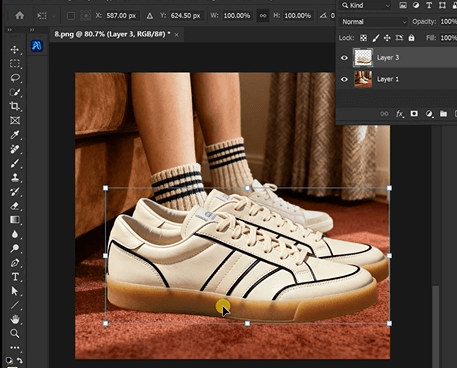
How to Swap Sneakers with Nano Banana (4 Simple Steps)
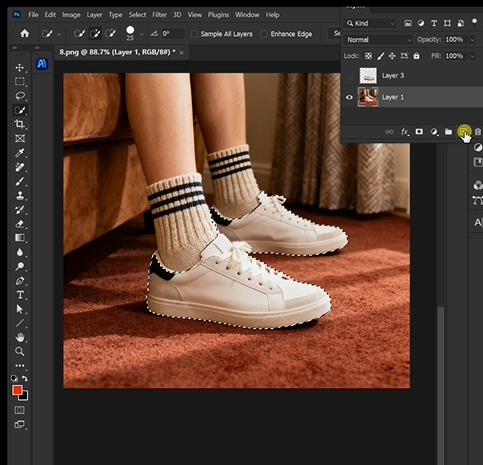
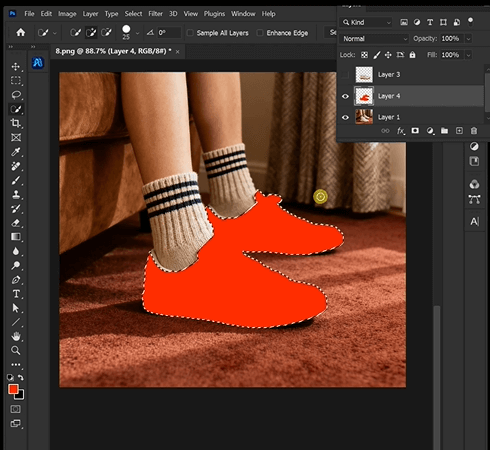
1. Prep Your Image in Photoshop
Upload the model’s photo (the one with old shoes) to Photoshop. Grab the Paint Bucket or Brush Tool. Fill the old sneakers with red. Done!
2. Open Banana Retouch in PsAide
Launch the PsAide plugin. Click “Banana Retouch.” The screen is easy to use—no confusing buttons.
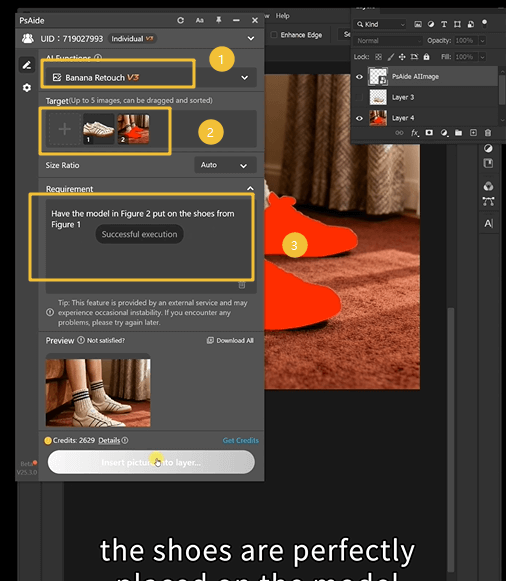
3. Upload Images & Type Your Prompt
Upload two photos:
- Figure 1: Your product sneakers (the ones you want the model to wear).
- Figure 2: The model’s photo with red-filled shoes.
Type this simple prompt: “Have the model in Figure 2 put on the shoes from Figure1.”
4. Generate & Use Your Photo
Hit “Generate.” Nano Banana’s AI works fast—seconds later, you get a perfect photo. The model wears your sneakers naturally. Export it and add to your listings!

Why Nano Banana Is a Must for E-Commerce
- No design skills needed. Anyone on your team can do it.
- Saves tons of time. Edit 10 photos in minutes, not hours.
- Natural-looking results. AI matches lighting, angles, and colors perfectly.
Conclusion
E-commerce moves fast—you need quick, great shoe photos. Nano Banana (in PsAide’s Banana Retouch) fixes your editing headaches. Swap sneakers easily, speed up listings, and sell more. Try Nano Banana today—see how simple shoe photo edits can be!

