
Table of Contents
The Fashion Photo Editing Time Crunch
For e-commerce managers, fashion photographers, and digital content creators, time is the ultimate luxury—one they rarely have. One of the most frequent yet surprisingly complex editing tasks is shoe replacement in fashion photography. Whether showcasing multiple shoe options for a single outfit, updating product catalogs with new inventory, or correcting styling choices in already-shot campaigns, manually swapping footwear in Photoshop demands precision that consumes valuable hours. The process involves not just replacing the shoes but matching perspectives, adjusting for lighting variations, blending with existing clothing, and maintaining natural shadows—all while keeping the model’s original posture intact. This pain point becomes particularly acute during peak seasons when rapid content turnaround directly impacts sales and engagement.
What if you could accomplish what normally takes 30 minutes of expert editing in just 2 minutes? This guide reveals how to use Nano Banana in Photoshop, the breakthrough AI tool that transforms shoe replacement from a tedious chore into an almost instantaneous process. This method leverages advanced AI understanding of fashion photography to deliver perfectly integrated shoe swaps that respect original lighting, perspective, and styling—all while maintaining your tight production schedule.
Why Traditional Shoe Replacement Wastes Precious Time
Manual shoe replacement in Photoshop represents a perfect storm of time-consuming technical challenges. First comes the complex selection process: shoes rarely present clean edges, often blending with shadows, interacting with various surfaces, or partially obscured by clothing. Once selected, perspective matching becomes a puzzle—ensuring the new shoes align correctly with the ground plane and match the model’s viewing angle requires careful warping and distortion. Then begins the lighting adjustment phase: matching highlights, shadows, and color temperature to the original environment. Finally, integration work blends the new elements with existing clothing, often requiring manual painting of sock or pant leg details that were originally covered. Each step demands not just technical skill but artistic judgment, making the process inaccessible to non-specialists and frustratingly slow even for experts.
The Photoshop Nano Banana approach revolutionizes this workflow by treating shoe replacement as a complete styling transformation rather than isolated object swapping. The AI understands that shoes don’t exist in isolation—they interact with socks, pant legs, lighting, and ground surfaces. By processing these relationships holistically, it achieves in minutes what would take extensive manual work, delivering results that aren’t just technically correct but stylistically coherent.
What You Need for 2-Minute Shoe Transformations
- Software: Adobe Photoshop with PsAide plugin installed
- Source Images: Clean model photo + high-quality shoe product image
- Skill Level: Complete beginners to advanced professionals
The 2-Minute AI Shoe Swap Process
Step 1: Quick Image Preparation
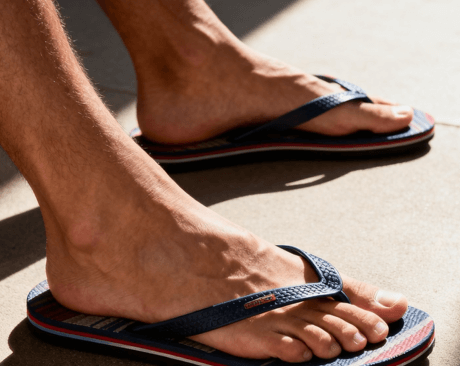
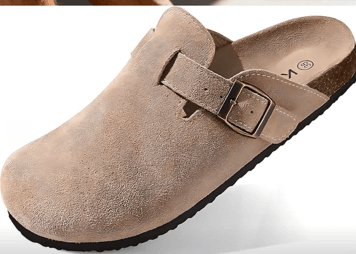
Open both your model photograph and target shoe image in Photoshop. Ensure your model photo clearly shows the feet area with minimal obstructions—while the AI can handle some complexity, clear visibility yields optimal results. Your shoe image should ideally show the footwear from a similar angle to your model’s feet position, though the AI compensates for moderate differences. No preliminary selections, masking, or adjustments are needed—the AI will work directly with your provided images. This initial setup typically takes under 30 seconds, emphasizing the workflow’s efficiency.
Step 2: Smart AI Instruction
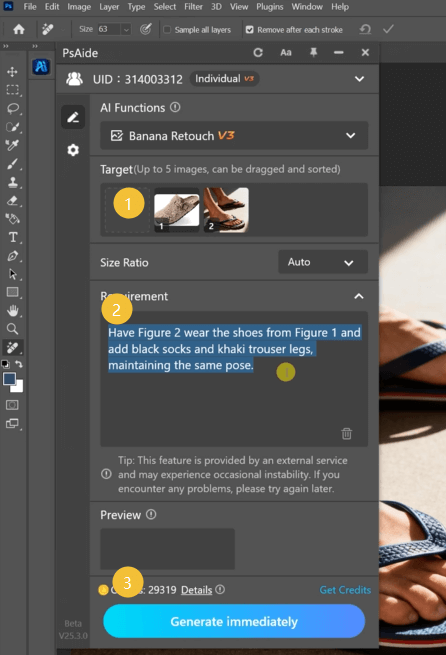
Launch Nano Banana from the PsAide panel and upload your two images:
- Figure 1: Your target shoe image
- Figure 2: Your original model photograph
In the command box, enter this comprehensive instruction:
“Have Figure 2 wear the shoes from Figure 1 and add black socks and khaki trouser legs, maintaining the same pose.”
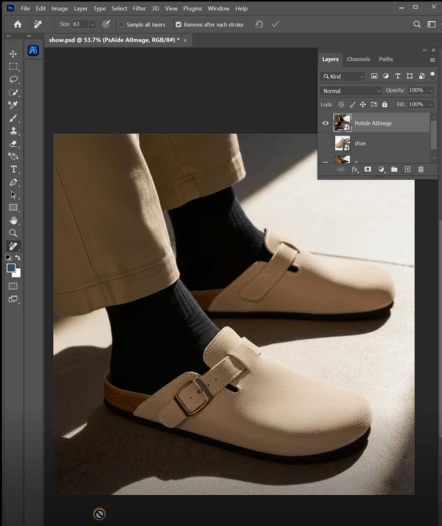
This sophisticated prompt demonstrates the AI’s advanced capabilities. Unlike simple replacement commands, this instruction directs multiple coordinated changes: first swapping the shoes, then adding appropriate socks, then extending or adjusting trouser legs to match the new footwear style, all while preserving the model’s original posture. The specificity about colors (“black socks,” “khaki trouser legs”) ensures consistent styling rather than leaving these details to AI interpretation.
Step 3: Instant Professional Results
Click “Generate” and observe the transformation. Within approximately 60 seconds, Nano Banana processes your request, performing what would traditionally require multiple Photoshop experts working sequentially: it isolates the existing footwear, removes it cleanly, positions the new shoes with perfect perspective alignment, adds realistically textured socks that match the shoe style, extends or adjusts trouser legs to complement the new look, matches all lighting and shadows to the original environment, and ensures the final composition looks completely natural. The result is a ready-to-use fashion image that appears as if styled this way from the original photoshoot.
Commercial Applications for Rapid Turnaround
This efficiency unlocks numerous business applications:
- E-commerce Efficiency: Show multiple shoe options with the same outfit in minutes instead of reshooting
- Fashion Campaigns: Test different shoe styles in campaign images before final decisions
- Product Visualization: Demonstrate how shoes look with various clothing combinations
- Content Creation: Quickly produce varied social media content from limited photoshoots
- Personal Styling: Show clients how different shoes complete their look
Time-Saving Technical Insights
Q1: Can I use this for shoes with complex patterns or unusual shapes?
A: Absolutely. The AI handles various shoe types effectively, from simple sneakers to intricate heels or patterned boots. For best results with unconventional designs, ensure your shoe image clearly shows the distinctive features. The system’s understanding of fashion items allows it to integrate even complex designs naturally with the existing photo’s style and environment.
Q2: What if my model’s original pose has feet positioned unusually?
A: The AI excels at perspective matching, adapting shoes to various poses. For extreme angles or unusual foot positions, results remain strong, though you might want to verify the shoe image shows a somewhat similar angle. The “maintaining the same pose” portion of your prompt specifically directs the AI to prioritize pose preservation over perfect shoe orientation when necessary.
Q3: How specific should I be about sock and trouser details?
A: Your current prompt offers excellent balance, but you can customize further based on needs. For athletic looks: “add white athletic socks and gray sweatpant legs.” For formal wear: “add dress socks and tailored trouser legs.” More specificity yields more controlled results, while simpler instructions allow more AI creativity. After your first generation, you’ll understand the AI’s interpretation style and can adjust future prompts accordingly.
Q4: Will the lighting always match perfectly on the first try?
A: The AI’s lighting matching is remarkably accurate, typically requiring no adjustment. For challenging lighting scenarios (strong sunset backlighting, mixed indoor lighting), you can enhance your prompt: “match the warm golden hour lighting of the original photo.” For minor post-generation tweaks, use a Curves adjustment layer clipped to the shoe/sock areas to fine-tune contrast or color temperature.
Q5: Can I batch process multiple shoe options for the same model photo?
A: While direct batch processing isn’t typically available, you can achieve similar efficiency by preparing all your shoe images in advance, then running them sequentially through the same process. With practice, you can process 5-6 different shoe options for the same model photo in under 10 minutes total—impossible with manual methods. Create an Action to automate any consistent post-generation steps for even faster workflow.
Download link
https://psaide.com/?sfrom=A86R4u
Invitation Code: A86R4u

