
Table of Contents
The Art Style Transformation Challenge
For photographers, social media creators, and art enthusiasts, transforming ordinary photos into distinctive artistic styles represents both a creative opportunity and a technical challenge. Specifically, achieving the beloved aesthetic of Hayao Miyazaki’s Studio Ghibli films—with their hand-painted quality, soft color palettes, and dreamlike atmospheres—typically requires expert-level digital painting skills or expensive custom illustration commissions. The manual process in Photoshop involves complex filter combinations, manual painting with custom brushes, and meticulous color grading that can take hours yet often produces inconsistent or unconvincing results.
What if you could channel the magic of Studio Ghibli with a single AI command? Discover how to use Nano Banana in Photoshop, the advanced AI feature within the PsAide plugin, to transform your photographs into healing illustrations reminiscent of Miyazaki’s iconic style. This technique leverages AI’s understanding of artistic styles to reinterpret your images through the lens of Ghibli aesthetics, creating authentic-looking illustrations without requiring traditional art skills or time-consuming manual processes.
Why Traditional Photo-to-Art Methods Fall Short
Conventional approaches to creating illustration-style images in Photoshop rely heavily on filter stacks, manual brushwork, and layer adjustments. The “Filter Gallery” options often produce generic, artificial-looking effects that lack the cohesive artistic vision of Studio Ghibli’s carefully crafted worlds. Achieving the specific balance of soft edges, atmospheric perspective, and signature color harmony that defines Miyazaki’s work requires not just technical knowledge but genuine artistic intuition—a combination that eludes most Photoshop users and results in disappointingly generic “cartoonified” versions of their original photos.
The Nano Banana Photoshop method addresses these limitations by approaching style transformation as an intelligent reinterpretation rather than a procedural filter application. Instead of manually adjusting dozens of parameters, you provide the AI with a clear stylistic reference (“Hayao Miyazaki-style healing illustration”), and the system comprehensively analyzes and applies the characteristic elements of that aesthetic: soft lighting, gentle color transitions, subtle textures, and that distinctive balance between realism and fantasy that defines Ghibli’s visual storytelling.
Preparing for Your Artistic Transformation
- Software Requirements: Adobe Photoshop with the PsAide plugin installed
- Image Selection: Choose photos with clear subjects and interesting compositions (landscapes, portraits, or atmospheric scenes work particularly well)
- Style Reference: Familiarize yourself with Hayao Miyazaki’s visual characteristics—soft lighting, natural color palettes, and gentle atmospherics
- Technical Level: Accessible to complete beginners with immediate artistic results
- Time Efficiency: Complete transformations in 60-90 seconds
The 3-Step Illustration Transformation Process
Step 1: Select and Prepare Your Source Image
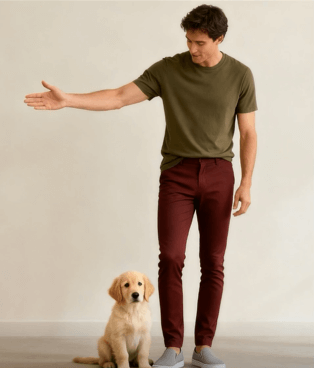
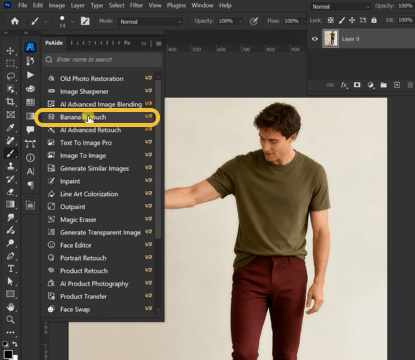
Begin by opening your chosen photograph in Photoshop. Select images with strong emotional or narrative content, as these translate particularly well into the Ghibli aesthetic. Scenes with natural elements (clouds, forests, water) or human subjects with expressive qualities work excellently. There’s no need for pre-editing or adjustments—the AI will work with your image as provided. Navigate to the PsAide panel and launch the Nano Banana module to access the AI artistic transformation interface.
Step 2: Upload and Specify Your Artistic Direction
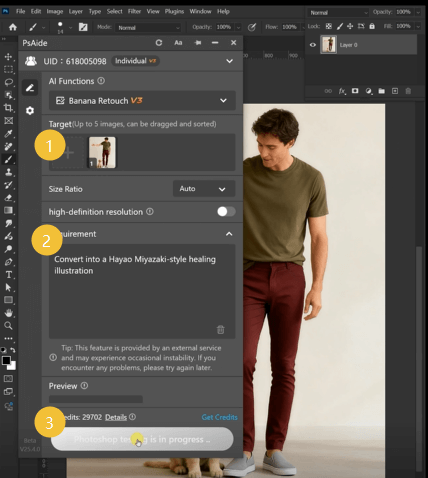
Within the Nano Banana interface, upload your single photograph. The transformative power lies in your descriptive prompt. For authentic Ghibli-style results, use this specific command:
“Convert into a Hayao Miyazaki-style healing illustration with soft lighting and gentle color transitions.”
This detailed prompt provides the AI with multiple stylistic guidelines. “Hayao Miyazaki-style” references the specific aesthetic database, “healing illustration” indicates the emotional tone (a key aspect of Ghibli’s work), while “soft lighting and gentle color transitions” provides technical parameters that guide the visual execution toward authentic results.
Step 3: Generate and Refine Your Artistic Creation
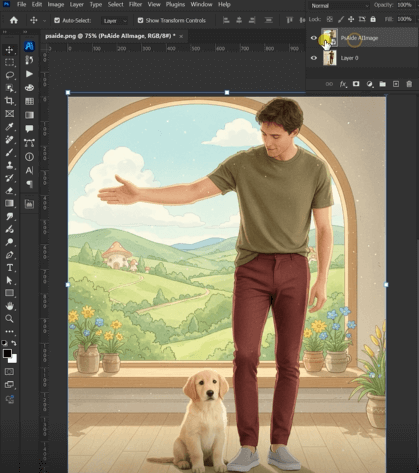
Execute the generation command. Within 60-90 seconds, Nano Banana will process your photograph through its artistic interpretation engine. The AI analyzes both the content of your image and the stylistic parameters you’ve specified, then re-renders the photograph using Ghibli-inspired visual language. The result will feature the characteristic soft edges, atmospheric color harmonies, and gentle luminosity that distinguish Miyazaki’s films, while maintaining the essential composition and emotional content of your original photograph.
For final refinement, use Photoshop’s native adjustment layers to fine-tune color balance or contrast, but preserve the AI-generated artistic qualities that make the transformation unique.
Expanding Your Artistic Applications
Mastering this Nano Banana Photoshop technique opens numerous creative possibilities:
- Personalized Art: Transform family photos into cherished artistic keepsakes
- Content Creation: Generate unique illustrations for blogs, social media, or YouTube channels
- Concept Development: Create mood illustrations for storytelling or game design
- Therapeutic Practice: Use the “healing illustration” aspect for mindfulness and creative therapy
- Educational Tool: Demonstrate artistic styles and visual translation concepts
The consistent workflow—Select → Describe → Transform—adapts to various artistic styles beyond Ghibli aesthetics.
Artistic Technical Considerations
Q1: What types of photos work best for this Ghibli-style transformation?
A: Images with clear emotional resonance, natural environments, or human subjects in contemplative moments yield the most authentic Ghibli-style results. Studio Ghibli’s aesthetic emphasizes harmony with nature, so photographs featuring skies, forests, water, or changing seasons translate particularly well. Portraits with soft, natural lighting and expressive faces also work excellently.
Q2: Can I adjust the intensity of the artistic effect after generation?
A: Yes, through several approaches. To reduce effect intensity while maintaining style characteristics, place the original photo layer above the AI-generated layer and adjust opacity (typically 10-30% original over AI creates a pleasing hybrid). To enhance specific stylistic elements, use adjustment layers for selective color grading or add a slight Gaussian blur (0.5-1.5 pixels) to enhance the soft, dreamlike quality.
Q3: How does this compare to using standard Photoshop filters or other AI art generators?
A: Standard Photoshop filters apply uniform mathematical transformations without understanding artistic style. Other AI generators often create completely new images rather than transforming your specific photo. Nano Banana uniquely combines photo-specific transformation with deep stylistic understanding, maintaining your image’s essential composition while authentically applying the referenced aesthetic—a balance particularly valuable for personal photos where preserving the original moment matters.
Q4: Can I request different Miyazaki film styles (e.g., Spirited Away vs. My Neighbor Totoro)?
A: Absolutely. Refine your prompt for specific film aesthetics: “Convert into a Spirited Away-style illustration with magical elements and rich color saturation” or “Transform into a My Neighbor Totoro-style illustration with pastoral simplicity and soft green tones.” The AI recognizes these nuanced distinctions within the broader Miyazaki aesthetic.r foundation, then apply minor adjustments using Photoshop’s ruler and rotation tools. The AI typically achieves 90-95% perfect alignment, reducing manual correction time from minutes to seconds.
Download link
https://psaide.com/?sfrom=A86R4u
Invitation Code: A86R4u

