
Table of Contents
The E-commerce Visual Challenge
Every skincare brand and online seller faces the same critical problem: creating professional product photography is expensive and time-consuming. Hiring photographers, renting studios, and editing dozens of images can drain budgets and delay product launches. Even with basic product photos, manually extracting products and placing them on attractive backgrounds in PS requires advanced skills in masking, lighting matching, and compositing—often resulting in images that look amateurish and fail to convert customers. This visual gap directly impacts sales, as studies show professional product images can increase conversion rates by up to 400%.
What if you could transform ordinary product photos into professional e-commerce assets in minutes? This guide demonstrates how to use Nano Banana, the revolutionary AI feature within Photoshop’s PsAide plugin, to automatically create polished product shots with perfect extractions and custom backgrounds. This method leverages artificial intelligence to handle the most technical aspects of product photography editing, turning complex manual work into a simple three-command process that delivers studio-quality results without the studio price tag.
Why Manual Product Editing Falls Short in Photoshop
Traditional product editing in PS involves multiple complex steps: precise product extraction using the Pen Tool or Select Subject, tedious edge refinement, background removal, and then the challenging task of placing products on new backgrounds with matching lighting and shadows. Each step requires specific expertise, and even small errors in extraction can make products look fake or poorly integrated. For businesses needing to process multiple product variations or create seasonal campaigns, this manual approach becomes unsustainable—consuming hours that could be spent on strategy and growth.
Nano Banana solves this by functioning as an intelligent product photography assistant. Instead of wrestling with complex selections and layer masks, you provide the AI with clear creative direction about both the subject treatment and background design. The AI then executes a complete visual transformation in one operation, handling extraction, composition, and environmental integration with professional precision.
What You Need to Get Started
- Software: Adobe Photoshop with PsAide plugin installed
Download link:https://psaide.com
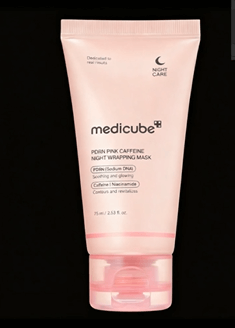
- Base Image: A clean, well-lit photograph of your skincare products against any background (even cluttered backgrounds work)
- Creative Vision: A clear idea of your desired background and composition
- Time Investment: Approximately 2 minutes from start to finished image
The 3-Step AI Product Shot Workflow
Step 1: Prepare Your Product Photo and Activate AI Power
Begin by opening your raw product photograph in Photoshop. There’s no need for preliminary editing—the AI will work with your image as-is. Ensure your photo has decent lighting and the products are clearly visible. Navigate to the PsAide panel within Photoshop’s interface and launch the Nano Banana module. This opens the AI command center where you’ll direct the transformation.
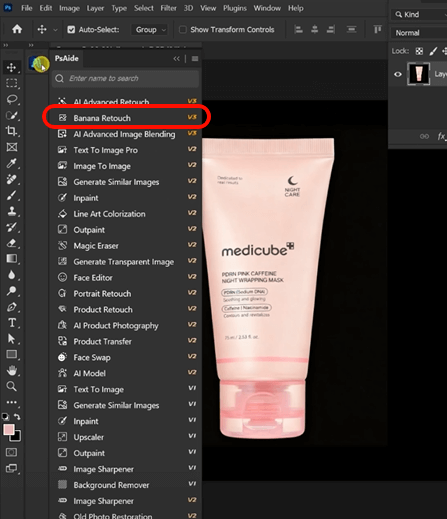
Step 2: Upload and Command with Detailed Creative Direction
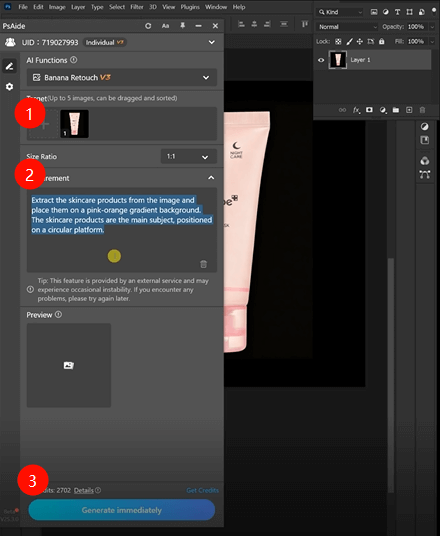
Inside the Nano Banana interface, upload your single product image. The magic happens in the prompt box, where you’ll provide specific creative instructions. For a professional skincare product shot, use this comprehensive prompt:
“Extract the skincare products from the image and place them on a pink-orange gradient background. The skincare products are the main subject positioned on a circular platform.”
This prompt is powerful because it gives the AI multiple clear instructions: it specifies the action (extract and place), defines the background (pink-orange gradient), establishes hierarchy (main subject), and adds compositional elements (circular platform).
Step 3: Generate Your Professional Product Shot
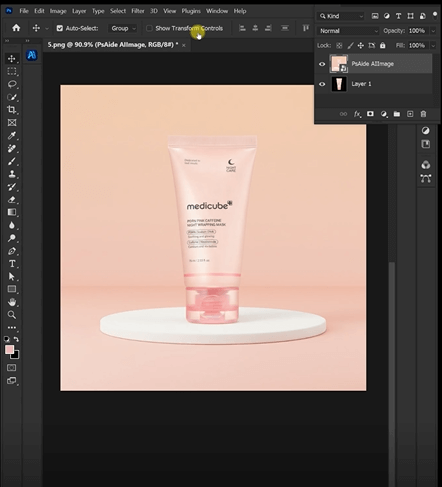
Click “Generate” and watch the transformation unfold. Within 30-60 seconds, Nano Banana will process your request. The AI performs several sophisticated operations simultaneously: it perfectly extracts your skincare products from their original background, creates a beautiful pink-orange gradient backdrop, positions the products as the clear focal point, and even generates a realistic circular platform with appropriate shadows and lighting integration. The result is a complete, ready-to-use e-commerce image that looks like it came from a professional studio shoot.
Beyond Skincare: Expanding Your Product Visualization Toolkit
Mastering how to use Nano Banana for skincare products opens numerous commercial applications:
- Beauty Products: Create cohesive collections for lipsticks, foundations, or perfumes
- Electronics: Present tech products on sleek, modern backgrounds
- Food & Beverage: Style product shots for packaging and advertising
- Jewelry: Showcase items with perfect extractions and elegant backgrounds
The same principle applies: Upload → Describe → Generate.
Frequently Asked Questions (FAQ)
Q1: What if I want to change the background color or style after generation?
A: You can easily modify your results. Either regenerate with a different prompt description, or take the AI-generated extraction (which is typically on a transparent layer) and place it on any background you create manually in Photoshop. The key value is the perfect product extraction the AI provides.
Q2: Is the extraction quality good enough for professional e-commerce?
A: Yes, Nano Banana uses advanced AI models specifically trained for product extraction. The results typically surpass manual quick selection methods and rival professional pen tool work for most commercial applications. For extreme close-ups requiring hair-perfect precision, you may need minor touch-ups, but for standard product shots, the quality is consistently professional.
Q3: Does this work with products that have transparent packaging?
A: Transparent and reflective surfaces present challenges for any extraction method. For best results with such products, ensure your original photograph has good, even lighting. The AI will make a solid attempt, but you may need to supplement with manual refinement for glass or glossy surfaces using traditional Photoshop tools..
Download link
https://psaide.com/?sfrom=A86R4u
Invitation Code: A86R4u

