
Table of Contents
Creating earring model images often requires photoshoots or manual editing. With nano banana, you can quickly generate realistic model photos by transferring earrings from a product image onto a model image.
This guide explains how to use the blue mark method with nano banana to replace earrings and generate jewelry model images in just a few simple steps.
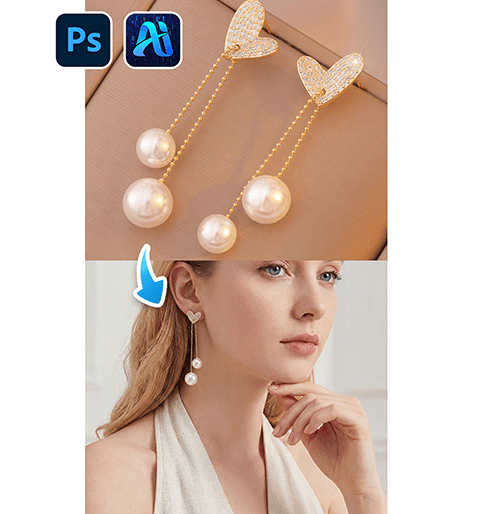
1. Nano Banana Earring Transfer Steps
Follow these steps to generate earring model images using nano banana.
(1)Mark the original earrings in blue
If the model image already contains earrings, they may interfere with the generation result.
Use a blue brush to cover the original earrings so nano banana can clearly identify the area that should be replaced.
(2)Upload the model image and product image
Open the nano banana feature in the PSAide plugin, then upload:
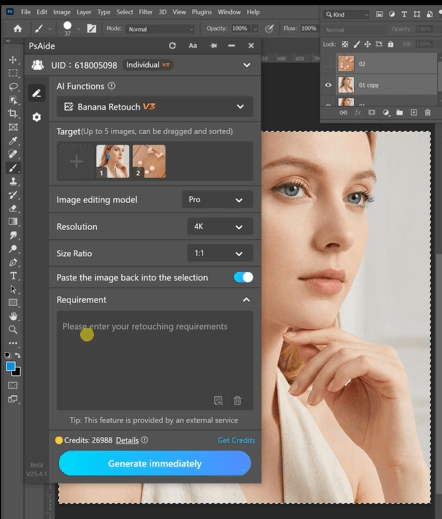
① The model image with blue marks
② The earring product image
For best results with nano banana, the product image should be clear and preferably on a white or transparent background.
(3)Enter the prompt
Use a prompt to guide nano banana, for example:
Change the earrings on the model’s ears in
Figure 1 to the earrings from Figure 2.
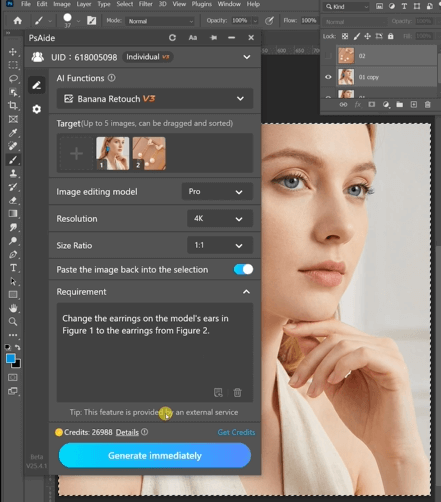
This helps nano banana generate natural earring placement.
(4)Generate the final image
Click Generate and wait a few seconds.
Nano banana will produce a realistic model image with the product earrings applied to the marked area.
2、Conclusion
Using the blue mark method with nano banana makes it easy to replace earrings in model photos. By marking the earrings, uploading images, entering a prompt, and generating the result, nano banana can quickly create realistic jewelry model images for e-commerce and marketing.

Download Link: https://psaide.com/?sfrom=ZfhxUK
Invitation Code: ZfhxUK

