
Table of Contents
Struggling to change the background color of an ID photo in Photoshop? The Magic Wand selects too much or too little, blue edges remain, and manual cutouts are slow and frustrating—especially for beginners.
In this tutorial, we’ll use a blue-background ID photo changed to red as an example and introduce two simple Photoshop background color replacement methods. One uses classic Photoshop tools, and the other uses the PsAide Banana retouch feature powered by nano banana technology, making background color changes faster and more accurate.
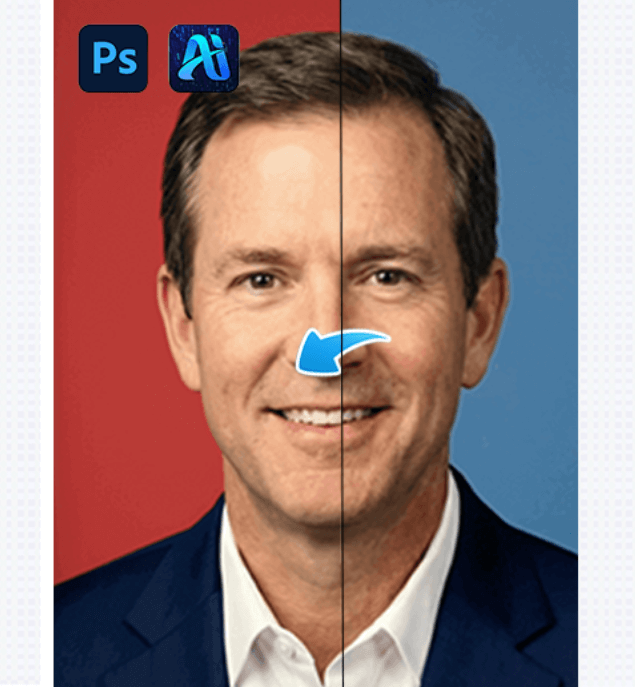
1. Method One: Magic Wand + Inverse Selection + Layer Mask (Classic Photoshop Method)
(1)Open the ID photo in Photoshop
Launch Photoshop and import the blue-background ID photo
(2)Select the background using the Magic Wand
① Choose the Magic Wand Tool from the left toolbar (shortcut W)
② Click Add to Selection in the options bar
③ Click on the blue background area to select most of the background
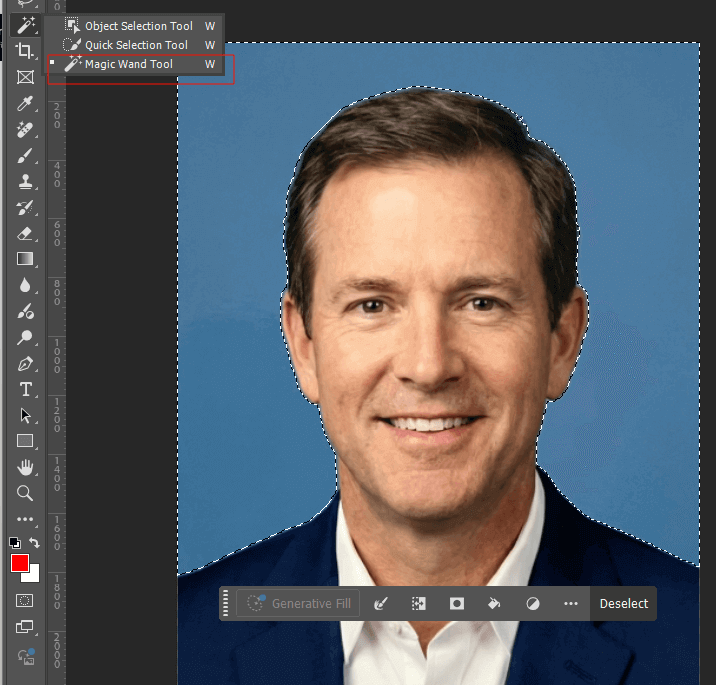
(3)Inverse the selection
Press Ctrl + Shift + I to invert the selection and select the subject
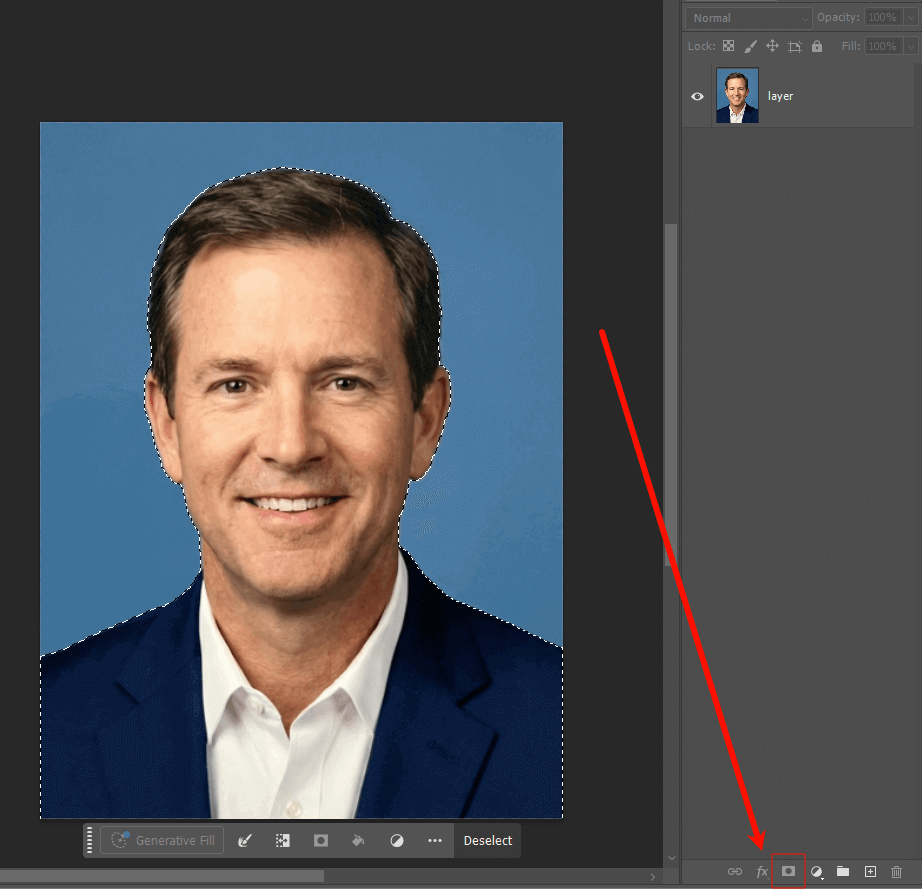
(4)Unlock the layer and add a mask
① If the layer is locked, click the Unlock icon in the Layers panel
② Click Add Layer Mask to create a subject mask
(5)Add a new background color
① Create a Solid Color Fill Layer
② The ID photo background color is now changed
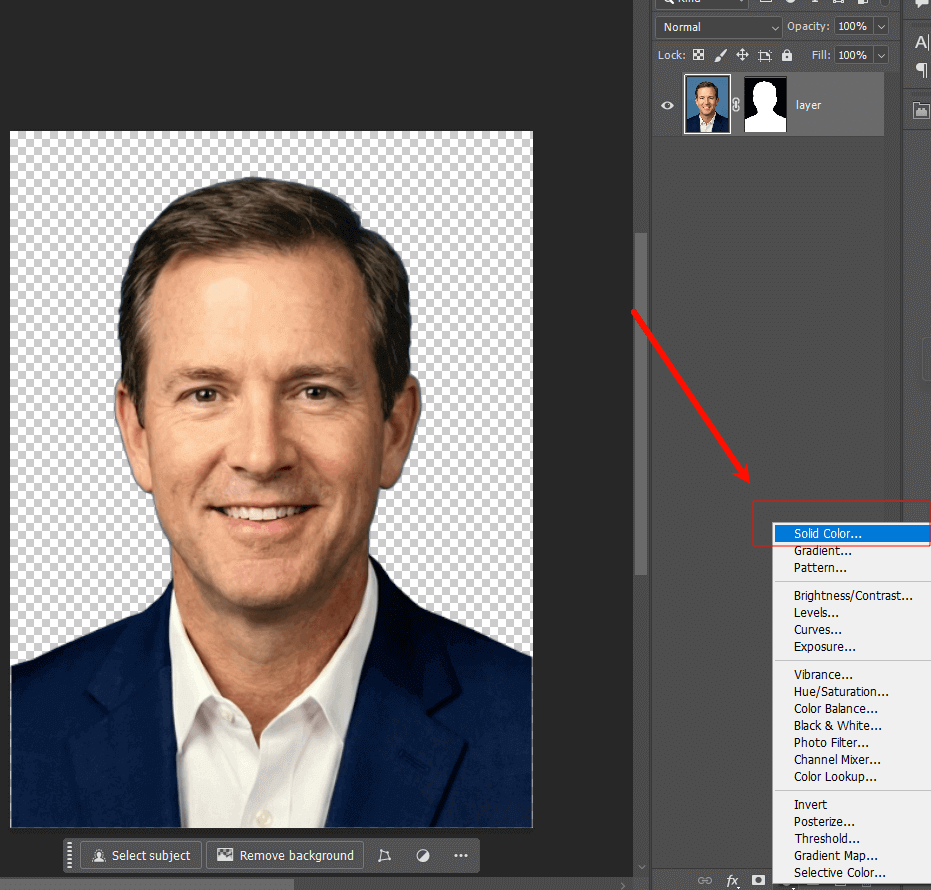
This method works, but edge refinement often requires extra manual adjustment.
2. Method Two: PsAide “Banana Retouch” – Smart Background Color Replacement
This method uses the PsAide Banana retouch feature, which is based on nano banana AI technology and is designed for fast, intelligent ID photo background replacement.
(1)Open PsAide Banana Retouch
① Open Photoshop and launch the PsAide plugin
② Locate the Banana Retouch module
(2)Upload the photo and enter a prompt
① Upload the ID photo that needs a background color change
② In the prompt box, enter:
“Change the blue background of the ID photo to red”
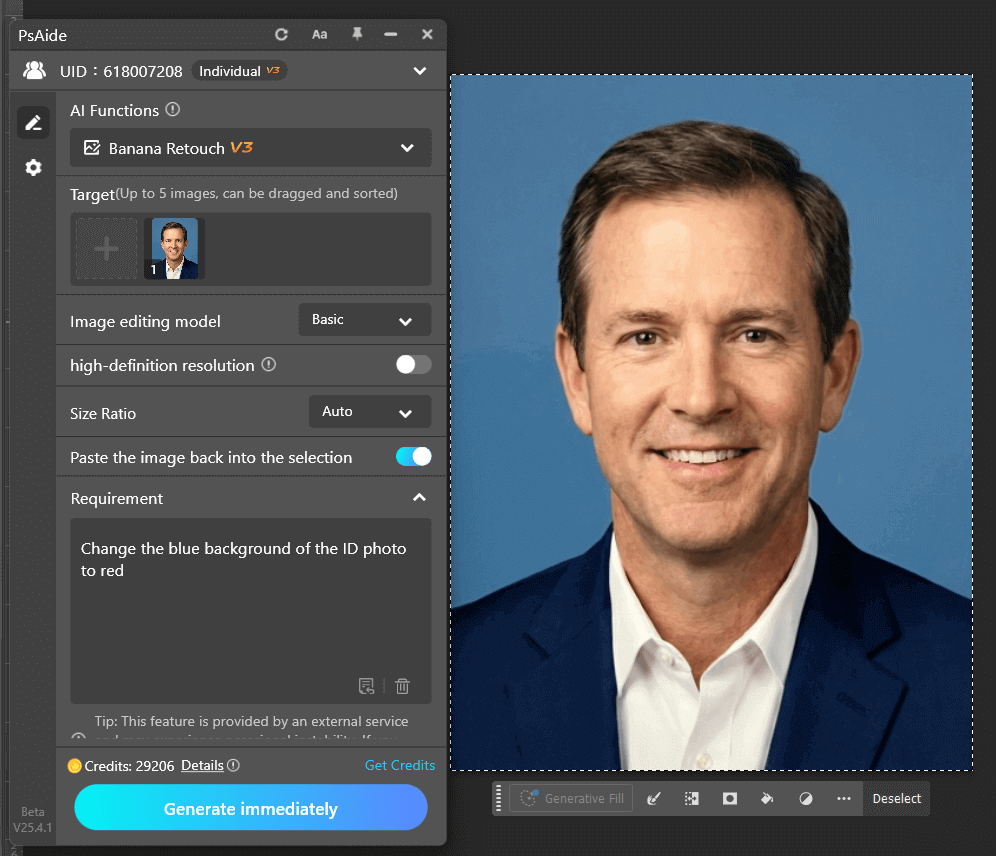
(3)One-click AI background replacement
① Click Generate
② PsAide automatically detects the subject and background
③ The nano banana AI replaces the background color precisely
④ No manual edge refinement is required
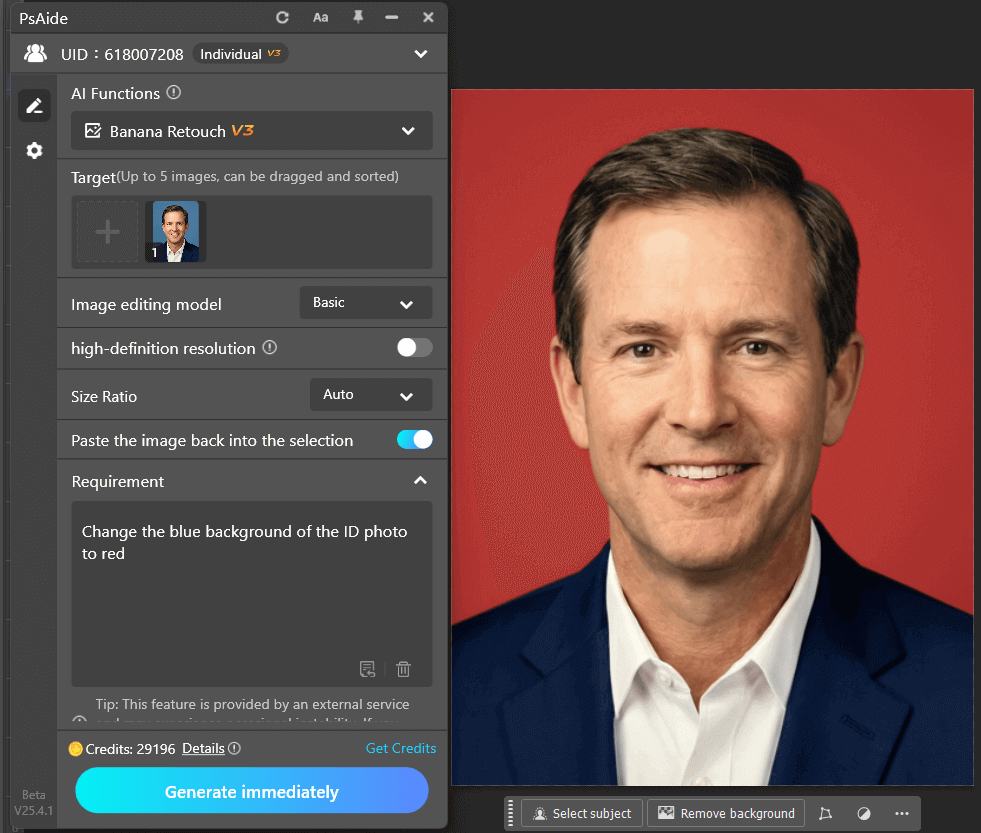
After generation, simply export the image. Hair edges and outlines remain clean and natural, which is a major advantage of nano banana–powered Banana retouch.
3. Comparison of the Two ID Photo Background Color Methods
| Comparison Item | Magic Wand + Mask | PsAide Banana (nano banana) |
|---|---|---|
| Difficulty | Medium | Very Low |
| Speed | Medium | Fast |
| Edge Accuracy | Medium, may leave color edges | High, clean edges |
| Learning Cost | Medium | Very Low |
| Best Use Case | Simple backgrounds | All ID photo background changes |
4.Conclusion
If you are a Photoshop beginner and want to quickly change ID photo background colors, PsAide’s Banana retouch feature powered by nano banana technology is the best choice. If you are already familiar with Photoshop, the Magic Wand method can also work well.
To experience the convenience of AI background color replacement with nano banana, download PsAide and follow the tutorial below.

Download Link: https://psaide.com/?sfrom=ZfhxUK
Invitation Code: ZfhxUK

