
Table of Contents
After completing a face swap, the most common issue that breaks realism is mismatched skin tones. A composite face where the skin tone, shadows, and highlights clash with the surrounding environment immediately creates a strong “mask-like” or “pasted-on” look. Traditionally, adjusting skin tone in Photoshop requires a keen eye for color and a complex combination of tools. Now, PsAide’s Nano Banana Pro function has streamlined this cumbersome process, intelligently matching skin tones and lighting with a single step.
Part 1: Core PS Challenges for Manual Skin Tone Blending
Before mastering the smart tool, it’s important to understand the principles of manual adjustment, which helps in evaluating and fine-tuning AI results.
Core Pain Points & Manual Steps:
- Pain Point: Inconsistent Color Base
The composite face may have a fundamentally different color temperature (warm/cool) and hue balance (ratio of red, yellow, cyan) than the target body.
Step: Use “Match Color.” Select the face swap layer, go toImage > Adjustments > Match Color. Choose the target image as the “Source” and adjust the “Luminance,” “Color Intensity,” and “Fade” sliders. - Pain Point: Broken Lighting & Shadow Structure
Even if colors are close, if the position and intensity of highlights and shadows don’t match, the face looks like it’s floating.
Step: Create a Neutral Gray Layer. Fill a new layer with 50% gray and set its blend mode to “Soft Light.” Using white (to dodge) and black (to burn) brushes at a low opacity (<10%), repaint the light and shadow on the swapped face to match the lighting direction of the target environment.
This manual process demands a high level of color theory knowledge and Photoshop skill, requiring extensive trial and error, making it highly inefficient.
Part 2: Nano Banana Pro: One-Step Intelligent Skin Tone & Lighting Matching
The Nano Banana Pro feature in the PsAide plugin consolidates the steps of color analysis, lighting matching, and texture fusion into a single, AI-driven process based on deep learning.
Step 1: Prepare Your Assets
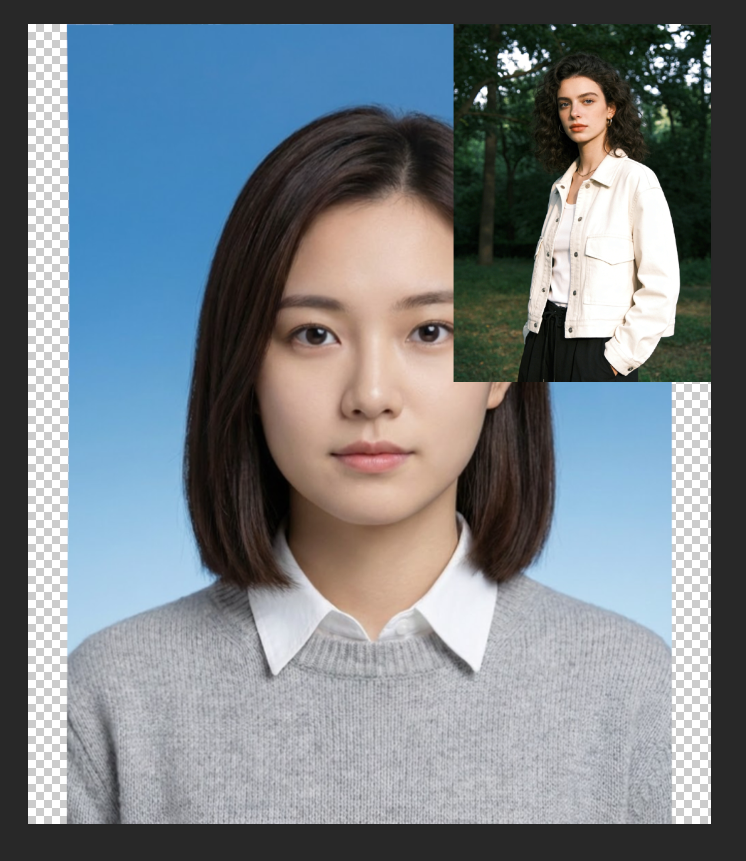
In Photoshop, open two images: Image 1 (the target body/scene) and Image 2 (the source face). Ensure both faces have relatively clear angles and lighting for best results.
Step 2: AI-Powered, One-Command Execution
Open the PsAide panel, find and select the Nano Banana function, and ensure the Pro version is enabled for the strongest image understanding. In the prompt box, simply enter the core instruction:
“Replace the face of the model in Figure 1 with that in Figure 2, while keeping the makeup consistent with Figure 2.”
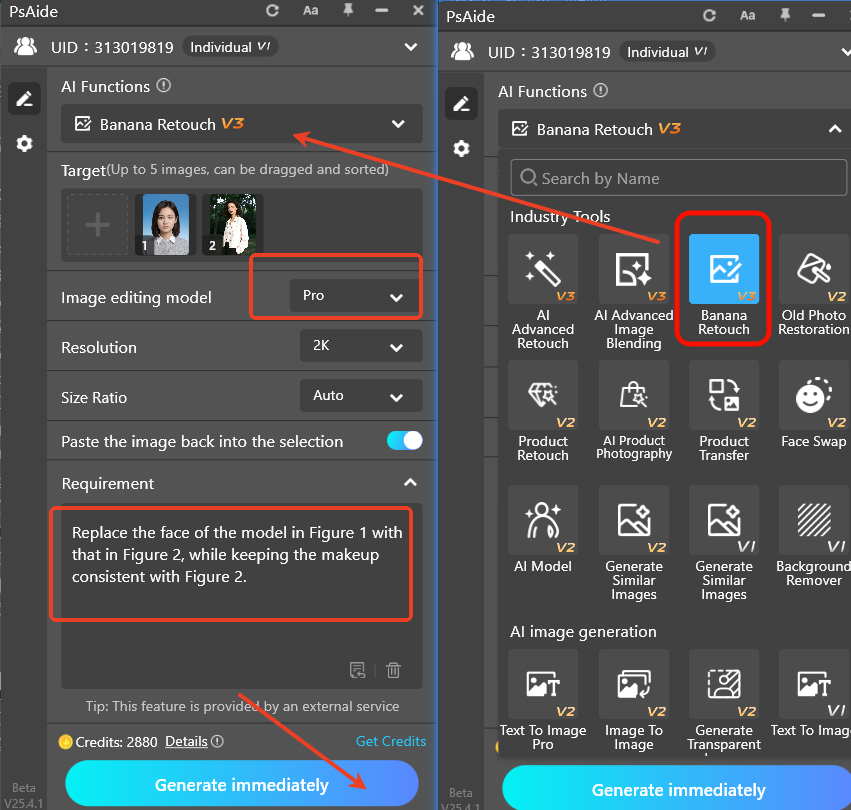
This instruction triggers the AI’s deep understanding of “replace”—it goes beyond geometric alignment to intelligently adapt and merge the color, skin tone, and lighting properties of the source face to match Image 1’s specific lighting and environment.
Step 3: Intelligent Generation & Result
Click “Generate.” Nano Banana Pro performs these core processes:
- Face Analysis & Alignment: Precisely identifies and aligns facial features from both images.
- Environment Color & Lighting Transfer (Key): The AI analyzes Image 1’s overall color environment, lighting direction, and base skin tone, then intelligently “renders” these attributes onto the new face. This means the generated face has automatically adjusted skin warmth, redness, and highlight/shadow distribution to harmonize with the target scene.
- Edge & Detail Fusion: Automatically blends hairline, jawline, and other edges for pixel-perfect transitions.
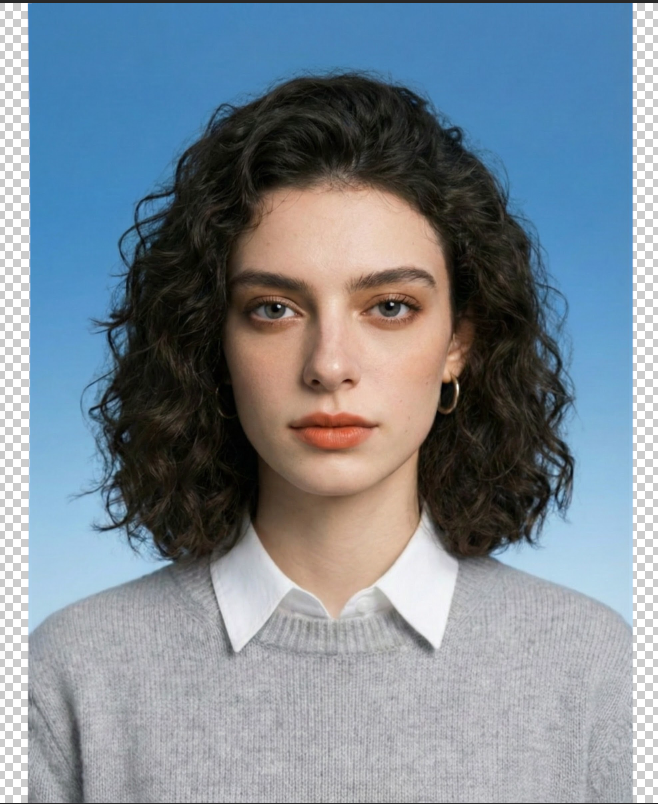
The result is a new layer with a face swap where the skin tone and lighting are already perfectly blended, eliminating over 90% of manual color correction work.
Conclusion & Comparison:
PsAide Nano Banana Pro: Is a productivity solution focused on “realism” and “high efficiency.” It’s ideal for portrait retouching, fashion compositing, creative advertising, and scenarios requiring rapid visual concept validation. It frees artists from tedious technical labor, allowing them to focus on creativity, delivering natural and believable fusion results with a single click.toration work
File Formats: Work with TIFF or high-quality JPEG files to preserve detail
Color Management: The AI automatically adjusts for different historical photographic processes (sepia tones, black-and-white, early color processes)
Batch Processing: Restore multiple photos with consistent settings for archival projects
Manual PS Color Grading: Represents the “craftsman’s approach” of color correction. It’s suitable for pursuing ultimate personalized control or as a learning path, but the process is painful, results are unpredictable, and efficiency is very low.
Download link
Begin your restoration journey today and rediscover your history with clarity and color that honors the original moment while making it accessible for future generations.
https://psaide.com/?sfrom=A86R4u
Invitation Code: A86R4u

