
Table of Contents
Nano banana retouching now delivers a seamless solution for replacing flip-flops in model photos—critical for footwear e-commerce visual optimization.
For footwear e-commerce designers, how models are displayed with different flip-flop styles directly impacts summer footwear product sales conversion. Transforming flip-flop styles in images traditionally demands rebooking models, setting up new photoshoots, and painstakingly adjusting lighting to match different materials (e.g., rubber, woven straw).
This process devours manpower, time, and budget, while also limiting the speed of launching new flip-flop designs to market.
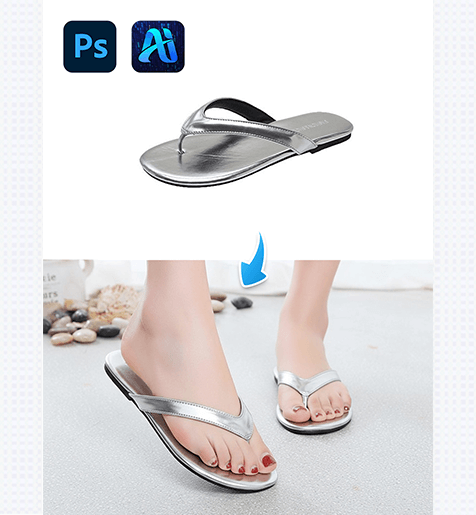
1.Pro Photoshop Tips for Prepping Flip-Flop Replacement Assets
Before using nano banana in PSAide, optimize your model photo in Photoshop to get the most realistic flip-flop replacement results:
(1)Isolate the Foot Area:
Use the Lasso Tool to precisely mask the existing flip-flop on the model’s foot—this ensures Nano Banana focuses only on the area needing replacement, avoiding distortion of the model’s ankle or skin texture.
(2)Match Color Temperature:
Check the photo’s color temperature (via Image > Adjustments > Color Balance); aligning it with the target flip-flop’s material (e.g., warm tones for wooden flip-flops, cool tones for plastic ones) ensures natural integration post-replacement.
(3)Enhance Foot Detail:
Sharpen fine details like skin texture and toenail polish (via Filter > Sharpen > Unsharp Mask)—Nano Banana preserves these details to keep the replacement looking authentic.
Luckily, the nano banana feature built into the PSAide plugin eliminates these pain points, letting designers replace flip-flops in model photos in minutes without advanced retouching expertise.
2. PSAide + Nano Banana: 3-Step Flip-Flop Replacement Workflow
① Import Your Model Photo:
Open the model photo with the original flip-flop in Photoshop

② Select ” Banana retouching”:
Use the plugin’s smart selection tool to highlight the flip-flop area on the model’s foot, then input a prompt
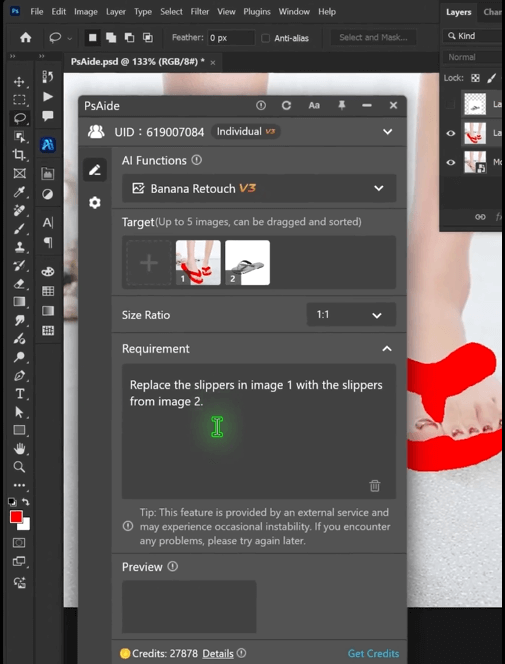
③ Generate & Refine:
Click “Generate” – in 60 seconds, you’ll get a high-res image with the perfectly replaced flip-flop. Tweak minor lighting adjustments (e.g., shadow intensity) directly in Photoshop to match your e-commerce listing’s aesthetic.
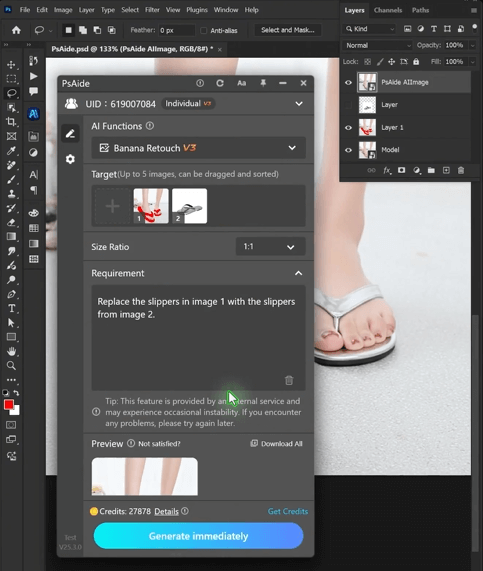
For e-commerce designers, nano banana revolutionizes flip-flop product visuals by eliminating the hassle of traditional reshoots and manual retouching. Whether you’re testing new flip-flop designs, updating seasonal listings, or creating promotional material, this workflow lets you iterate faster and produce more compelling visuals—all within Photoshop.
Download Link: https://psaide.com/?sfrom=ZfhxUK
Invitation Code: ZfhxUK

