
Table of Contents
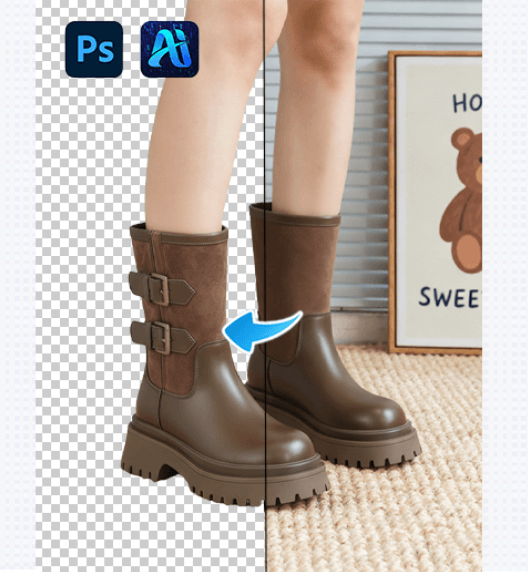
Removing backgrounds in Photoshop usually involves multiple steps, especially when using manual tools. For many users, the real challenge is not whether Photoshop can remove backgrounds, but how long the process takes.
In this article, we’ll walk through Photoshop background removal step by step, starting with traditional manual methods and ending with a faster one-click solution using the Background Remover feature in the psaide plugin.
1.Step-by-Step Background Removal Using Photoshop Built-in Tools
(1)Manual Workflow with Selection Tools
A typical manual background removal process in Photoshop looks like this:
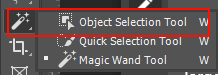
① Select the subject
Use tools such as: Quick Selection Tool、Magic Wand Tool、Select Subject
② Refine the edges
Open Select and Mask to adjust:
Edge smoothness、Feather and contrast、Hair and fine details
③ Output the result
Apply the mask and export the image with a transparent background.
This workflow can produce good results, but it often requires:
Multiple adjustments、repeated zooming and refinement、considerable experience
(2)Limitations of the Manual Step-by-Step Process
While Photoshop’s native tools are powerful, they come with clear drawbacks:
- Too many steps for simple tasks
- Inconsistent results across images
- Slow processing when handling multiple files
This is why many users start looking for faster Photoshop background removal methods.
2.A Faster Step-by-Step Workflow with psaide Background Remover
The psaide Background Remover simplifies the entire process into a short, clear workflow—without removing control from the user.
3.How to Remove Backgrounds in Photoshop with psaide (3 Steps)
(1)Add the Image to the Photoshop Canvas
Drag and drop the image into Photoshop or open it via File → Open.
(2)Open the psaide Plugin and Choose a Mode
Launch the psaide plugin and select one of the following modes:
① Layer Upload Mode
Applies background removal to the currently selected layer.
Best for quick, single-image processing.
② Canvas Selection Mode
Applies background removal to a selected area on the canvas.
Useful for partial removal or complex layouts.
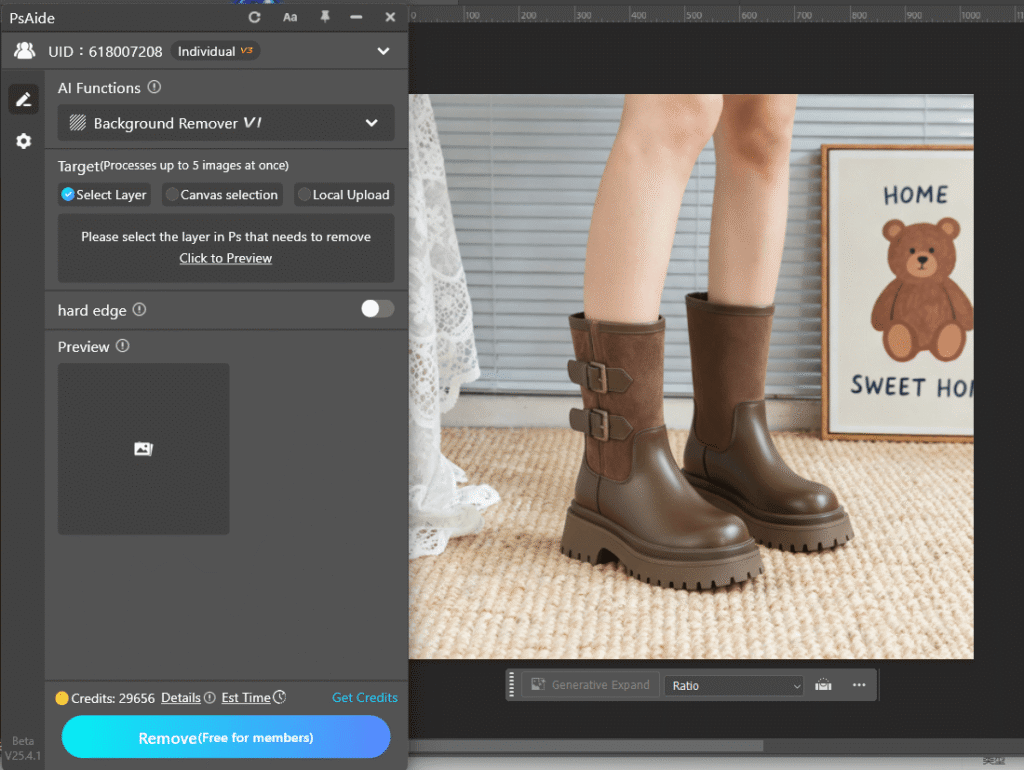
(3)Click Generate
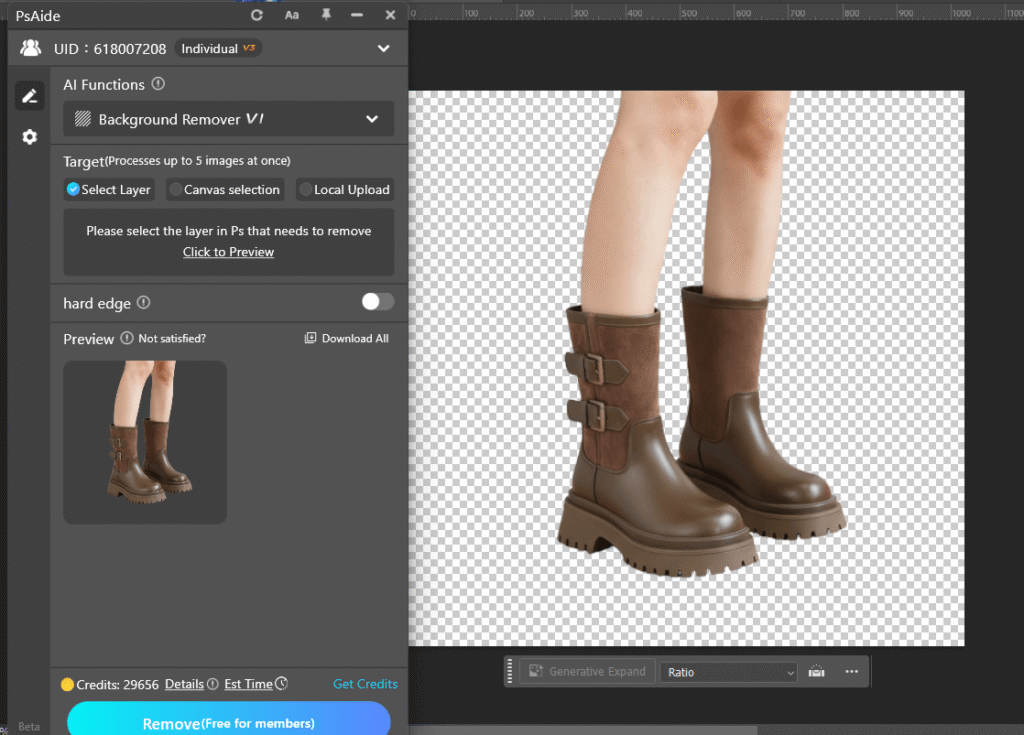
Click “Generate inmmediately”, and Psaide will automatically:
- Detect the main subject
- Remove the background
- Output the result inside Photoshop
No manual outlining or repeated edge refinement is required.
4.Summary
Photoshop offers multiple ways to remove backgrounds, but for beginners, speed and simplicity matter most. By combining basic Photoshop tools with the psaide Background Remover, you can achieve clean results faster and focus more on creative work.

Download Link: https://psaide.com/?sfrom=ZfhxUK
Invitation Code: ZfhxUK

