
Table of Contents
1. Using the “Select and Mask” Workspace
The “Select and Mask” workspace is a powerful tool in Photoshop designed for handling complex edges like fur, leaves, etc. .
Steps:
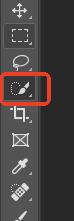
- Open your dog photo. Use the Quick Selection Tool or Lasso Tool to make a rough selection around the main body of the dog.
- Go to the top menu and select Select > Select and Mask to enter the workspace.
- Under the “Global Refinements” section, check “Smart Radius” and adjust the slider. This helps Photoshop detect and capture the fine details of the fur.
- Use the “Refine Edge Brush Tool” to paint over the furry areas. Photoshop will automatically process the complex hair, making it look more natural.
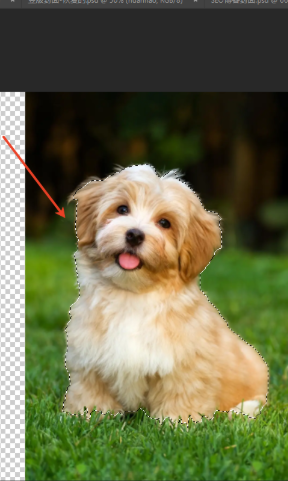
- Once satisfied, from the “Output To:” dropdown, choose “New Layer with Layer Mask”. Click OK. You will get a detailed cutout of the dog with its fur preserved.
2. Background Remover: The AI-Powered Solution in PsAide
For photos with complex, detailed fur, traditional Photoshop tools can sometimes lack precision. Issues like color fringing (background color on hair edges) or leftover background bits are common with challenging subjects like dog fur. This is where the AI-powered Background Remover function in the PsAide plugin offers an efficient and precise solution.
Steps:
- With your dog photo open in Photoshop, navigate to the PsAide panel.
- Find and select the Background Remover function.
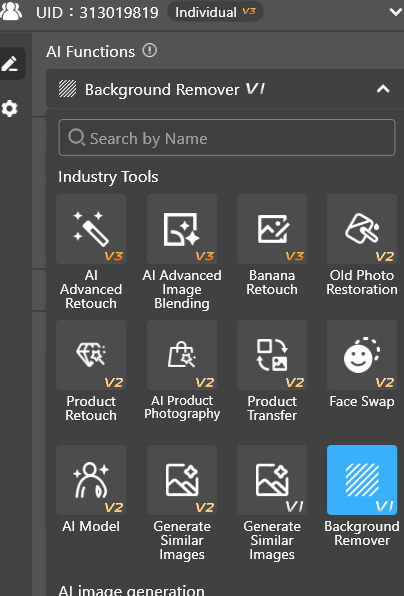
- Click the “Remove” button.

- Within seconds, the AI will perform a high-precision cutout, cleanly separating the dog from its background while perfectly preserving even the finest hair details.
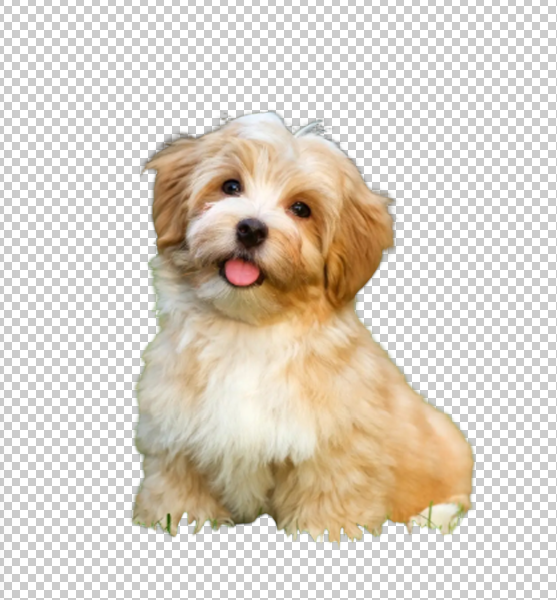
The advantage of the Background Remover lies in its efficient AI algorithm, capable of quickly processing complex fur and details.
Hair cutouts in Photoshop can indeed be technical, but with the right tools and techniques, you can handle them with ease. Whether you use Photoshop’s built-in “Select and Mask” workspace, the Quick Selection Tool with Feathering, or leverage the AI intelligence of PsAide’s Background Remover, you can achieve high-quality cutouts quickly without sacrificing precision.
For designers and photo editors seeking maximum efficiency, the AI-powered Background Remover makes the process simpler and more efficient, acting as a powerful tool to boost your workflow.
Download link
https://psaide.com/?sfrom=A86R4u
Invitation Code: A86R4u
Click here to discover more usage tips and in-depth information on Nano Banana Pro!

