
Table of Contents
Amazon merchants all know that high-click main images are the key to traffic and sales, and e-commerce image retouching (especially product wearing and replacement scenarios) is a daily essential operation. However, many merchants have no professional retouching foundation, and they face obvious pain points when using native Ps: manual Ps cutout and product proportion adjustment are not only time-consuming (each main image takes 20 minutes or more to retouch), but also prone to problems such as stiff fit between products and models, lost details, and disharmonious lighting. Even if barely retouched, the images fail to meet Amazon’s high-click requirements, wasting traffic. What’s more frustrating is that when products are hard to describe or AI cannot locate them accurately, retouching difficulty doubles. Psaide plugin’s built-in Nano Banana retouching function can perfectly solve these pain points—no complex Ps operations are needed, and precise retouching is achieved with one click to quickly create high-click e-commerce images, helping Amazon merchants save time and improve conversions.
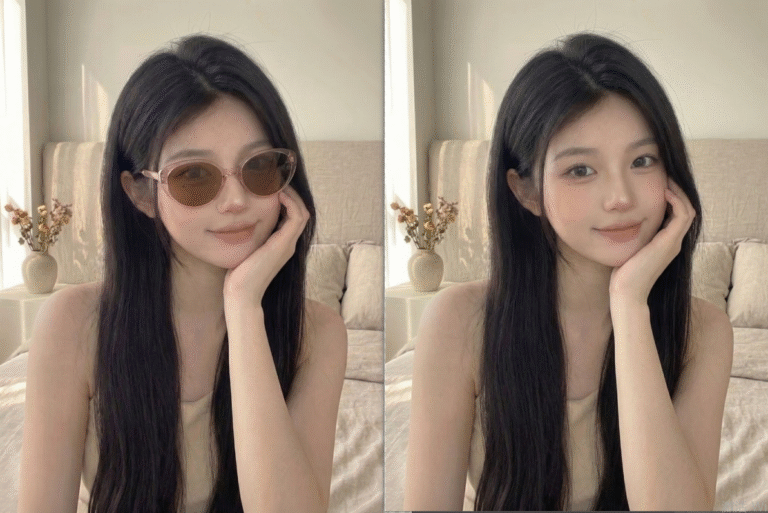
1.Use Psaide’s Nano Banana Function to Quickly Create High-Click Main Images
For Amazon merchants, the most common e-commerce image retouching scenarios are product wearing and replacement. Below are two practical methods to create high-click main images with Nano Banana Pro version of Psaide. The steps are simple and easy to follow, no complex Ps skills required, and even beginners can operate without mistakes.
First, ensure that Psaide plugin is installed in Ps (compatible with Ps CC2015 and above, Windows/Mac universal).
After opening Ps, find and launch the Psaide plugin, locate the “Nano Banana” retouching function in the function list, and select “Pro Version” (Pro version improves retouching accuracy, retains product details, and meets Amazon’s high-definition requirements for e-commerce images). The generation ratio can be set according to your needs (Amazon main images commonly use 1:1 and 3:4 ratios, adjustable on demand).
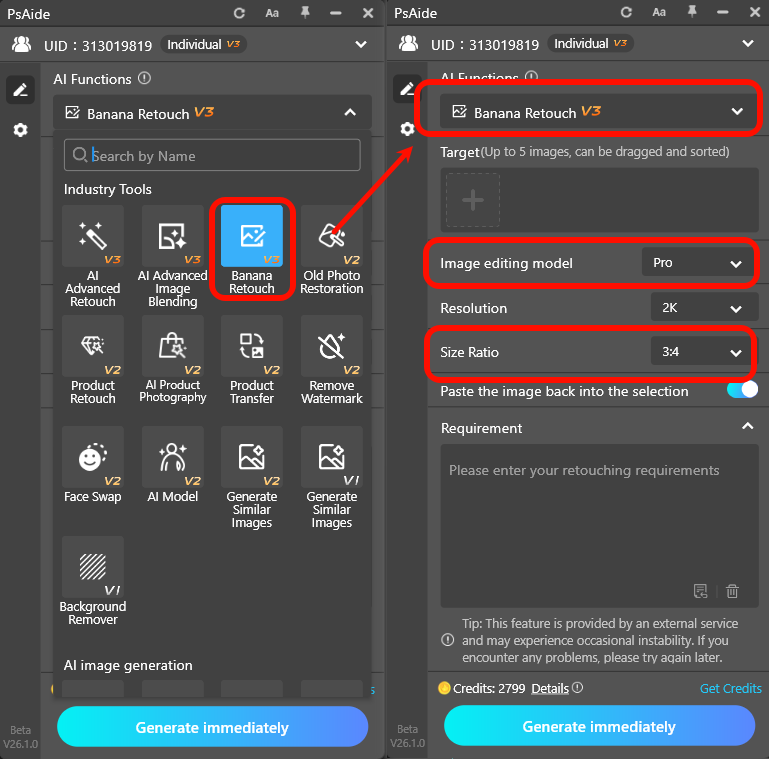
Method 1: Product Wearing Case (Suitable for Simple Scenarios, Quick Image Output)
This method is suitable for scenarios where products are easy to describe and do not require precise positioning, such as wearing products like sunglasses, hats, and necklaces. The specific steps are as follows:
- Open Ps, click “File – Open”, and import two images respectively: Figure 1 (model image for wearing the product) and Figure 2 (sunglasses product image to be worn).
- Return to the Nano Banana function interface of the Psaide plugin, click “Upload Materials”, and upload the processed Figure 1 (model image) and Figure 2 (sunglasses product image) respectively.
- In the prompt input box, enter accurately: 【Let the model in Figure 1 wear the sunglasses in Figure 2, ensuring the details of the sunglasses in Figure 2 are consistent】. No additional parameter adjustment is needed.
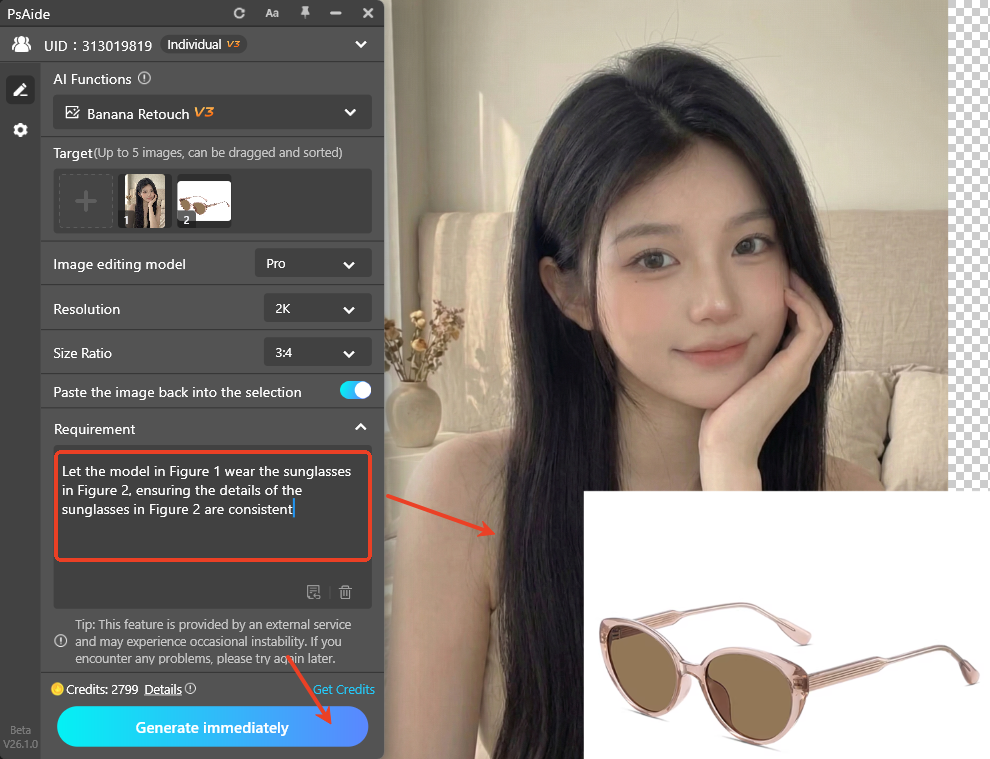
- Click the “Generate” button on the plugin interface, wait 15-20 seconds, and AI will automatically complete retouching, putting the sunglasses accurately on the model’s face while perfectly retaining the details of the sunglasses. The lighting blends naturally with the model image, directly meeting Amazon’s main image requirements without secondary fine-tuning in Ps.

Method 2: Product Replacement + Red Coloring Technique (Precise Positioning, Improve AI Image Accuracy)
This method is an essential skill for Amazon merchants, especially suitable for scenarios where products are hard to describe and AI cannot accurately locate product positions. It can effectively improve the accuracy of AI image generation. The specific steps are as follows:
- Open Ps, import the model image with sunglasses (original image to replace sunglasses), and press Ctrl+J to duplicate the background layer to avoid irreversible operation errors.
- Select the Lasso Tool (shortcut key L) on the left side of Ps, accurately select the original sunglasses area on the model’s face, and fit the sunglasses outline as much as possible. After selection, press ALT+DEL shortcut key to fill the selected area with red, marking the area to be replaced with red to help AI locate accurately.
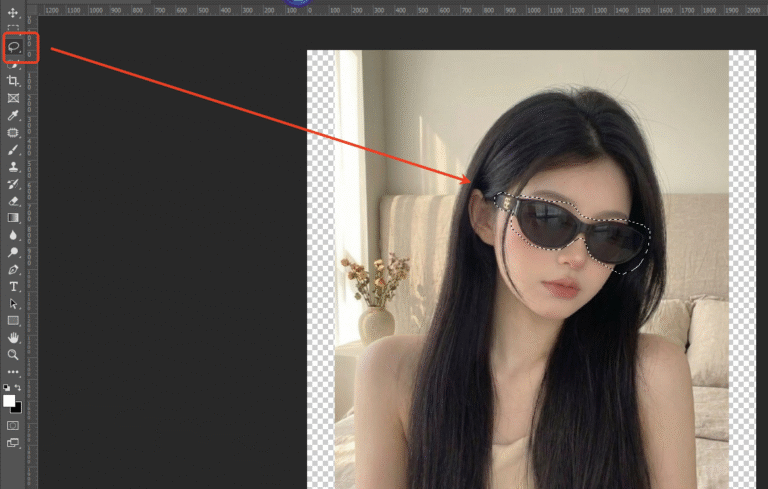
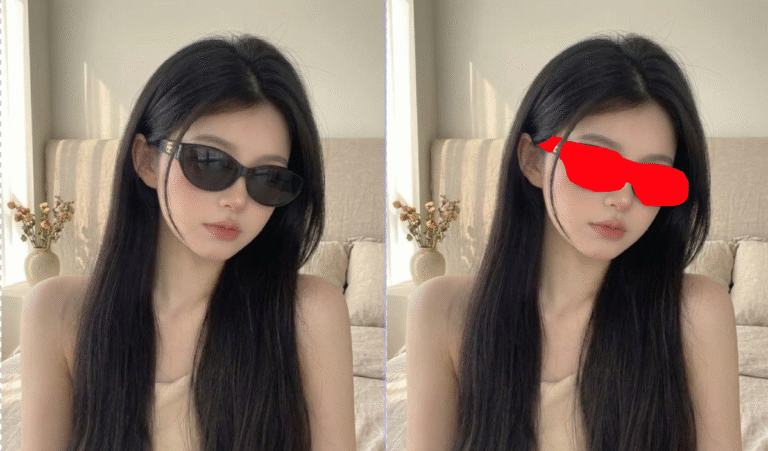
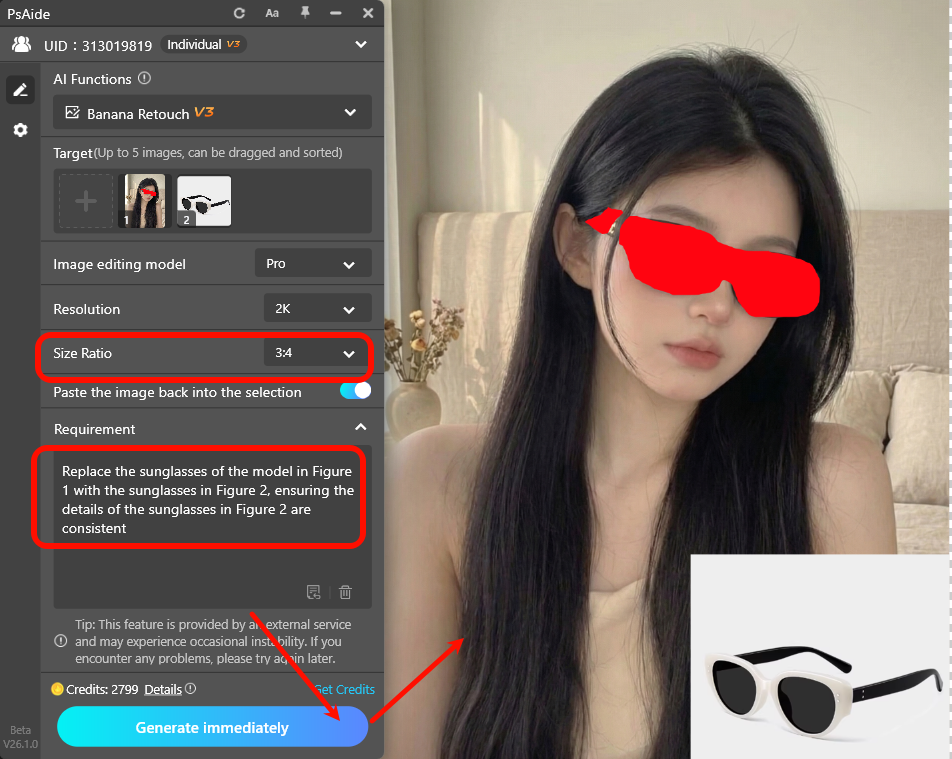
- Open the new sunglasses product image to be replaced (Figure 2), duplicate the background layer, then return to the Nano Banana function interface of the Psaide plugin, and upload the model image marked with red (Figure 1) and the new sunglasses product image (Figure 2).
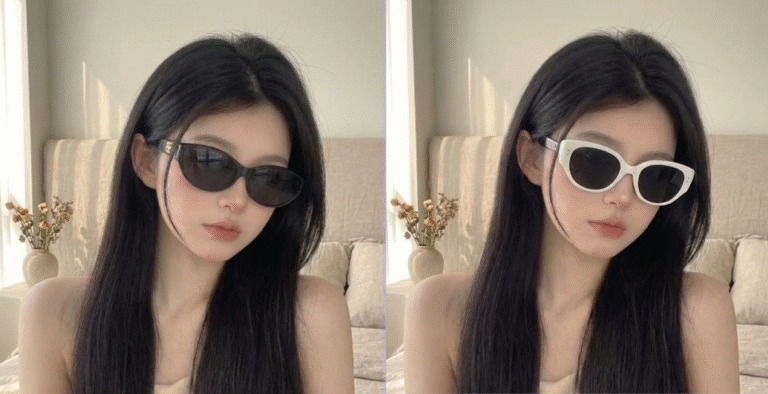
- In the prompt input box, enter: 【Replace the sunglasses of the model in Figure 1 with the sunglasses in Figure 2, ensuring the details of the sunglasses in Figure 2 are consistent】, and click the “Generate” button to complete retouching in a moment. This red coloring technique can effectively avoid AI positioning deviation. Even if the product is hard to describe, it can accurately complete product replacement, and the retouching effect is more in line with expectations, making it easy to create high-click e-commerce images.
3.Common Issues & Solutions (Must-Read for Beginners, Pitfall Avoidance Guide)
Many Amazon merchants may encounter some small problems when using Psaide’s Nano Banana function for retouching for the first time. Below are the 3 most common issues and corresponding solutions to help you avoid pitfalls and retouch efficiently.
Issue1: After AI generation, the sunglasses fit stiffly with the model and have a sense of disharmony?
Solution: First, check if the prompt is accurate, ensuring it includes keywords such as “consistent details” and “natural integration”. Second, if using Method 2, check if the red-marked area is accurate, fitting the original product outline as much as possible. Finally, add “adapt to the model’s lighting” to the prompt to improve the integration effect.
Issue2: After generation, the sunglasses details are lost or blurred, failing to meet Amazon’s main image requirements?
Solution: Ensure the uploaded product image (sunglasses image) is a high-definition material; when starting the Nano Banana function, be sure to select “Pro Version”, which can better retain product details and avoid blurriness. If the problem persists, adjust the generation ratio to be consistent with the original image to improve clarity.
Issue3: AI cannot accurately locate the product, and the generated result deviates from expectations?
Solution: Prioritize using the red coloring technique in Method 2 to help AI identify accurately by marking the replacement area; keep the prompt concise and clear, clearly indicating the corresponding content of “Figure 1” and “Figure 2” to avoid vague descriptions. If the product is really hard to describe, after red coloring, add the prompt “accurately replace the item in the red area”.
Conclusion: For Amazon merchants, efficient and precise retouching is the key to improving main image click-through rate. There is no need to spend a lot of time learning complex Ps skills. With Psaide’s Nano Banana Pro function, you can quickly create high-click E-commerce image through two practical methods, solve various pain points of native Ps retouching, save time costs, and help stores attract traffic and achieve sales.osture, smiling at the camera, hands placed naturally).
Download link

https://psaide.com/?sfrom=A86R4u
Invitation Code: A86R4u

