
Table of Contents
In scenarios like product displays and scene photography, it is often necessary to edit text on textured backgrounds such as carpets, such as adjusting slogans or correcting copy errors. However, when editing such text in Photoshop, due to the complex carpet texture and high integration between text and background, problems such as texture damage, obvious editing traces, and disconnection between new text and background are likely to occur. Manual adjustment is time-consuming and difficult to ensure results.
I. Traditional Text Editing on Carpets with Photoshop
Editing text on carpets with traditional Photoshop requires precise texture matching and is extremely operationally difficult. Specific steps:
Step 1: Open Photoshop, import the carpet image to be edited, and duplicate the background layer by pressing Ctrl+J to avoid damaging the original image;
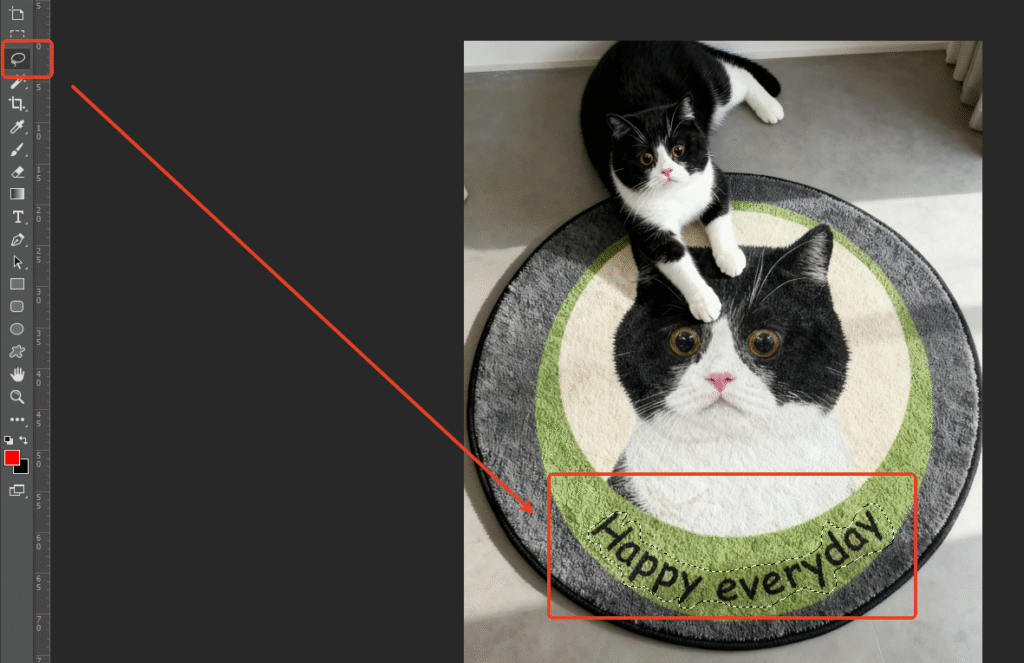
Step 2: Use the Lasso Tool to accurately select the area around the text “Happy everyday”, closely following the text outline to minimize the selection of extra carpet texture areas;
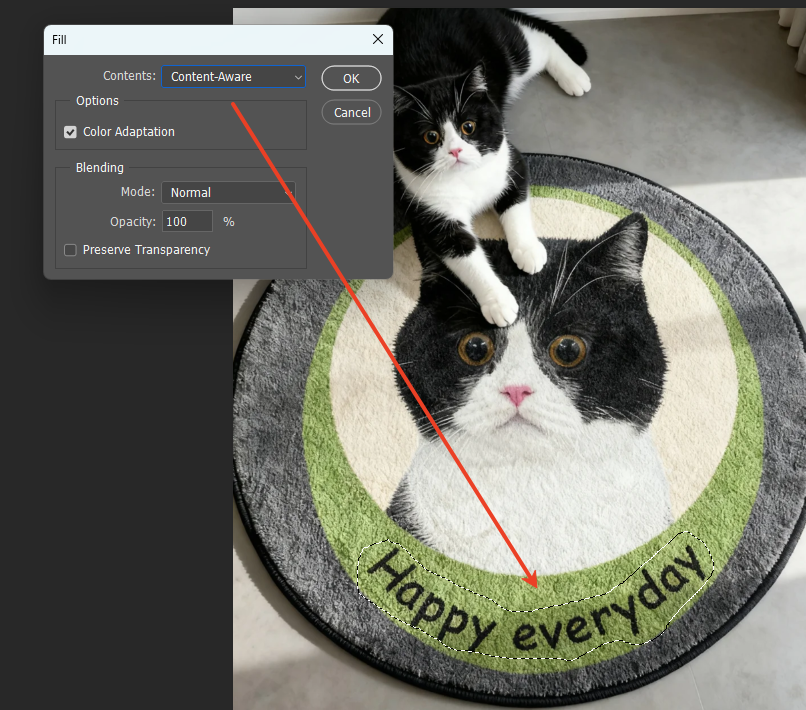
Step 3: Execute “Edit – Content-Aware Fill” to try automatic background filling. If the texture is messy, use the Clone Stamp Tool to sample the surrounding carpet texture, manually repair the selection bit by bit, and adjust repeatedly to ensure continuous filled texture;
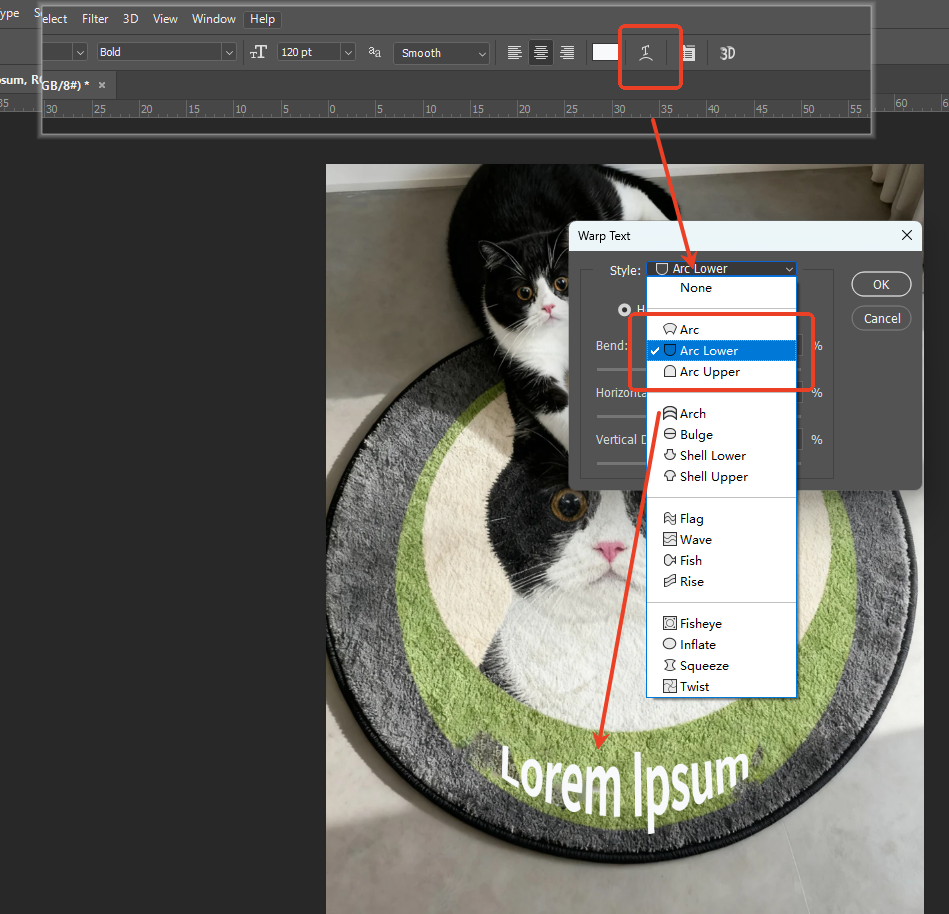
Step 4: Use the Type Tool to enter the new text “Today is a good day”, try to match the original font, font size and font weight, and move it to align with the original text position;
Step 5: Add “Color Overlay” and “Pattern Overlay” effects to the new text, sample the carpet color and texture, then adjust the opacity and add a Blur Filter to simulate the integration of text and carpet;
Step 6: Zoom in on the image for pixel-by-pixel fine-tuning to correct texture misalignment and color deviation. The entire process requires repeated polishing, taking 30-40 minutes, and is prone to problems such as texture breakage and strong text floating, which is almost impossible for beginners to master.
II. Efficient Alternative: Nano Banana Pro in Psaide
Targeting the pain points of traditional Photoshop text editing on carpets, the Nano Banana Pro feature built into the Psaide plugin, relying on AI texture recognition and intelligent integration algorithms, can automatically match carpet textures and achieve seamless text editing. Specific operation steps:
Step 1: Import the Carpet Image into Photoshop
Open Photoshop, click “File – Open”, import the carpet image to be edited into the canvas. No preprocessing is required, and the original layer can be retained directly to ensure traceability for subsequent modifications.
Step 2: Launch Nano Banana Pro and Set Parameters
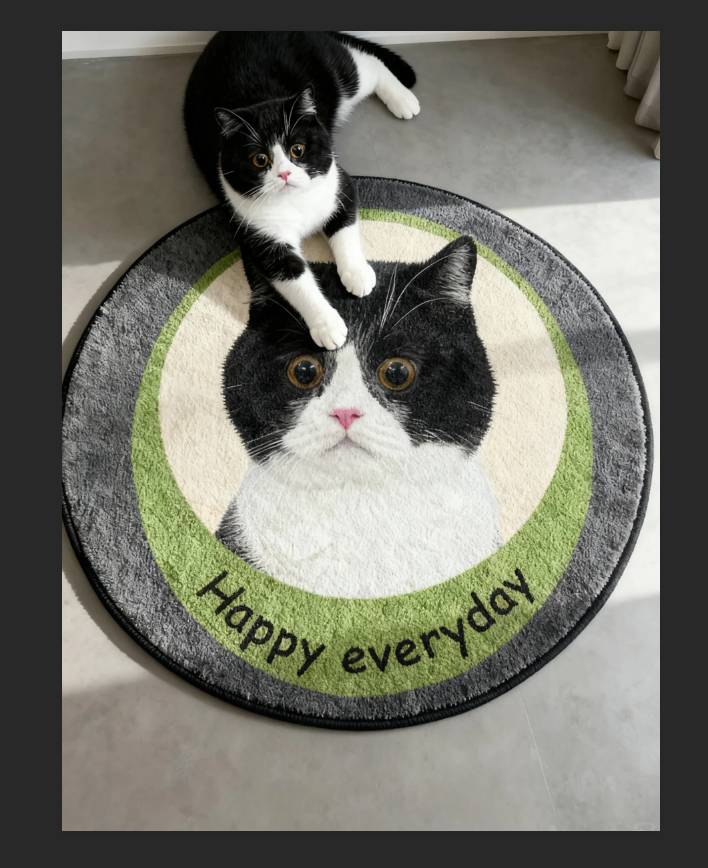
Find the installed Psaide plugin panel in the Photoshop interface, expand the function list, accurately locate and click the “Nano Banana” function, and select the “Pro Version” mode at the top of the function interface. Press Ctrl+A to select the entire image, click the “Upload Selection” button on the plugin interface, then accurately enter the prompt [Change “Happy everyday” in Figure 1 to “Today is a good day”] in the prompt input box, without additional parameter adjustments.
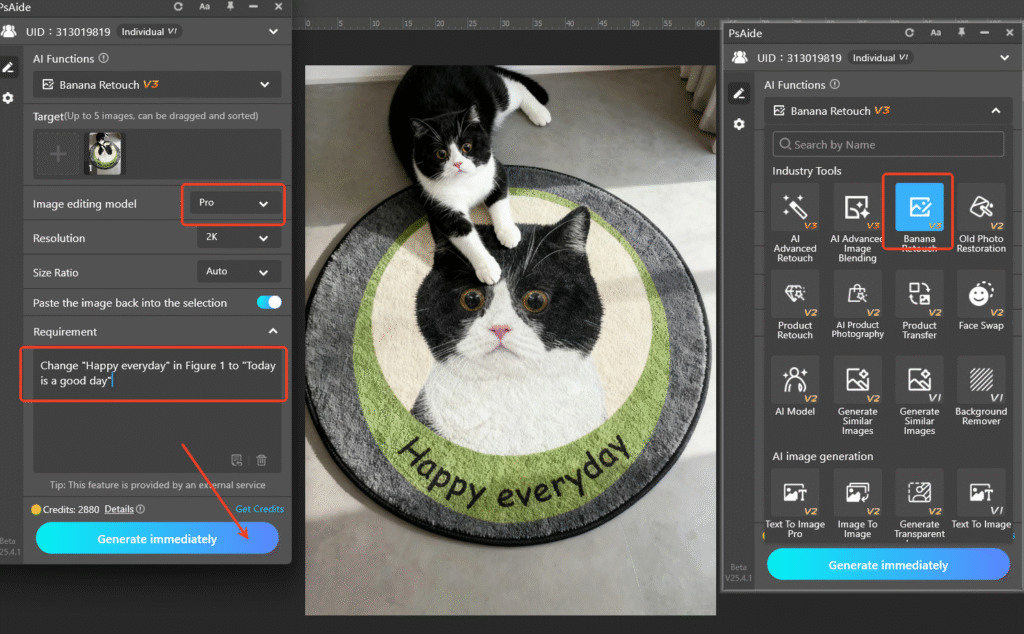
Step 3: One-Click Generation and Seamless Effect Display
After confirming the prompt and selection are correct, click the “Generate” button on the plugin interface. The AI will complete the calculation within 15-20 seconds. After generation, Photoshop will automatically add a new processed layer. Hide the original layer to view the effect – the new text “Today is a good day” perfectly matches the original font style and size, and seamlessly integrates with the carpet texture and light and shadow. No editing traces are visible at all, and the carpet texture remains continuous and natural even when zoomed in, which can be used directly.
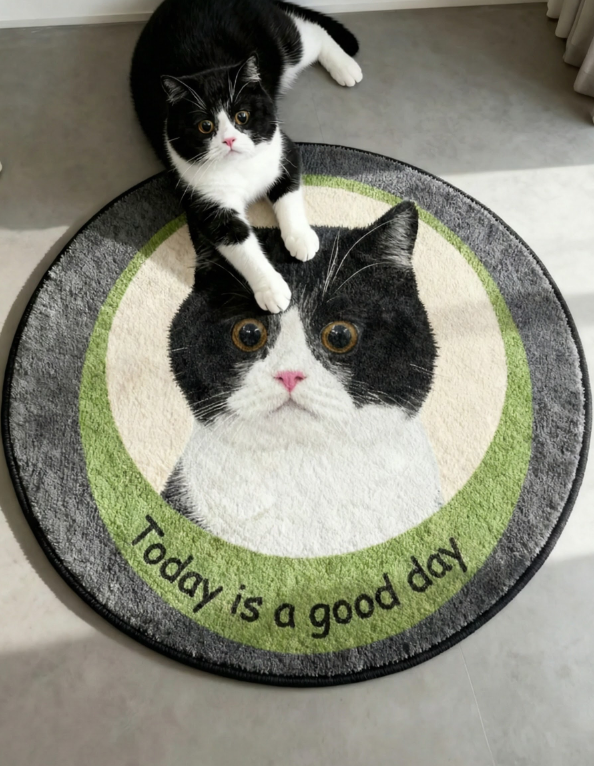
III. Core Advantages of Nano Banana Pro for Text Editing on Textured Backgrounds
Compared with traditional Photoshop operations, Nano Banana Pro has significant advantages: First, extremely simple operation, completed in three steps, with almost zero learning cost, allowing beginners to get started quickly; Second, high efficiency, taking less than 1 minute in total, far exceeding traditional methods; Third, seamless effect, AI intelligently recognizes and matches carpet textures, avoiding problems such as texture damage and text floating; Fourth, strong adaptability, suitable not only for carpets but also for accurate text editing on various complex textured backgrounds.
Practical Tips
1. It is recommended to use high-definition materials for imported images to enable AI to more accurately recognize carpet textures and text attributes;
2. Ensure the image is fully displayed in the canvas when selecting the entire image to avoid selection loss affecting the editing effect;
3. If you need to adjust the style of the new text, you can add descriptions such as “bold” and “rounded font” to the prompt to precisely control the effect.
Download link
To solve the problem of “how to edit text on images in Photoshop” and get rid of the tedious operations and trace troubles of text editing on complex textured backgrounds such as carpets, try Photoshop combined with the Nano Banana Pro feature of Psaide! No professional image editing skills are required, and precise and seamless editing can be achieved with one click, greatly improving image editing efficiency and professional texture.
https://psaide.com/?sfrom=A86R4u
Invitation Code: A86R4u

