
Table of Contents
The Jewelry Photography Challenge
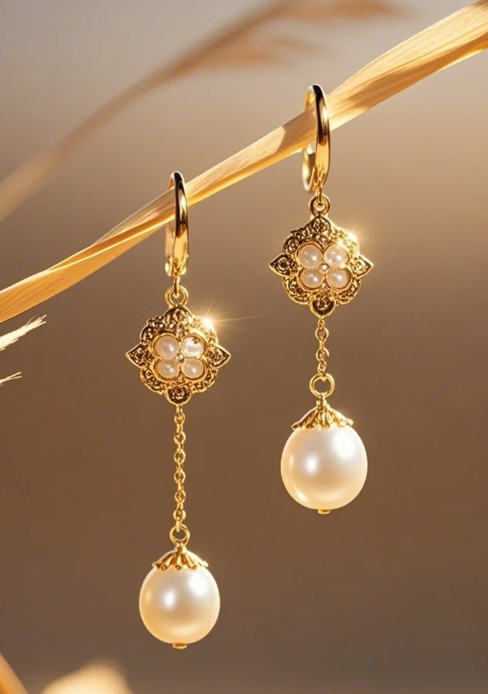
Product photography for small items like earrings presents unique difficulties. These accessories often feature intricate designs, reflective surfaces, and delicate chains that blend with backgrounds. Traditional selection tools struggle with these fine details, often leaving unwanted halos or cutting off important elements.
1.Why Dedicated Background Removal Tools
While Photoshop offers basic selection tools, they lack the specialized intelligence needed for jewelry photography. The Background Remover function in PsAide is specifically engineered for product isolation. Unlike generic tools, it recognizes the distinction between jewelry materials and backgrounds, understanding that earring posts should remain sharp while chains need careful edge treatment. The “Hard Edge” option is particularly valuable for jewelry, creating crisp boundaries without the feathering that can make products appear soft or unprofessional.
2.What You’ll Need
- Adobe Photoshop with PsAide plugin installed
- Click to Download
- Jewelry photograph (earrings, necklaces, rings, etc.)
- Approximately 30-60 seconds processing time
3.The Professional Background Removal Process
Step 1: Prepare Your Jewelry Image
Open your earring photograph in Photoshop. Ensure your image has good contrast between the jewelry and its background. While the tool works with various conditions, clear lighting and distinct edges yield optimal results. For jewelry with transparent elements or reflective surfaces, this specialized tool handles the complexity better than standard methods.

Step 2: Configure for Precision Results
Navigate to the PsAide panel and locate Background Remover. Upload your jewelry image to the interface. For earrings and similar accessories with defined edges, activate the “Hard Edge” option. This setting is crucial for jewelry as it maintains the sharp, clean boundaries needed for professional product presentation, unlike the soft edges used for hair or fur.

Step 3: Generate and Refine
Click the “Remove” button. The AI processes the image, typically within 20-40 seconds. It automatically identifies the jewelry as the foreground subject, precisely separates it from the background while maintaining intricate details like chain links, gemstone settings, and earring backs. The result is a perfectly isolated jewelry item on a transparent background, ready for use in catalogs, websites, or marketing materials.

4.Applications and Best Practices
This technique is essential for:
- E-commerce Optimization: Creating consistent white-background product images
- Marketing Materials: Isolating products for advertisements and social media
- Catalog Production: Preparing clean images for print and digital catalogs
- Jewelry Design: Presenting designs to clients without distracting backgrounds
Professional Tips:
- For jewelry with mixed materials (metal and gemstones), the tool automatically adjusts edge detection for different textures
- If working with extremely delicate chains, zoom in to verify edge accuracy at 100% view
- Save results as PNG files to preserve transparency for future use
- For batch processing similar jewelry items, maintain consistent lighting and angles for uniform results
The Background Remover tool transforms what was once a tedious manual task into a streamlined, one-click operation, allowing jewelers and photographers to produce professional product images in seconds rather than hours.
Download link
https://psaide.com/?sfrom=A86R4u
Invitation Code: A86R4u

