Table of Contents
1、The Jewelry Editing Problem
You have a beautiful model photo. The lighting is soft. The skin looks natural. The composition is perfect. But the bracelet is wrong. It’s last season’s style. The client launched a new collection. Or you simply need to test different options before a shoot.
Reshoot? That means rebooking the model, the photographer, the studio. Thousands of dollars. Days of waiting.
Manual editing in Photoshop? A bracelet wraps around the wrist. It needs to curve with the skin. The clasp should sit naturally. The metal needs to reflect the scene’s lighting. The shadows must fall correctly on the skin. Adjusting all of this manually takes 30-45 minutes of expert work.
Jewelry is one of the hardest product categories to edit. Small details matter. Reflections are unforgiving. The fit must look natural. Most brands simply reshoot or accept the wrong product in their photos. There’s a better way .
2、The Solution: Nano Banana Pro in 3 Steps
Here’s how to replace any bracelet on a model using AI inside Photoshop.
What You Need
- Adobe Photoshop with PsAide plugin
- One model photo (wearing original bracelet)
- One product photo (your new bracelet)
- 60 seconds
Step 1: Open Your Images
Open both your model photo and your new bracelet product image in Photoshop. No selection needed. No red marking required. The AI handles everything automatically .
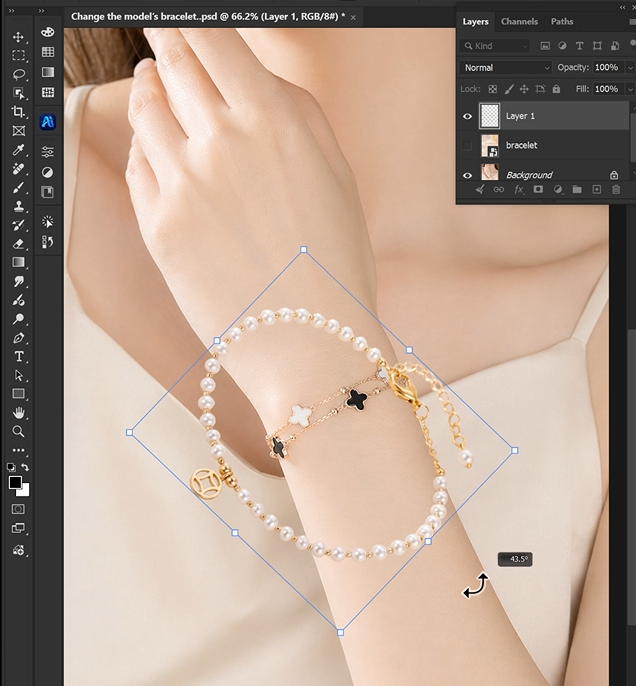
Step 2: Write Your Prompt
Open the PsAide panel. Launch Nano Banana and select the Pro version for the strongest image understanding. Set output resolution to 4K—essential for preserving fine jewelry details like chain links, clasps, and metal reflections .
Upload your two images:
- Image 1: Your model photo
- Image 2: Your new bracelet product photo
Type this prompt:
“Remove the bracelet from the model’s hand in image 1, and have the model wear the bracelet from image 2, while keeping the details unchanged.”
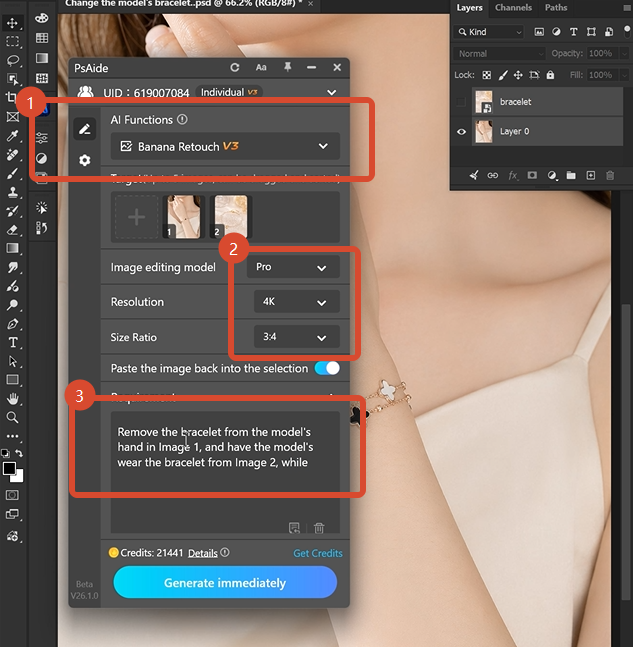
Click Generate. Wait 45-60 seconds.
Step 3: Get Your Result
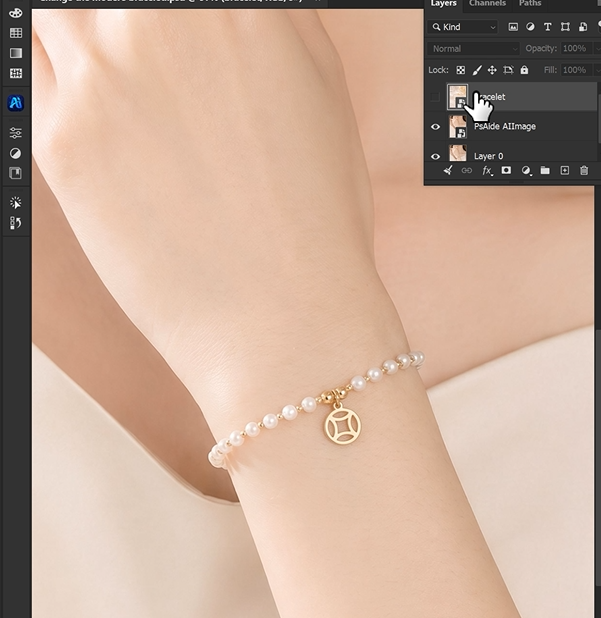
The AI processes your images. It identifies the wrist area and existing bracelet. It removes the original jewelry. It positions the new bracelet, automatically adapting it to the wrist curve. It matches the scene’s lighting and skin reflections. It preserves all fine details of the new product.
Your model is now wearing the new bracelet .
3、Pro Tips for Perfect Bracelet Swaps
1. Use high-quality product images. The AI preserves bracelet details like links, clasps, and engravings. Start with a sharp product photo.
2. 4K resolution is ideal for jewelry. Bracelets have small details. 4K preserves chains, clasps, and metal textures. 2K is acceptable but 4K is better for commercial work .
3. Match the general style. A chunky chain bracelet swaps better with another chunky chain. The AI handles different styles, but similar silhouettes yield the best results.
4. Consider the wrist position. The AI understands wrist curves. No manual rotation needed. Just upload and generate .
5. Save your prompt. Once you have a prompt that works, save it. Apply the same prompt to your entire jewelry collection for consistent results.
6. Check the clasp area. After generation, zoom in to check the clasp. Minor adjustments can be made with the Clone Stamp or Healing Brush if needed. between struggling with 3D tools and working with AI.
4、Download link
https://psaide.com/?sfrom=A86R4u
Invitation Code: A86R4u