
Table of Contents
1.The Clothing Replacement Problem
You have a great model photo, but the top needs to change. Manually replacing a base layer or top in Photoshop is difficult. You must mask around arms and hair, match fabric folds to the body position, adjust shadows, and blend edges naturally. This takes 20-30 minutes of skilled work.
Now you can do it in 3 steps with Nano Banana in Photoshop.
2.3-Step Top Replacement Process
Step 1: Mark the Original Top in Red
Open both your model photo and the new top image in Photoshop. On the model photo, use the Lasso Tool to select the current top or base layer. Fill this selection with bright red (RGB: 255,0,0). This red marker tells the AI exactly what to replace.
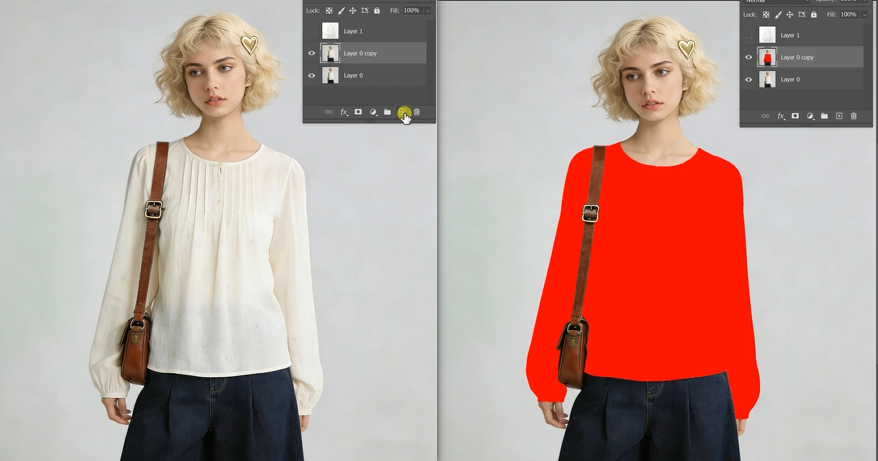
Step 2: Command the AI
Open Nano Banana . Choose your output ratio (1:1 works well for most fashion images). Upload both images. In the prompt box, enter:
Replace the clothing in Figure 2 with the clothing in Figure 1.
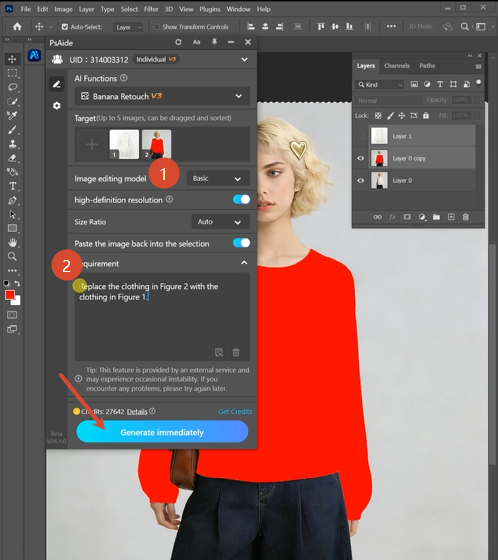
Step 3: Generate
Click Generate. The AI will remove the red-marked top, place the new top on the model, adjust armholes and neckline to fit the pose, match fabric folds and shadows, and blend edges naturally. The result looks like the model wore it in the original shoot.
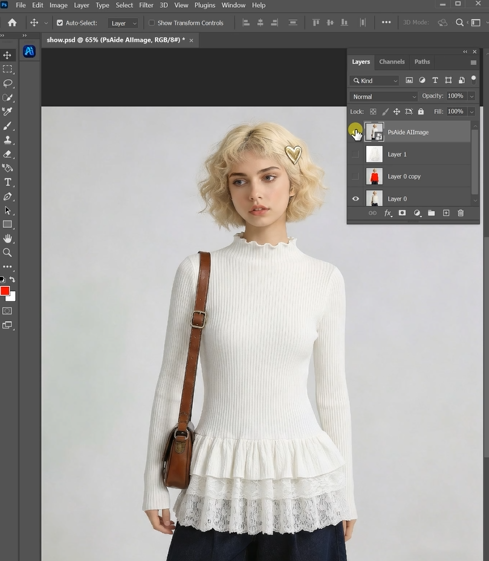
3.Quick Tips
- Choose a new top image with similar lighting to your model photo
- The red marker only needs to cover the clothing area
- For tight base layers, pick a model pose with arms down for best fabric flow
4.Simple Description of the Article
This short tutorial shows fashion editors and e-commerce teams how to replace a model’s top using AI. The manual method takes 20-30 minutes of masking and warping. This method takes 60 seconds: mark the old top in red, type one command, and let AI handle fit, fabric drape, and lighting matching. Perfect for online stores updating product images without reshoots or designers testing different base layers on the same model photo.
5.Download link

https://psaide.com/?sfrom=A86R4u
Invitation Code: A86R4u

