
Table of Contents
Vintage family photos like wedding shots and family portraits are prone to yellowing, scratches and blurriness, and manual restoration with native PS is extremely unfriendly to beginners with countless pitfalls. Psaide’s Old Photo Restoration feature, tested by me for six months, solves this problem completely with just 3 steps—find the feature, upload the image, click generate. It’s ultra-simple to operate, and this is an unbiased, practical tutorial for it.
There are 4 major pain points of native PS for old photo restoration, which is why I chose Psaide: ① Time-consuming: Manual restoration of one photo takes 1-2 hours; ② Complex operation: Beginners can’t master all tools and often create an unnatural “plastic look”; ③ Poor detail retention: Hard to balance naturalness and easy to damage the original image texture; ④ High threshold: Parameter adjustment is unmanageable without professional skills.
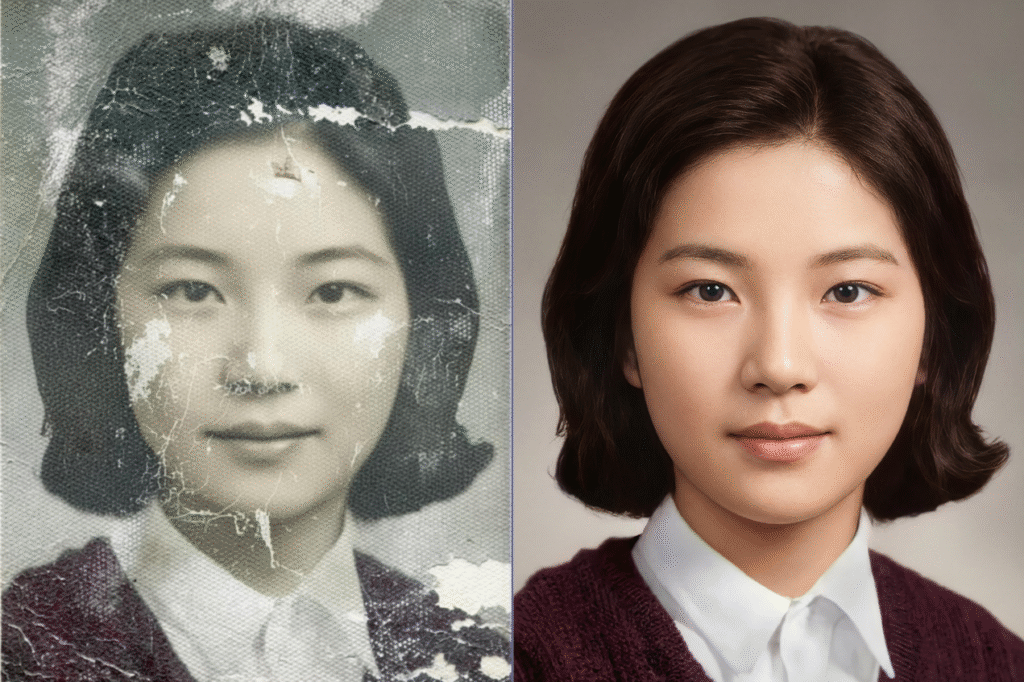
Psaide’s built-in Old Photo Restoration feature avoids all these pain points and is beginner-friendly in an instant. Its AI automatically identifies photo defects—no manual selection or parameter adjustment needed, finishes restoration in 10-30 seconds, and preserves the original image texture and vintage feel.
1.Preparations
1. Install the Psaide Plugin
Visit the official Psaide website, download the installation package matching your PS version, click “Next” throughout the guided process with no extra configuration required. Installation takes just 1-2 minutes.

2. Launch the Plugin & Locate the Feature
Restart PS after installation (the plugin won’t be recognized without a restart). Open Psaide in PS via Window > Extensions to access all its functions easily.
2.Complete 3-Step Operation for Psaide Old Photo Restoration (10-30 Seconds Output)
The core operation has only 3 steps with 10-30 seconds to get the restored image. No manual retouching or parameter adjustment is needed—beginners can follow the steps directly and say goodbye to tedious PS workflows:
Step 1: Find the Old Photo Restoration Feature (Core First Step)
Open the Psaide plugin, locate Old Photo Restoration in the core feature area on the homepage, and click to enter the operation interface. The clean interface ensures no confusion for beginners, and it’s compatible with all types of old photos.
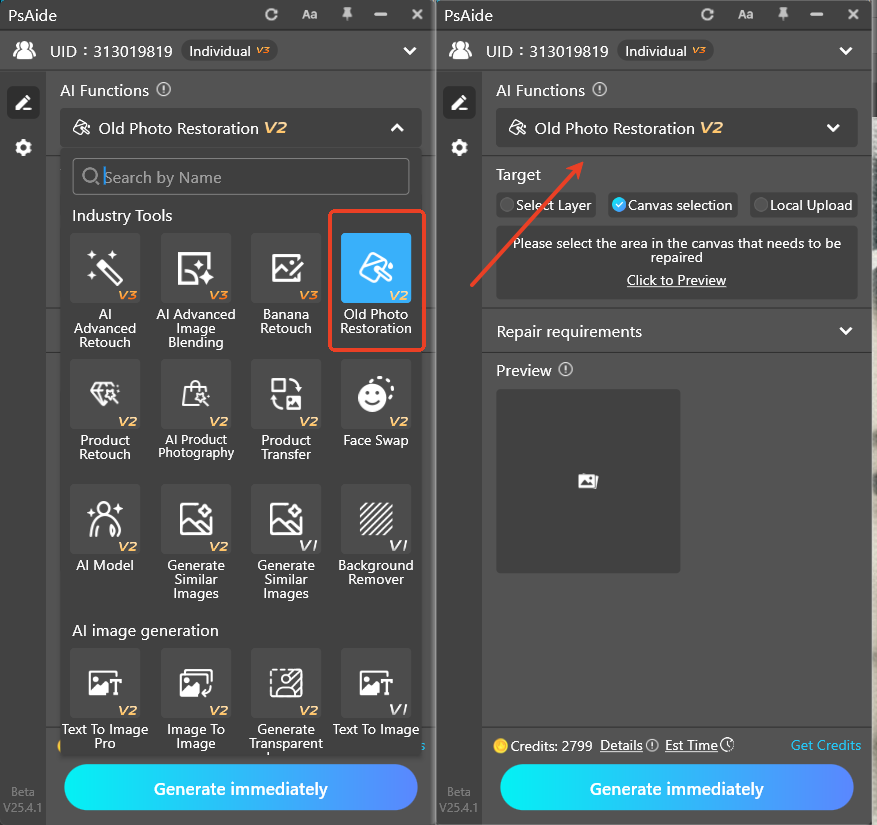
Step 2: Upload the Old Photo to Restore
Click Upload Image and select your old photo material (JPG, PNG supported). After uploading, the AI automatically identifies all defects in the photo—no manual selection of repair areas is required.
Pro Tip: For severely damaged photos, cluttered backgrounds, multi-portrait shots or black-and-white photo colorization (for advanced effects), use Psaide’s Nano Banana feature with simple prompts for damaged area repair and colorization for more precise results.
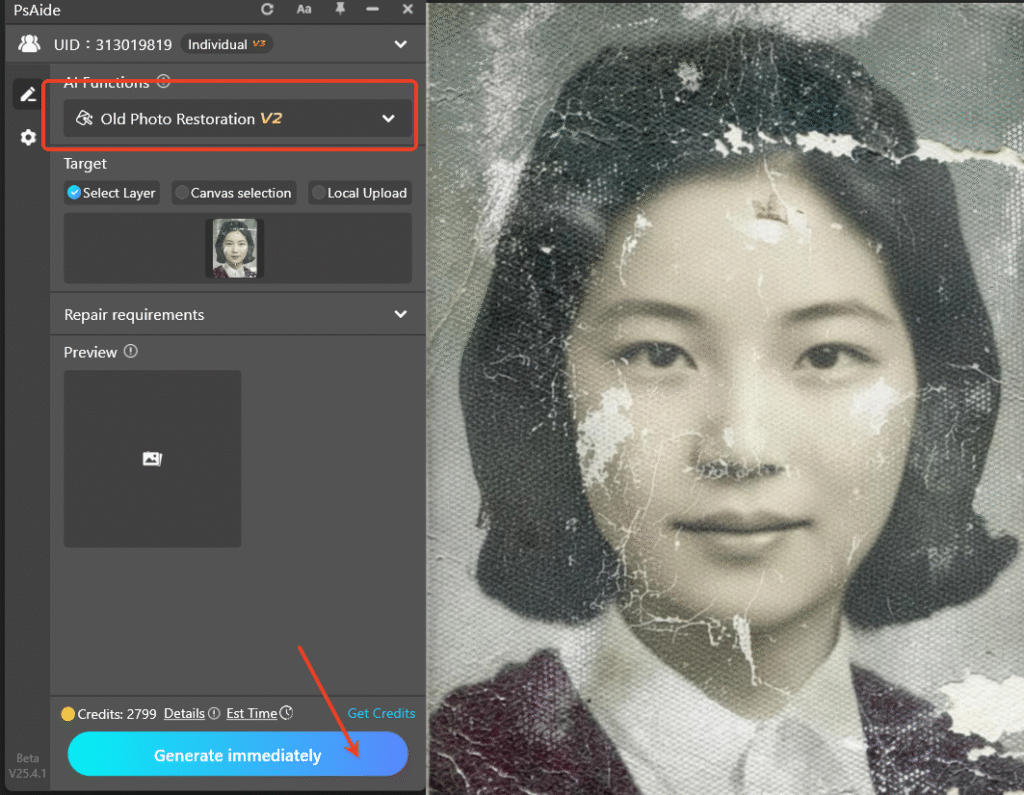
Step 3: One-Click Generate & Finish Restoration (Final Step, No Fine-Tuning)
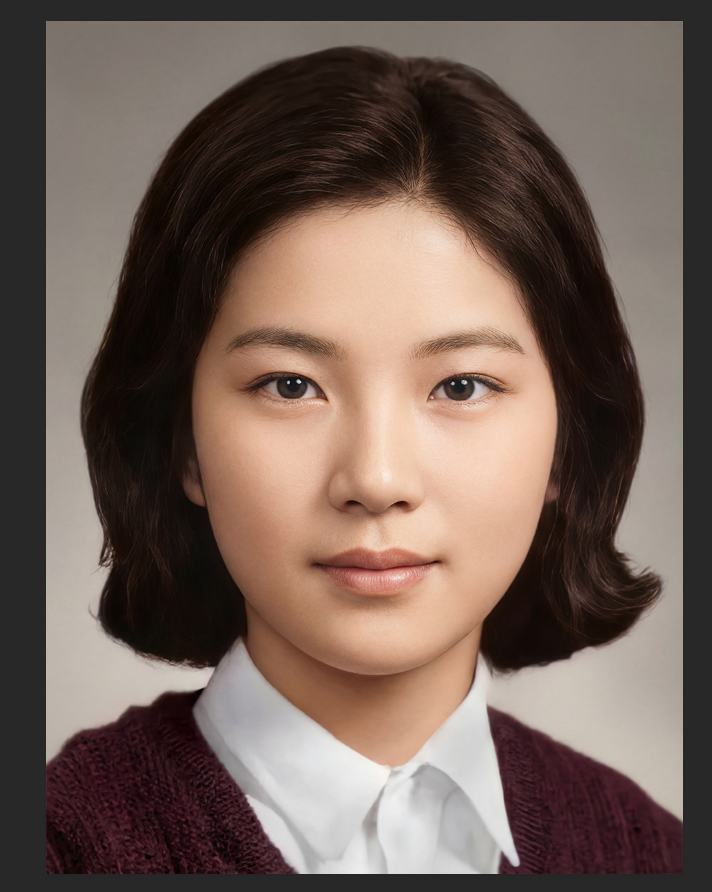
No parameter adjustment or complex prompts needed. Click Generate Now, and the restoration is complete in 10-30 seconds with the restored image displayed on the interface instantly.
3.Common Problems & Solutions for Psaide Old Photo Restoration
Here are 2 high-frequency issues and practical solutions from my personal testing—beginners can resolve problems quickly and ensure the tutorial’s usability:
Problem 1: Poor restoration effect with unremoved scratches and yellowing
Core Cause: Blurry or severely damaged photo material.
Solutions:
① Replace with a high-definition version of the photo;
② Use Psaide’s Nano Banana for further old photo restoration;
③ Touch up residual flaws with the Local Repair feature.
Problem 2: Lost original texture and unnatural “plastic look” after restoration
Core Cause: Over- Restoration by AI, which damages the original film grain and paper texture of the old photo.
Solutions: Use Psaide’s Nano Banana for retouching—add the prompt “Preserve the original texture and film grain of the old photo, no over-restoration” in the prompt box before generating, then click generate for natural results.
Download link
https://psaide.com/?sfrom=A86R4u
Invitation Code: A86R4u

