
Table of Contents
The advancement of AI Advanced Retouch technology, paired with professional Photoshop plugins, provides an efficient, precise, and low-barrier solution to the challenges of old photo restoration.
1. PsAide Plugin for Effortless Old Photo Restoration
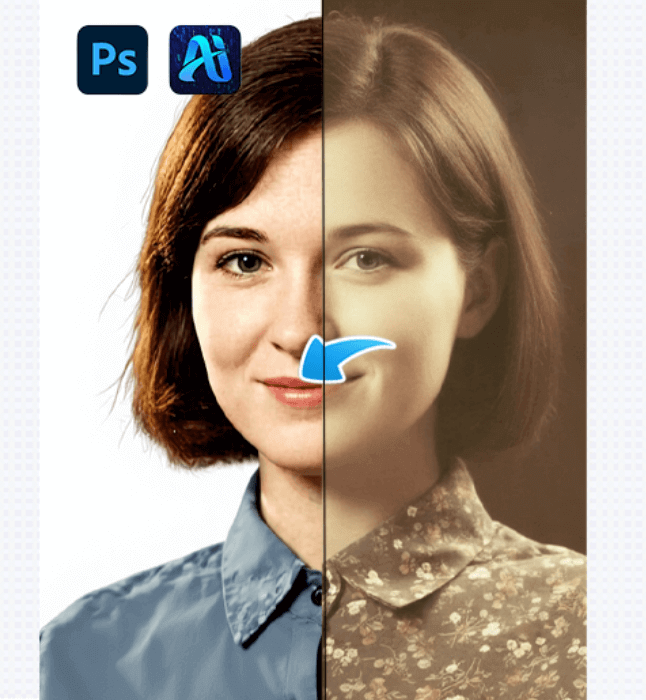
(1)AI Advanced Retouch Technology: Old Photo Restoration Example
Using PsAide’s powerful AI, old photo restoration outperforms manual methods. It removes scratches and creases, calibrates color tones, and restores facial details, textures, and vintage feel. The result is a clear, emotionally engaging image that maintains its original warmth without visible AI artifacts.
(2)Key Advantages of Old Photo Restoration with AI Retouching
The core advantages of this feature meet the demands of old photo restoration, offering “accuracy, efficiency, and authenticity,” and fully unleashing the value of AI retouching technology:
① Significant Time Savings: No need for pixel-by-pixel adjustments. AI retouching can automatically detect scratches, fading, blurring, and other issues, repairing them in bulk. What would normally take several hours of manual work can now be completed in just 1-2 minutes, even for batch processing, significantly boosting restoration efficiency.
② Highly Accurate Detail Restoration: The AI algorithm deeply analyzes the era-specific characteristics of the old photo, the facial structure, and object textures, removing blemishes while retaining the original fine details of the photo. This prevents “over-enhancement” that can lead to distortion.
2. Step-by-Step Guide to Restoring Old Photos with PsAide
This AI retouching plugin for Photoshop simplifies the process into just 3 easy steps to restore old photos to high definition:
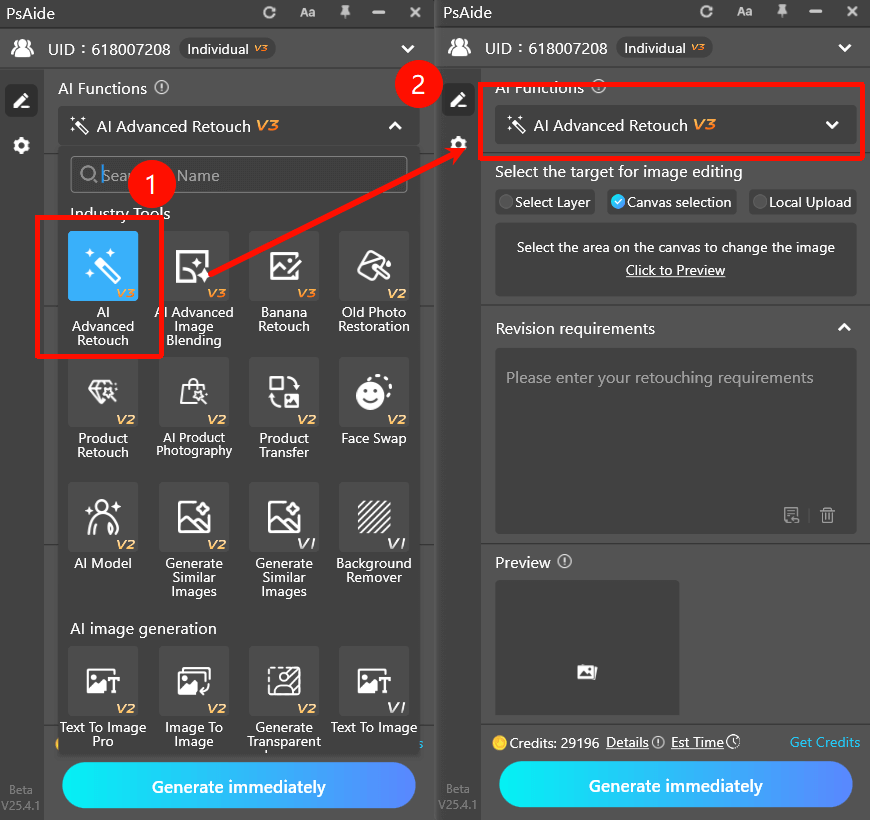
(1)Step 1: Import the Old Photo into Photoshop
Import the old photo that needs restoration into Photoshop and select the photo area to edit using the selection tool.
(2)Step 2: Enter Editing Instructions
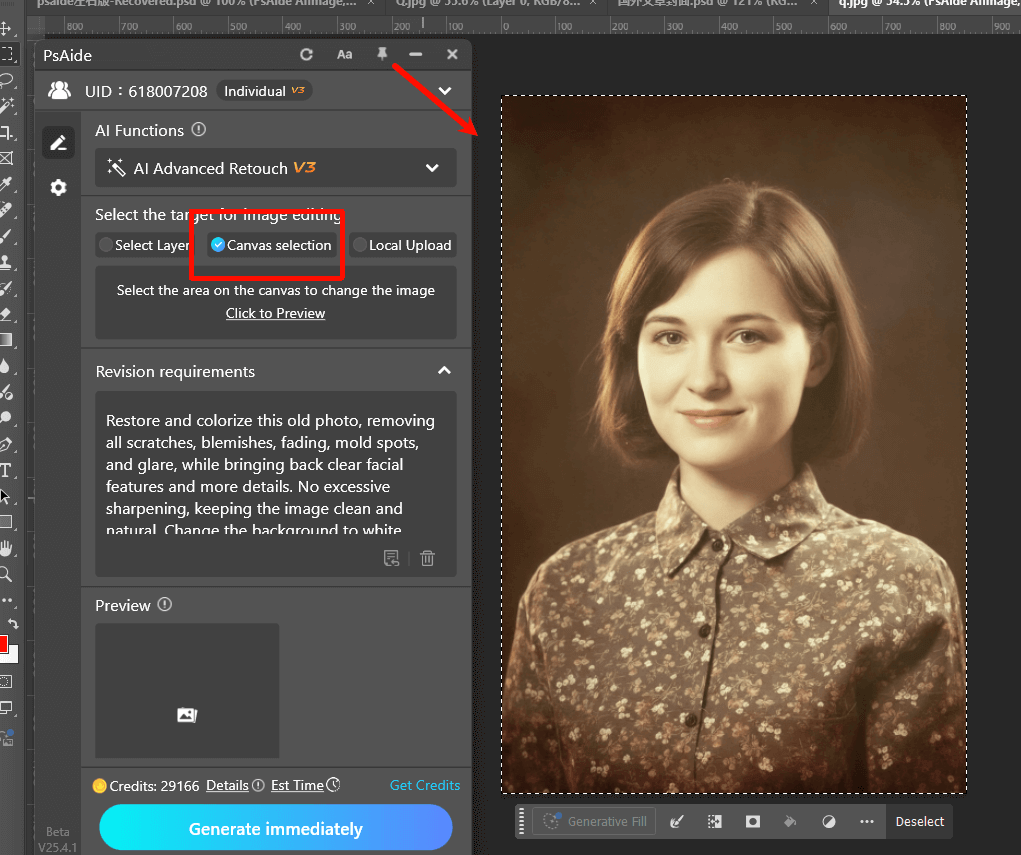
In the prompt box, clearly state the restoration requirements, such as
Restore and colorize this old photo, removing all scratches, blemishes, fading, mold spots, and glare, while bringing back clear facial features and more details. No excessive sharpening, keeping the image clean and natural. Change the background to white without altering any details of the person.
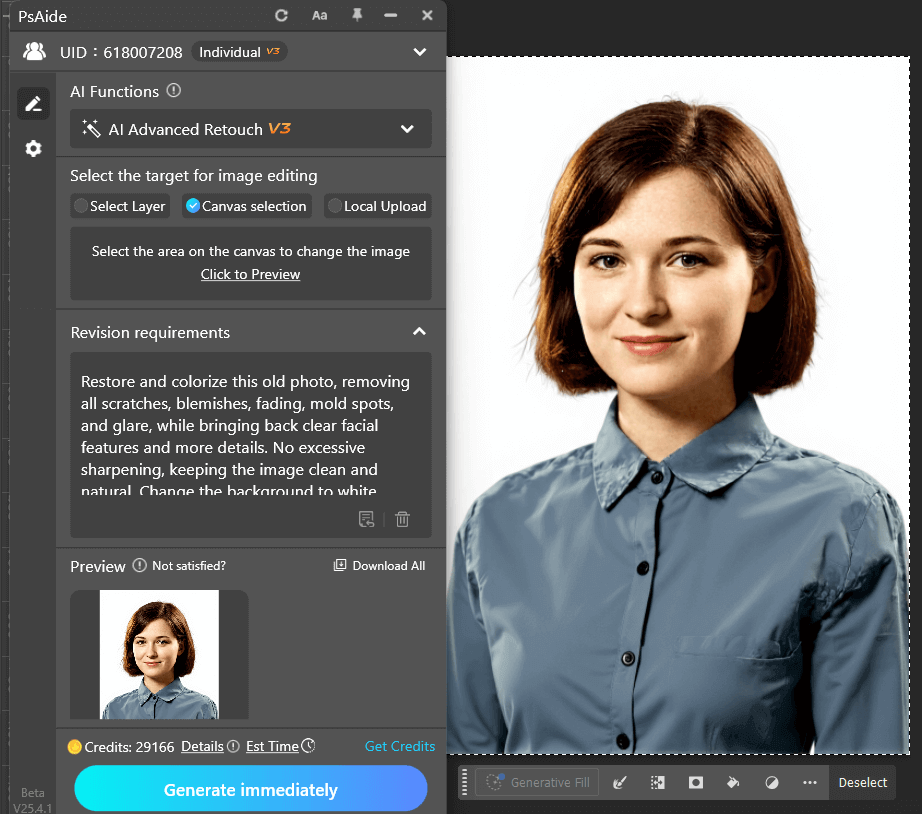
(3)Step 3: Click “Generate”
Click the “Generate” button and wait for 1-2 minutes for the restored image to appear with high-definition quality.
3. Why Choose AI Retouching for Old Photo Restoration?
(1)Boosting Efficiency
PsAide’s AI retouching helps photography enthusiasts, family users, and more restore old photos quickly and professionally, saving time and effort. The AI does all the heavy lifting—automatically detecting and fixing issues—allowing for faster processing of precious memories.
(2)No Expertise Required
With AI retouching in PsAide, even beginners can easily restore old photos to high-quality results without any need for advanced Photoshop skills.
(3)Maintaining Authenticity
PsAide’s AI algorithms ensure that the restored photos are both clear and true to the original feel, preserving historical authenticity without over-correcting or distorting the image.
4.Conclusion
If you’re looking for an efficient, professional, and user-friendly solution to restore old photos, PsAide’s AI retouching plugin is the perfect tool. It simplifies the restoration process, reduces time spent, and ensures high-quality results while preserving the authentic look and feel of the original photo.

Download Link: https://psaide.com/?sfrom=ZfhxUK
Invitation Code: ZfhxUK

