
Table of Contents
The Christmas Jewelry Photography Challenge
With the holiday season approaching, jewelry designers, e-commerce sellers, and photographers face intensified pressure to create perfect product images under tight deadlines. Christmas earrings, often featuring intricate metallic details, sparkling gemstones, and delicate holiday embellishments, present unique photographic challenges. Traditional post-processing requires hours of meticulous work: removing dust and imperfections, enhancing shine without creating unnatural glare, correcting color temperatures for accurate gem representation, and finally creating clean white-background images suitable for e-commerce platforms. These technical demands often overwhelm small businesses and independent designers, forcing them to compromise on image quality or miss crucial holiday sales opportunities due to production bottlenecks.
What if you could streamline this entire workflow with intelligent automation? This guide demonstrates how to use Product Retouch and Background Remover in Photoshop through the PsAide plugin, combining two powerful AI tools to transform raw jewelry photos into professional product images. This integrated approach revolutionizes jewelry photography post-production, delivering studio-quality results in minutes rather than hours while maintaining the delicate details that make Christmas jewelry special.
Why Manual Jewelry Retouching Demands Expert Skills
Professional jewelry retouching represents one of Photoshop’s most demanding specialties, requiring expertise in multiple advanced techniques. Traditional workflows involve laborious processes: dust and scratch removal using healing brushes with precise sampling, contrast enhancement through careful dodge and burning, color correction for accurate metal and gem representation, and highlight enhancement that adds sparkle without creating artificial glare. Background removal presents additional complexity—particularly with jewelry featuring transparent elements, fine chains, or intricate cutouts where traditional selection tools struggle. The entire process can consume 30-60 minutes per image even for experienced retouchers, creating production bottlenecks that become especially problematic during peak holiday seasons when product catalogs expand dramatically.
The Product Retouch and Background Remover features address these challenges through specialized AI training. Unlike generic enhancement tools, these functions are optimized specifically for product photography, understanding the unique requirements of jewelry images: preserving metallic textures while removing imperfections, enhancing gem clarity without altering colors, maintaining fine details during background separation, and creating natural-looking enhancements that improve the product’s appearance without appearing artificially manipulated.
Preparing Your Christmas Earrings for Professional Enhancement
- Software: Adobe Photoshop with the PsAide plugin installed
- Source Images: High-resolution photographs of Christmas earrings

- Lighting Requirements: Even, diffused lighting that minimizes harsh shadows
- Background Preference: Simple, contrasting background for easier initial separation
- Time Investment: 3-6 minutes per complete image transformation
The 4-Step Professional Product Image Workflow
Step 1: Initial Selection and Preparation
Begin by opening your Christmas earrings photograph in Photoshop. Using selection tools appropriate for your earrings’ complexity—the Quick Selection Tool for simpler shapes or the Pen Tool for intricate designs—create a precise selection around the earrings. This initial selection serves multiple purposes: it isolates the product for focused retouching, protects the background from unintended adjustments during enhancement, and provides a foundation for eventual background removal. For earrings with interior cutouts or transparent elements, ensure your selection includes these areas, as the AI tools can work intelligently within defined boundaries.
Step 2: AI-Powered Product Enhancement
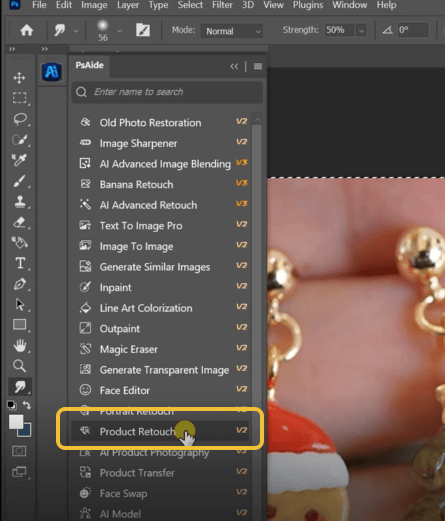
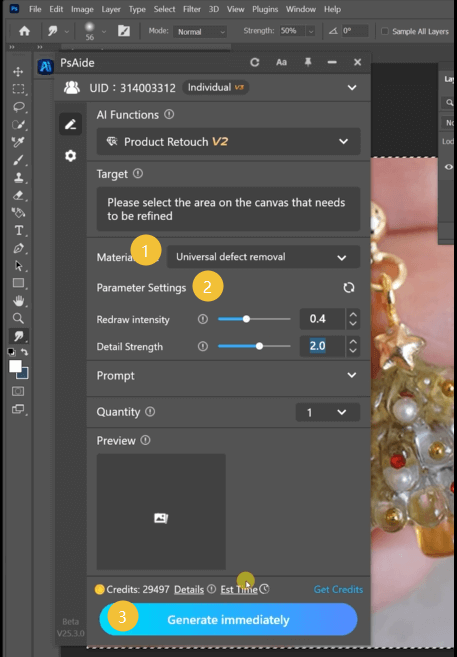
Navigate to the PsAide panel and select Product Retouch. This specialized tool offers multiple enhancement categories optimized for different product types. For Christmas earrings with metallic elements and gemstones, the default settings typically provide excellent results, as they’re calibrated for jewelry photography. The AI analyzes your selection, identifying different material types (metal, gems, enamel, etc.) and applying appropriate enhancements: it removes dust and minor imperfections, enhances metallic shine through intelligent highlight adjustment, boosts gemstone clarity without oversaturation, and subtly improves overall contrast while preserving natural appearance. The enhancement process typically completes in 20-40 seconds.
Step 3: Clean Background Removal
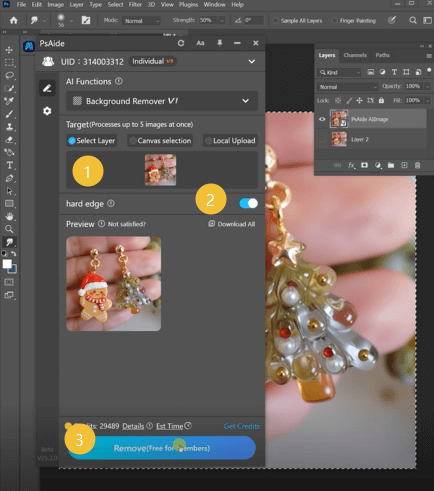
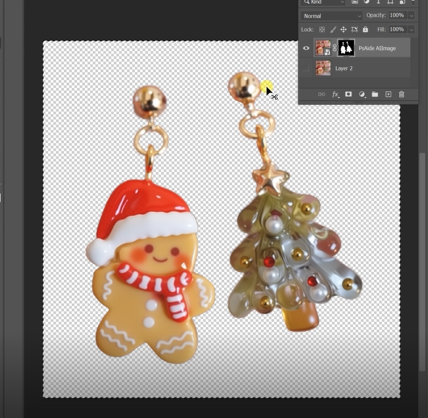
With your enhanced earrings ready, switch to Background Remover within the PsAide panel. This tool surpasses traditional selection methods by understanding product edges and transparent elements. Unlike simple background erasers that struggle with fine details, the AI analyzes the transition between product and background, creating precise masks that preserve delicate features like chain links, gemstone facets, and metallic filigree. For Christmas earrings with sparkly elements or intricate patterns, this intelligent edge detection proves particularly valuable, maintaining the holiday details that make your products special.
Step 4: Professional Presentation Setup
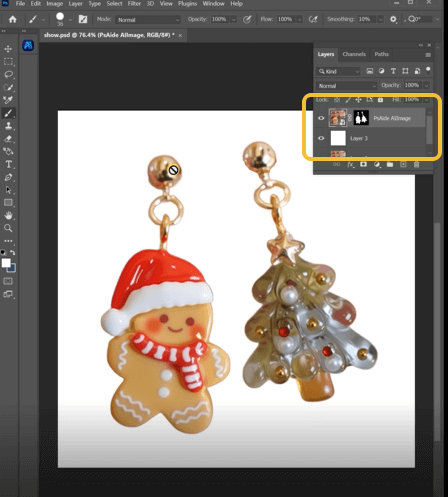
Create a new layer beneath your background-free earrings and fill it with pure white (RGB 255, 255, 255). For e-commerce standardization, ensure consistent lighting by adding a subtle drop shadow using Layer Styles > Drop Shadow with these settings: Blend Mode Multiply, Opacity 15-25%, Distance 3-8 pixels, Spread 0%, Size 5-10 pixels. This minimal shadow creates necessary visual separation without distracting from the product. Finally, crop to standard e-commerce dimensions and save in appropriate formats: JPEG for web display, PNG for transparent background needs, and PSD for future editing.
Applications for Holiday Sales Success
Master this workflow for multiple commercial applications:
- E-commerce Optimization: Create consistent product images across holiday catalogs
- Marketing Materials: Develop clean product shots for Christmas promotional campaigns
- Social Media Content: Generate eye-catching jewelry images for holiday social campaigns
- Product Listings: Prepare multiple views (front, back, details) efficiently for online marketplaces
- Holiday Collections: Rapidly process entire Christmas jewelry lines with consistent quality
Jewelry Retouching Technical Guide
Q1: How do I handle earrings with mixed materials (metal + pearls + gems) in one product?
A: The Product Retouch AI automatically detects different material types within your selection and applies appropriate enhancements to each. For exceptional cases with particularly challenging combinations, use the manual adjustment sliders available in advanced mode to fine-tune enhancement levels for different material categories separately, ensuring pearls maintain their subtle luster while metals receive adequate shine enhancement.
Q2: What if my original photo has challenging lighting or color casts?
A: While Product Retouch improves overall appearance, significant lighting issues should be addressed beforehand. Use Photoshop’s basic color correction tools (Levels, Curves, White Balance) before applying AI enhancement. For persistent color casts on metallic surfaces, create a Hue/Saturation adjustment layer, target the affected color channel, and make subtle adjustments before proceeding with the Product Retouch step.
Q3: Can I batch process multiple earring images with these tools?
A: Yes, through Photoshop Actions. Record your retouching process on one image: create selection, apply Product Retouch, use Background Remover, add white background. Save this as an Action, then use File > Automate > Batch to apply it to multiple images. While each image still processes individually, this automation handles the workflow steps consistently across your entire Christmas collection.
Q4: How do I maintain consistent results across different earring styles in my collection?
A: Establish standard settings for your Product Retouch enhancements. Once you find optimal settings for your typical jewelry style (adjusting clarity, shine, and sharpness sliders), save these as a preset within the plugin. Apply this preset across all similar products in your Christmas collection to ensure consistent enhancement quality, making adjustments only for significantly different materials or styles.
Download link
https://psaide.com/?sfrom=A86R4u
Invitation Code: A86R4u

