
Table of Contents
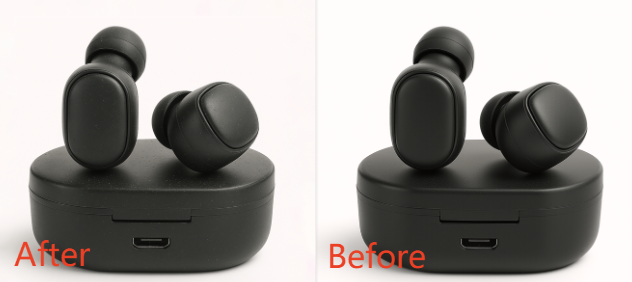
In e-commerce design and product photography, clean, high-end product images directly improve click-through and conversion rates. For electronics like earphones, high-quality texture and lighting are essential. However, achieving professional results with traditional PS is difficult and time-consuming.
Traditional PS product retouching requires removing flaws, cleaning noise, adjusting lighting, and refining texture manually. It often takes 30+ minutes per image. Beginners usually end up with messy, blurry, or flat results.
Psaide Nano Banana Pro simplifies professional product retouching. AI automatically recognizes materials, removes noise and blemishes, and optimizes lighting and texture. No complex skills needed.
1.Pain Points of Traditional PS Product Retouching
- Too many steps and extremely slow for batch work
- Difficult to clean noise, dust, and fine scratches
- Hard to create high-end, professional texture
- High learning curve involving curves, masks, clone stamp, and frequency separation
2.How to Retouch Products with PS + Psaide Nano Banana Pro (Earphones Example)
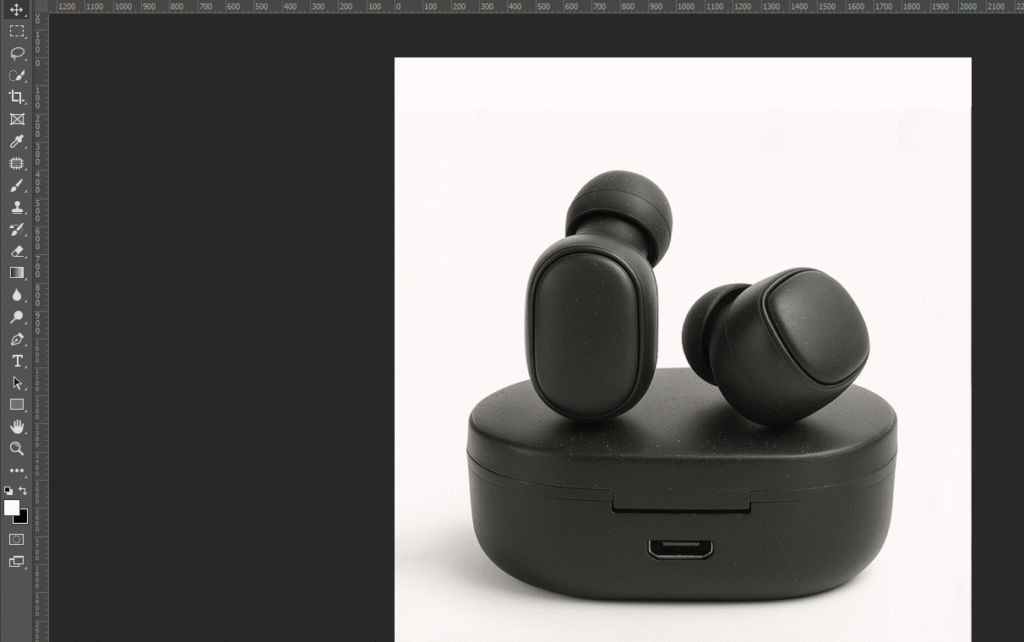
- Open your product image in PS and unlock the layer.
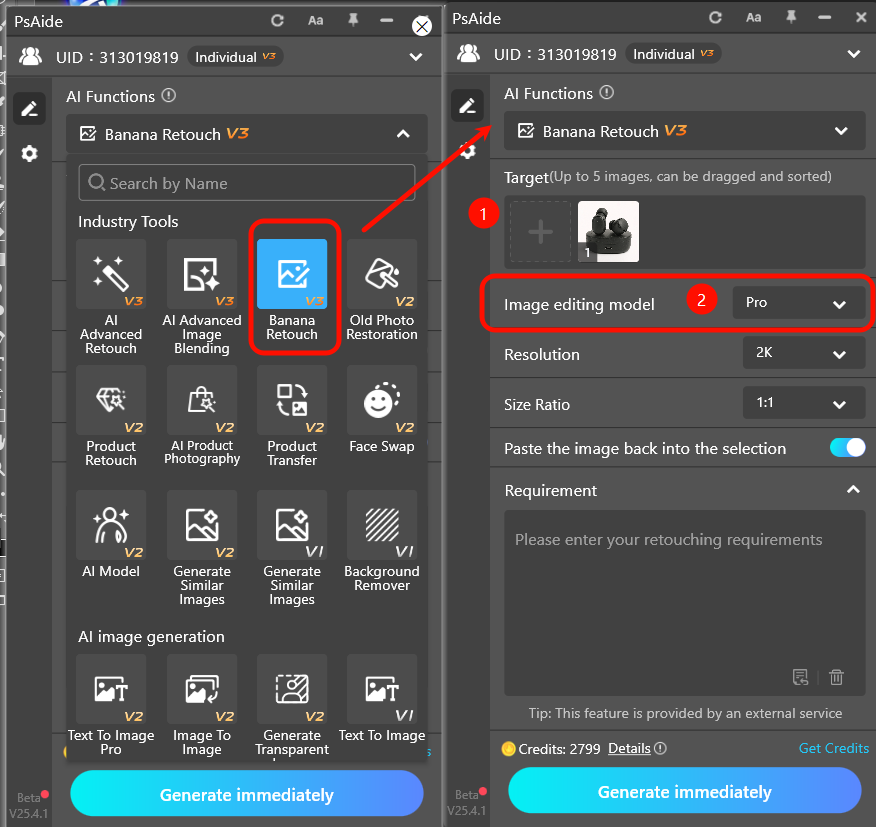
- Go to Window > Extensions and open Psaide.Select Nano Banana Retouch > Pro Version and upload your image.
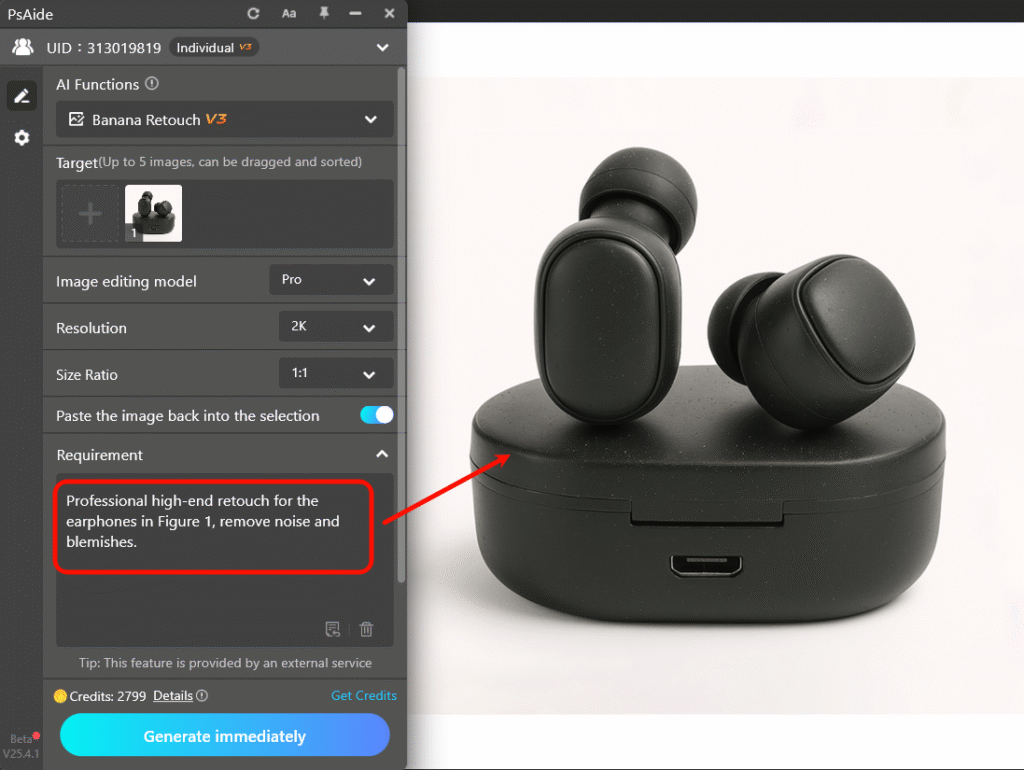
- Use this prompt:Professional high-end retouch for the earphones in Figure 1, remove noise and blemishes.
- Click Generate.
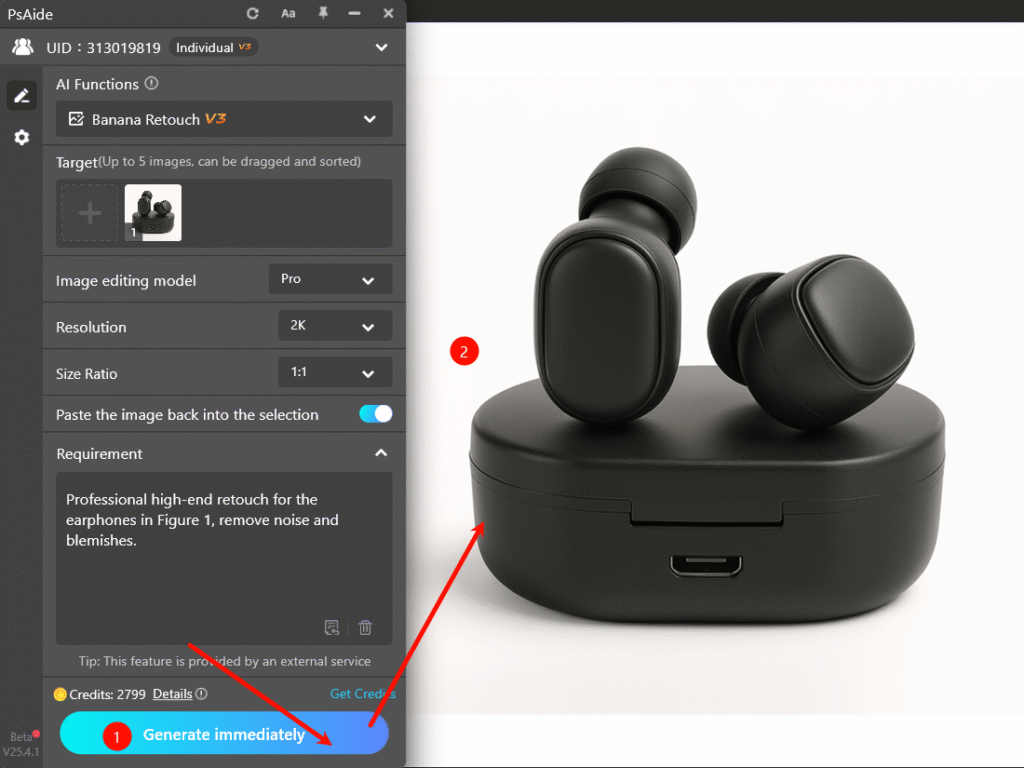
AI will automatically:
- Remove noise, dust, and small flaws
- Unify lighting and enhance premium texture
- Smooth surfaces and restore professional finish
The result is added as a new layer in PS, ready for e-commerce use.
3.Common Issues & Solutions
- Weak texture or not high-end enough
- Use Nano Banana Pro
- Add to prompt: enhance texture, natural highlights, sharp details, professional commercial retouch
- Generation failed or no response
- Restart PS and reopen Psaide
- Select the correct layer
- Use JPG/PNG with normal size
Achieve professional, clean, high-end product images in minutes with PS and Psaide Nano Banana Pro.
Download link

https://psaide.com/?sfrom=A86R4u
Invitation Code: A86R4u

