
Table of Contents
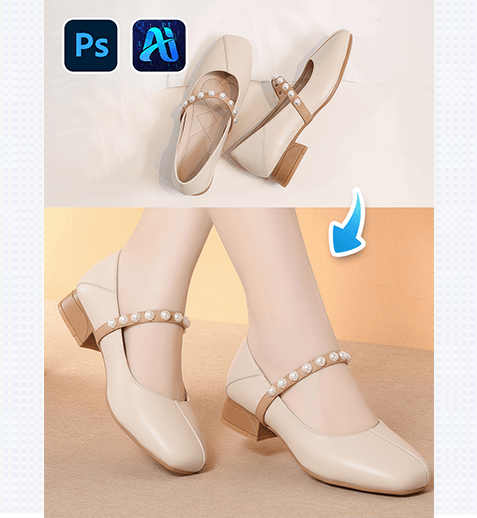
1.PS Tutorial Quick Tip
To enhance selection accuracy for leather shoe replacement: Use the Object Selection Tool + Refine Edge Brush to outline the model’s existing shoes. Zoom in to 100-150%, set the Refine Edge radius to 1-2px to capture fine details like shoelaces, stitching, or sole textures, and duplicate the original layer (Ctrl+J) to protect the source image—ensuring Nano Banana focuses solely on the shoe area without altering other elements.
2. Key Advantages of Nano Banana’s Leather Shoe Replacement Function
① Cuts Costs and Saves Time
No more costly reshoots! Nano Banana eliminates expenses for model bookings, studio rentals, and shoe styling, reducing a 2-4 day process to just 2-3 minutes—speeding up design iterations and helping meet tight fashion marketing deadlines.
② Superior Detail Accuracy
Nano Banana’s advanced algorithm excels at capturing the unique traits of various leather shoe materials, from smooth calfskin and textured suede to patent leather and distressed leather. It precisely reproduces intricate details (such as stitching patterns, sole grooves, and toe shape) and aligns the new shoes with the model’s foot position and movement for a natural fit, avoiding awkward proportions or stiff appearances.
3. PSAide + Nano Banana: 3-Step Workflow for Beginners
① Import the Image
Import your model’s image into Photoshop.
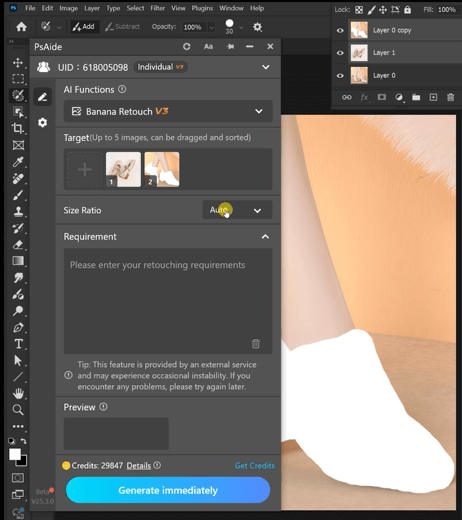
② Input Precise Prompts
In the PSAide Plugin panel, enter detailed prompts to guide Nano Banana.
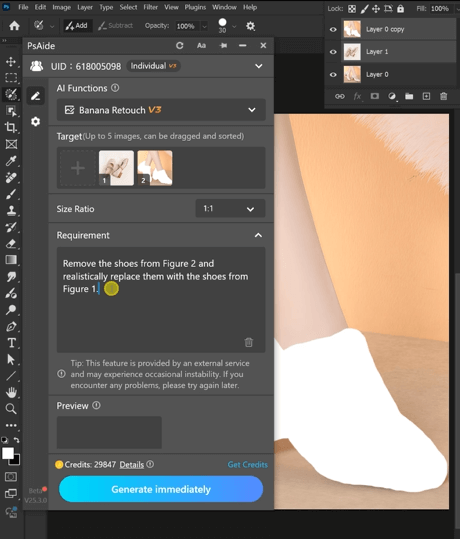
③ Generate and Refine
Click “Generate immediately” in the PSAide Plugin. Nano Banana will process the request and generate the retouched image with the new leather shoes. Preview the result—if adjustments are needed, refine the prompts slightly and re-generate until you achieve the desired effect.
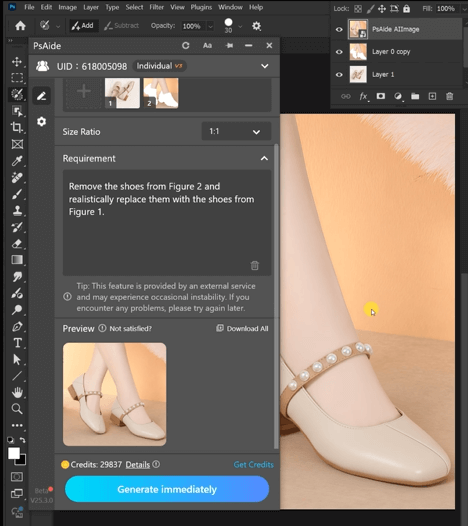
With PSAide’s built-in Nano Banana retouching, fashion designers and e-commerce professionals can skip the tedious and costly traditional leather shoe replacement process. By leveraging Nano Banana’s speed, precision, and texture replication capabilities, you can effortlessly test multiple leather shoe styles, create photorealistic model imagery, and enhance your brand’s competitiveness in the fast-paced fashion market.
4. Plugin Download Information
Nano Banana + PSAide addresses the core pain points of traditional leather shoe replacement: high costs, inefficiency, and unnatural results. No professional design skills are required—achieve studio-quality leather shoe replacements in 3 simple steps, with perfect textures, natural fits, and seamless lighting.
Download Link: https://psaide.com/?sfrom=ZfhxUK
Invitation Code: ZfhxUK

