
Table of Contents
In e-commerce, clean product images are essential. Whether for main listings, product detail pages, or advertising creatives, a consistent and professional background can directly impact click-through rates and conversions.
For sellers and designers, the real challenge is not whether Photoshop can remove backgrounds, but:
How to remove backgrounds quickly and consistently for a large number of product images.
This article focuses on e-commerce use cases and explains why traditional Photoshop background removal can be inefficient—and how the psaide Background Remover offers a better workflow.
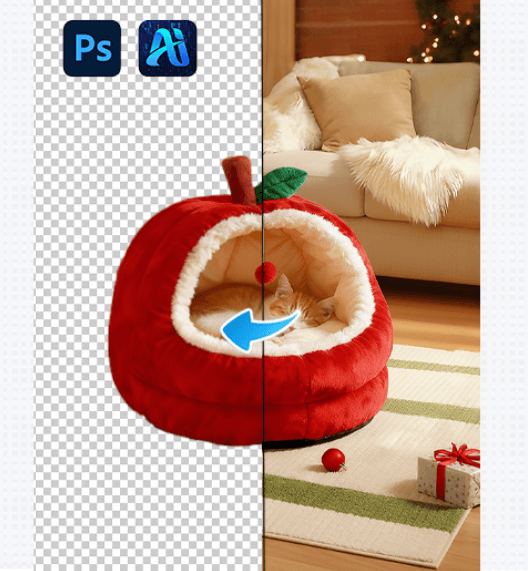
1.Common Background Removal Challenges in E-commerce
When working with product images, e-commerce teams often face:
- Large volumes of images to process
- Frequent product updates and tight deadlines
- Requirements for uniform backgrounds (white or transparent)
- High rework costs when manual results are inconsistent
Manual background removal quickly becomes a bottleneck.
2.Limitations of Traditional Photoshop Background Removal for Products
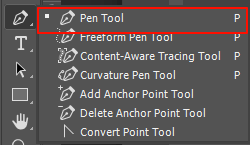
(1)Pen Tool Is Too Time-Consuming
While precise, the Pen Tool is impractical when processing dozens or hundreds of product images.
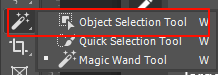
(2)Selection Tools Lack Consistency
Quick Selection and Magic Wand tools often produce inconsistent results across different products and lighting conditions.
3.How to Remove Product Backgrounds with psaide (3 Steps)
(1)Import Product Images into Photoshop
Drag product images into Photoshop or open them via File → Open.
(2)Open the psaide Plugin and Choose a Mode
Select the appropriate mode based on your image type:
Layer Upload Mode: Ideal for standard product photos and quick processing
Canvas Selection Mode :Useful when multiple products or complex compositions are present
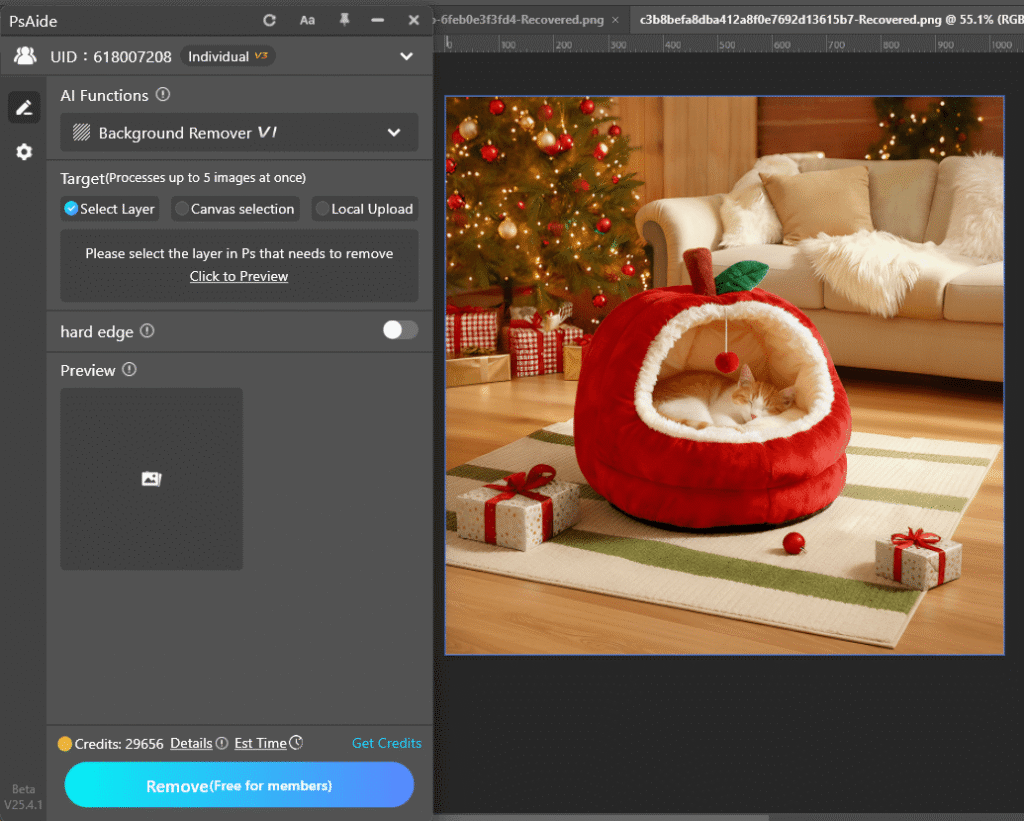
(3)Click Generate to Remove the Background
Click Generate, and psaide will automatically:
Detect the product subject
Remove the background
Output a ready-to-use result
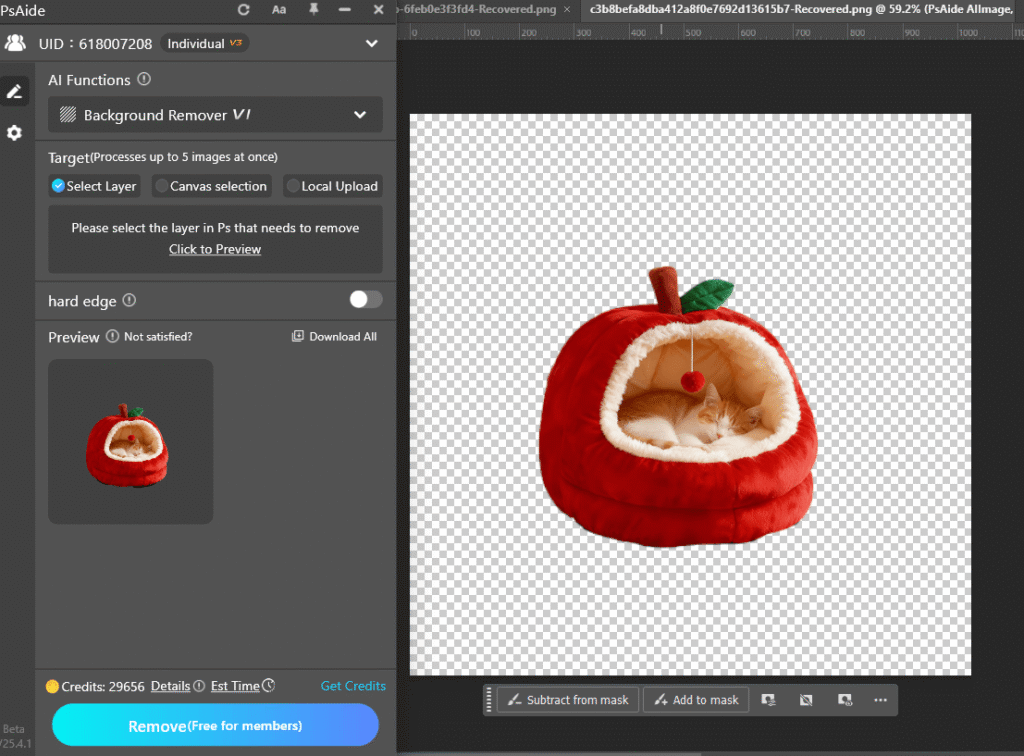
This workflow is well suited for batch processing product images.
4.Conclusion
In e-commerce, background removal is not a creative task—it’s a high-frequency production task. Repeating complex manual steps for every product image is inefficient and costly.

With the psaide Background Remover, you can remove product backgrounds quickly and consistently inside Photoshop, reduce rework, and focus more on product presentation and sales performance.
Download Link: https://psaide.com/?sfrom=ZfhxUK
Invitation Code: ZfhxUK

