
Table of Contents
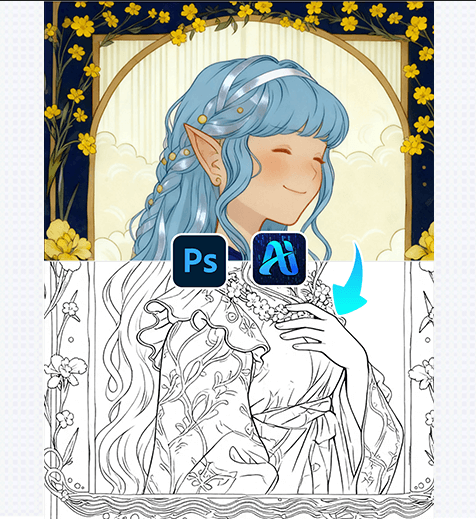
1. Quick Tip for Better Line Art Results
Before processing: Duplicate your original illustration layer (Ctrl+J) to preserve the colored version. Adjust the image’s contrast slightly (via Image > Adjustments > Brightness/Contrast) to make outlines sharper—this helps the AI detect edges more accurately, resulting in cleaner line art.

2. Key Benefits of AI-Powered Line Art Conversion
① Saves Hours of Manual Work:
Tracing a detailed illustration could take 1-2 hours by hand. AI Advanced Retouching completes it in 2-3 minutes, retaining fine details that are easy to miss when tracing manually.
② Preserves Artistic Style:
Unlike basic “sketch filters,” the AI analyzes the original artwork’s line weight and details to generate line art that matches the illustration’s unique style—no generic, one-size-fits-all outlines.
3. 3-Step Workflow: AI Advanced Retouching + Photoshop
① Import the Colored Illustration: Open your full-color artwork
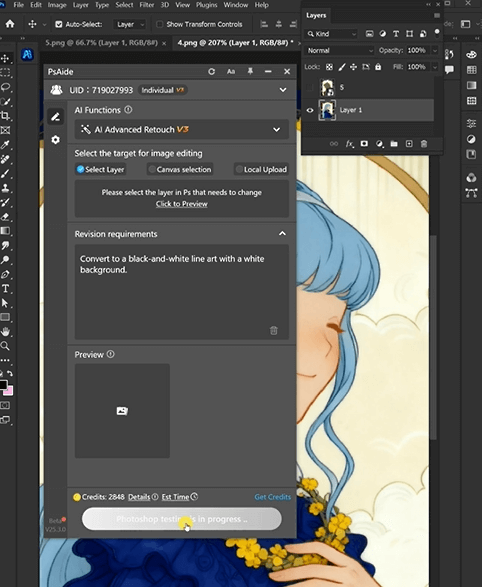
② Launch AI Advanced Retouching:
select AI Advanced Retouching, and Input a prompt like:
Convert to a black-and-white line art with a white background
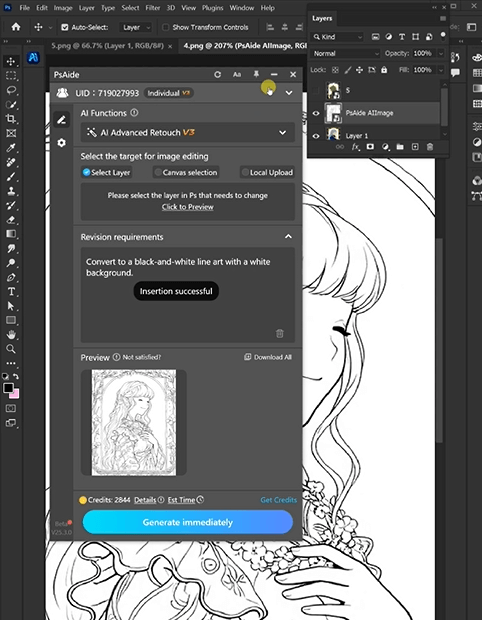
③ Refine and Export:
Preview the AI-generated line art (the bottom image: the character’s outline with intact dress patterns and hair details).
Use Photoshop’s Eraser or Brush tools to touch up small imperfections, then save the final line art as a PNG or PSD file.
4. Tool Access Information
AI Advanced Retouching integrates seamlessly with Photoshop to streamline art workflows—ideal for illustrators, designers, or anyone needing quick line art conversions.
Download Link: https://psaide.com/?sfrom=ZfhxUK
Invitation Code: ZfhxUK

