
Table of Contents
For art archivists, designers, and gallery professionals, converting photographed artworks into clean, distortion-free flat lay images is essential for digital cataloging, print use, or online showcases.
Yet traditional workflows come with major pain points: manually correcting perspective distortion requires advanced Photoshop skills and hours of fine-tuning; removing background elements often leaves messy edges;
These inefficiencies slow down archiving and compromise the artwork’s visual integrity.
Thankfully, Nano Banana retouching technology—integrated with the PSAide Plugin—offers a streamlined solution for transforming photographed artworks into precise flat lay images, with “nano banana” at the core of fast, high-fidelity creative workflows.
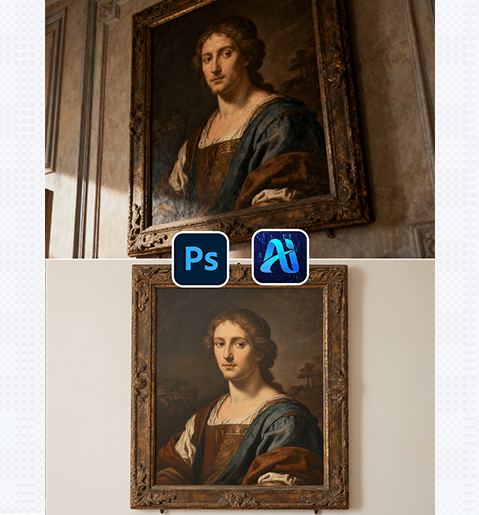
1、PS Tutorial Quick Tip
To prep photographed artworks for Nano Banana flat lay conversion: First, use the Crop Tool to roughly straighten the artwork (drag the corner handles to align with the painting’s edges). Then, go to Filter > Lens Correction to reduce barrel/pincushion distortion (adjust the “Remove Distortion” slider to -5 to +5) — this softens extreme perspective issues, helping Nano Banana recognize the artwork’s true shape. Duplicate the layer (Ctrl+J) and lock its transparency to protect the original photo’s details.
2、Key Advantages of Nano Banana’s Artwork Flat Lay Function
① Cuts Time and Lowers Skill Barriers
No advanced perspective-correction skills needed! Nano Banana eliminates the need for tedious tools like Perspective Warp or Content-Aware Fill, reducing a 2+ hour editing process to just 4 minutes—speeding up art cataloging and digital asset creation.
② Preserves Artwork Details and Color Accuracy
Nano Banana’s algorithm prioritizes the artwork’s original characteristics: It retains brushstrokes, texture variations, and color hues while flattening the image, avoiding the washed-out tones or blurred details common with basic editing tools. This ensures the flat lay image is a faithful digital replica of the physical artwork.
3、PSAide + Nano Banana: 3-Step Workflow for Beginners
① Import and Prep the Photographed Artwork
Import the artwork photo into Photoshop.
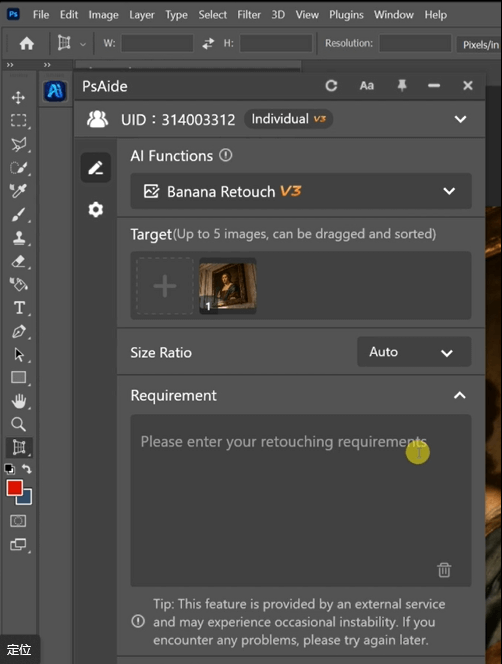
② Input Precise Flat Lay Prompts
In the PSAide Plugin panel, enter prompts , the better Nano Banana aligns with your archiving needs.
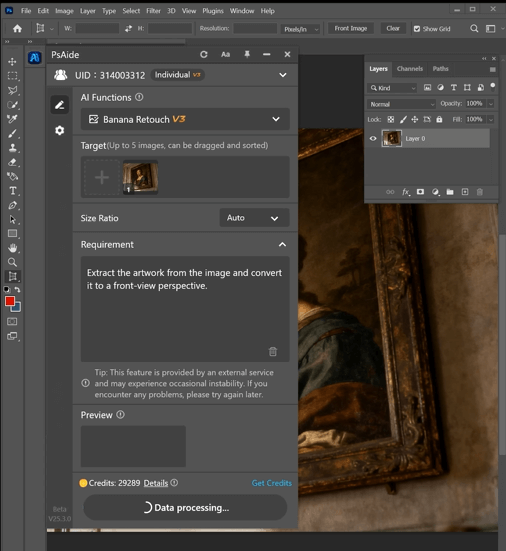
③ Generate and Finalize
Click “Generate” . If adjustments are needed , refine the prompt and regenerate—no advanced editing skills required.
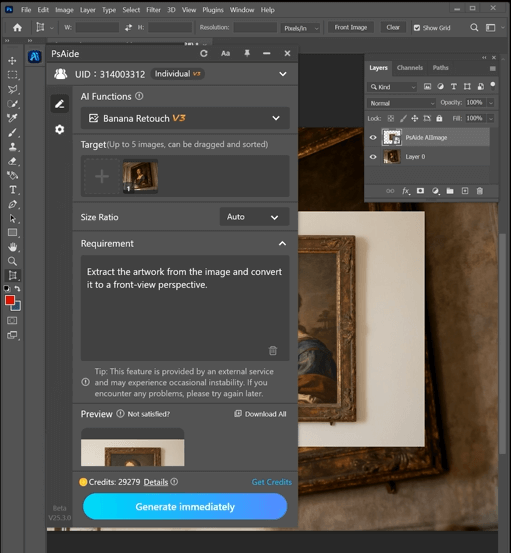
With PSAide’s built-in Nano Banana retouching, art professionals can skip the tedious, skill-intensive traditional workflow for artwork flat lays. Leverage “nano banana”’s speed, detail preservation, and distortion correction to create faithful digital replicas, streamline cataloging, and enhance your art’s online/print presentation.
4、Plugin Download Information
Nano Banana + PSAide solves the core pain points of artwork-to-flat-lay conversion: high skill barriers, time-consuming editing, and compromised details. No professional Photoshop experience needed—achieve archive-quality flat lay images in 3 steps, with perfect accuracy and seamless background removal.

Download Link: https://psaide.com/?sfrom=ZfhxUK
Invitation Code: ZfhxUK

