
Table of Contents
Blending product images into real scenes is essential for e-commerce. Matching lighting, angle and perspective manually in PS takes a lot of time.
With Psaide Nano Banana Pro and precise prompts, you can merge products and backgrounds seamlessly for realistic, professional results.
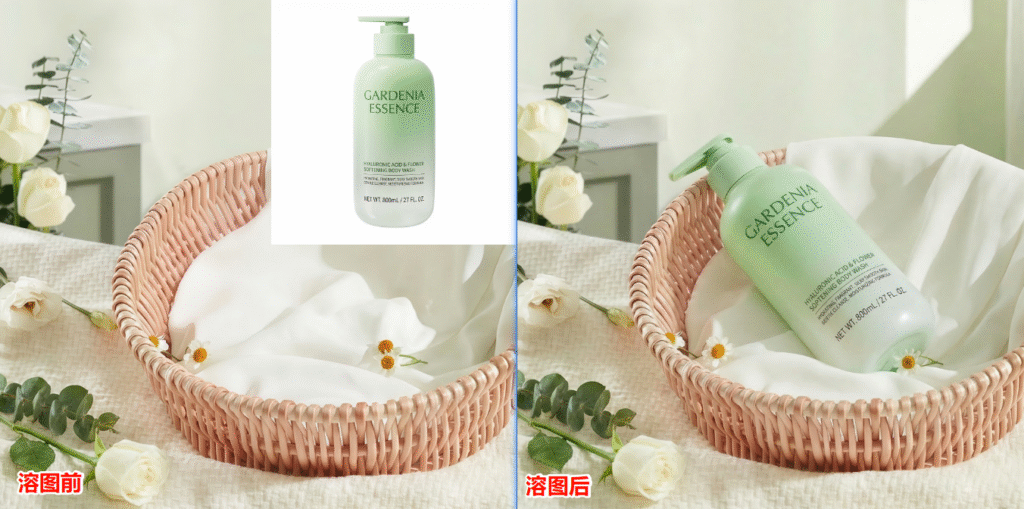
1.3-Step Smart Blending for Care Products
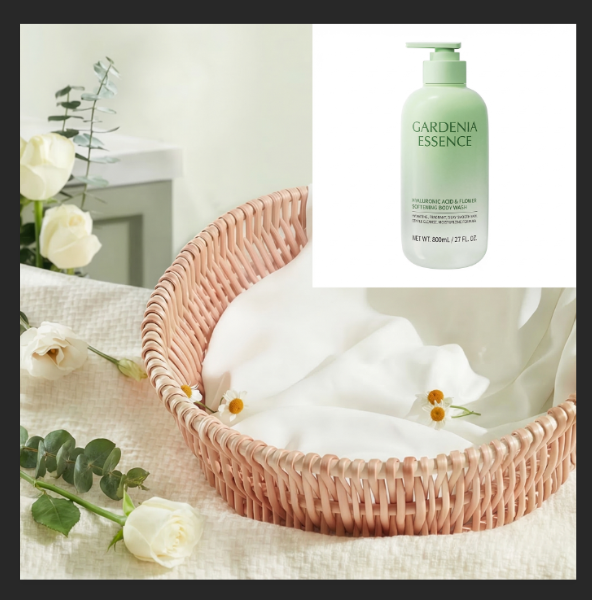
Step 1: Prepare Product & Background Images
- Product image: PNG transparent or white‑background care product bottle
- Background image: real scene (wicker basket, bathroom shelf, beach, etc.)Open both in PS and upload the combined layer to Nano Banana.
Step 2: Set Pro Model Parameters
- Select Pro Version for accurate lighting and material simulation
- Set resolution to 4K for clear details
- Use 1:1 ratio for e-commerce main images
Step 3: Enter Blending Prompt & Generate
Use this prompt formula:
Place the [product] in Image 1 [position] in the [scene] in Image 2, natural lighting, realistic product display.
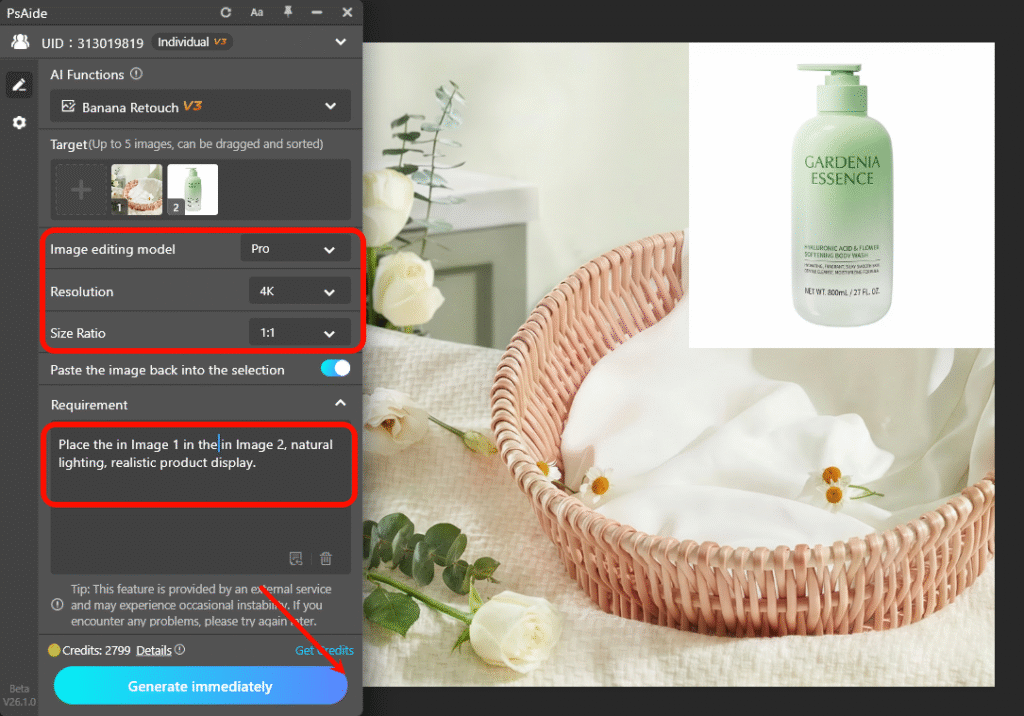
Example:
Place the care product bottle in Image 1 lying in the wicker basket in Image 2, product display, natural lighting blending with the background.
Click Generate.
AI adjusts position, shadow, reflection and lighting automatically for a natural, photographed look.
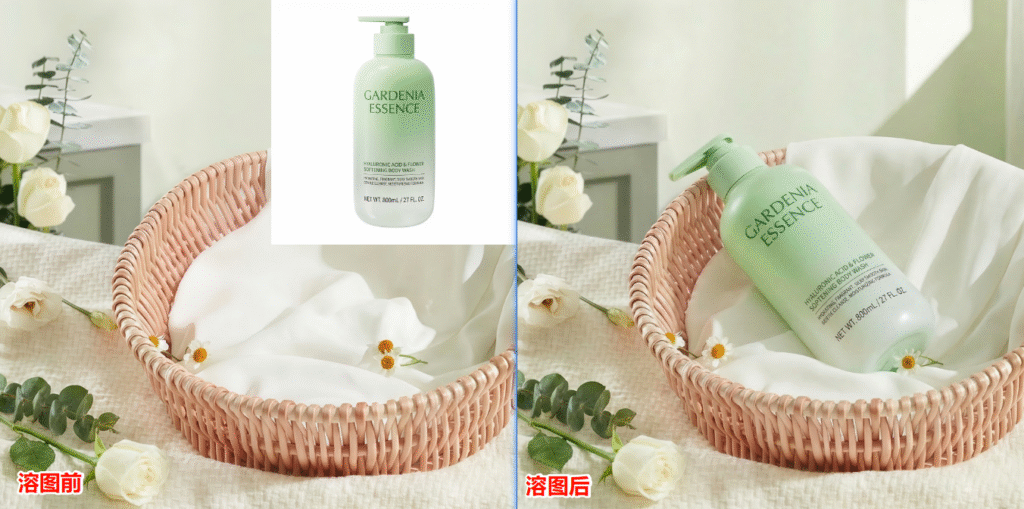
2.Realistic Blending Tips
- Position: lying in the basket, placed on the shelf
- Lighting: natural light, soft shadows, environmental reflection
- Material: product display, glossy texture, liquid details
Create realistic scene composites quickly with PS and Psaide Nano Banana.ily with PS and Psaide Nano Banana.
3.Download link

https://psaide.com/?sfrom=A86R4u
Invitation Code: A86R4u

