
Table of Contents
1.What Are Low-Resolution Images?
Low-resolution images refer to images with fewer pixels, typically resulting in blurry or unclear visuals. Common types of low-resolution images include:
- Images downloaded from the internet
- Photos taken with a phone or low-quality camera
- Images that have been heavily compressed
Low-resolution images often lack detail and cannot be resized or displayed in high quality.

2.How to Restore Low-Resolution Images?
There are several methods to restore low-resolution images in Photoshop. Common restoration techniques include:
(1) Using Camera Raw Filter
The Camera Raw Filter in Photoshop is one of the most effective tools to improve clarity in low-resolution images. You can adjust:
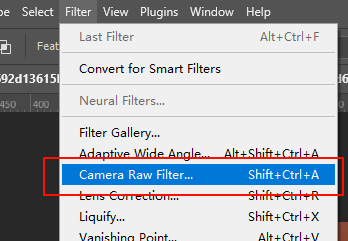
Clarity: Enhance the contrast and details in the image
Texture: Improve the texture and subtle details
Sharpening: Sharpen the image to make it clearer
This method is ideal for slightly blurry images with decent original quality.
(2) High Pass Sharpening
High Pass Sharpening is a popular technique for enhancing edges and improving clarity in low-resolution images. The steps are as follows:
①Duplicate the layer
②Apply the High Pass filter and adjust the radius
③Set the layer blending mode to “Overlay”
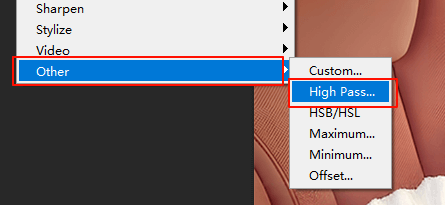
This technique works best for images with clear edges, effectively enhancing details。
3.How to Use psaide Plugin for Low-Resolution Image Restoration?
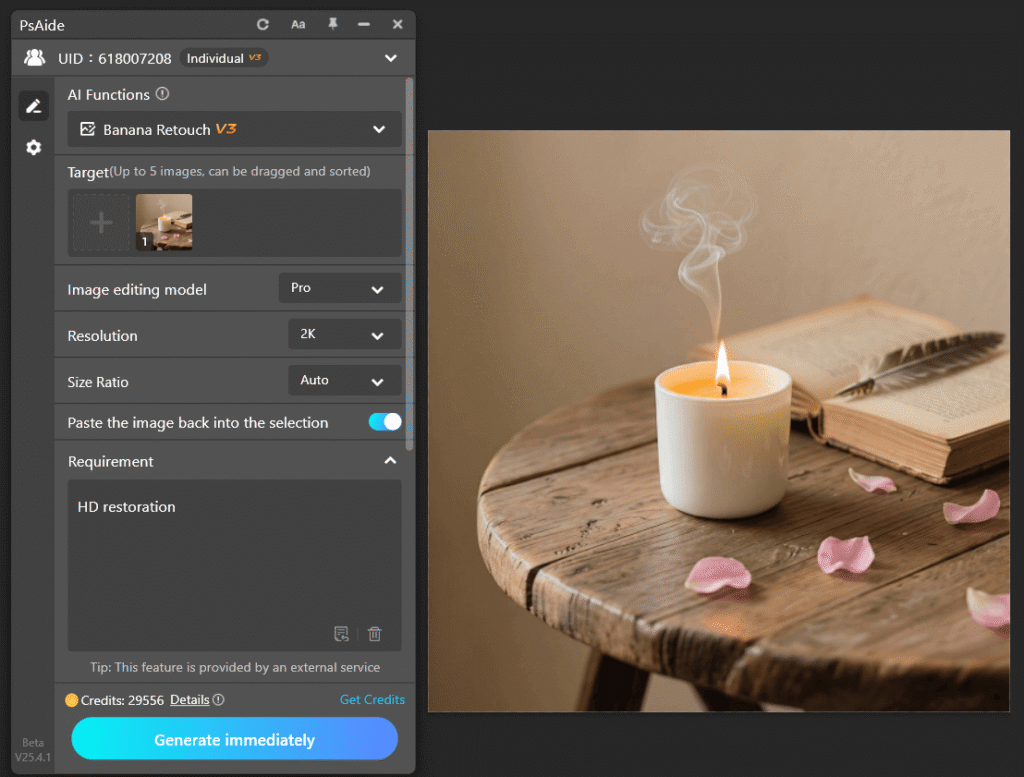
When you need to handle a large number of low-resolution images, traditional methods may seem too slow. In this case, using the banana retouch feature in the psaide plugin can significantly improve efficiency.
(1)Three Simple Steps to Restore Images with banana retouch:
① Launch the psaide plugin
Open the psaide plugin in Photoshop.
② Import the Image:
You can import images using:
Canvas Selection Mode for selective restoration
Layer Input Mode for full image restoration
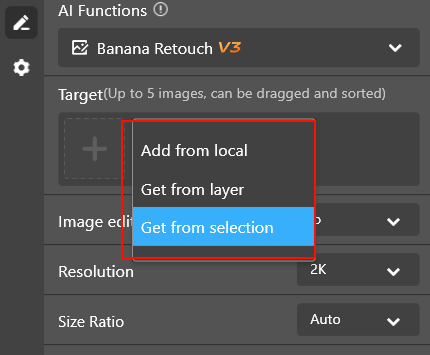
③Enter the Prompt and Generate
Enter the following prompt:
HD restoration
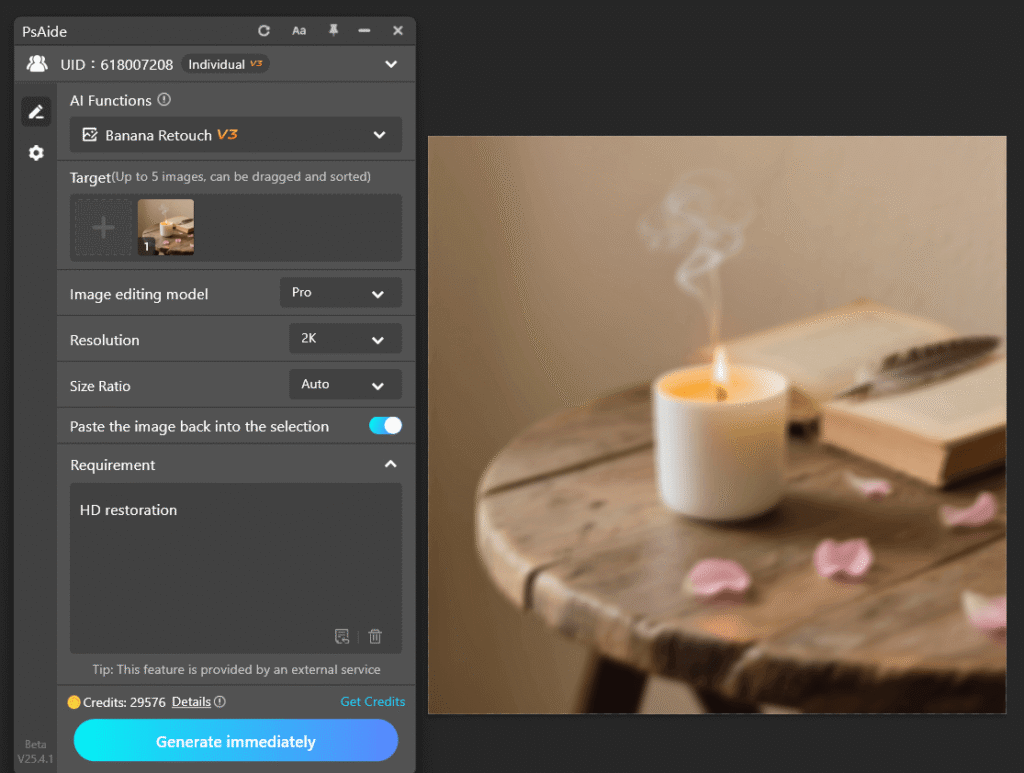
Then click “Generate Immediately”. banana retouch will automatically apply Nano Banana Pro to restore clarity and enhance the image, providing you with a clearer, higher-quality result.
4.Why Choose banana retouch?
banana retouch helps you achieve one-click HD restoration directly inside Photoshop, making low-resolution image restoration easier and faster. Compared to traditional methods, the advantages of banana retouch are:
(1) Fewer steps:
Simply input the prompt and click to generate the restored image
(2) Efficient for batch processing:
Ideal for handling a large number of low-resolution images, especially in e-commerce and content creation
(3) Automated HD restoration:
No need for constant adjustments, saving you time and effort
5.Conclusion
Restoring low-resolution images is possible, but the process requires the right tools and techniques. By using Photoshop’s Camera Raw Filter, High Pass Sharpening, and other tools, you can gradually enhance image clarity. When dealing with large volumes of low-resolution images, the banana retouch feature in the psaide plugin provides a more efficient and convenient solution.

If you’re looking for a faster way to restore low-resolution images, banana retouch is definitely worth trying.
Download Link: https://psaide.com/?sfrom=ZfhxUK
Invitation Code: ZfhxUK

