
Table of Contents
1.The Low-Res Artwork Dilemma & The AI Upscaling Solution
The Landscape Photo Restoration Challenge
Q: Why is restoring a blurry landscape photo particularly difficult?
A: Complexity of natural details. Landscapes contain intricate, repetitive textures like leaves, grass, water ripples, and rock formations. Standard sharpening tools often create unnatural halos or amplify noise across these vast areas, making the whole image look worse.
Q: How does AI overcome this?
A: AI like Nano Banana Pro is trained to recognize natural patterns. It doesn’t just sharpen edges; it intelligently reconstructs plausible textures. It can differentiate between soft clouds that should remain smooth and tree branches that need definition, applying context-aware enhancement to each element.
2.The Power of “Hint Clarity” in Pro Version
In the Pro version, the minimalist prompt “Hint clarity.” acts as a powerful, optimized command. It triggers a specialized AI routine for natural scene enhancement. Unlike a generic “sharpen” command, “Hint clarity” instructs the AI to prioritize:
- Edge Refinement: Defining horizons, mountain ridges, and structural lines.
- Texture Recovery: Rebuilding believable details in foliage, water, and geological features.
- Noise-Aware Processing: Cleaning up grain or compression artifacts without destroying fine details.
This makes it perfectly suited for the complex, organic details found in landscapes.
3.What You’ll Need
- Adobe Photoshop with the PsAide plugin installed.
- Click to get
- Your blurry or soft-focus landscape photo.
- Less than a minute of processing time.
4.The One-Click HD Restoration Process
Step 1: Open Your Landscape Photo
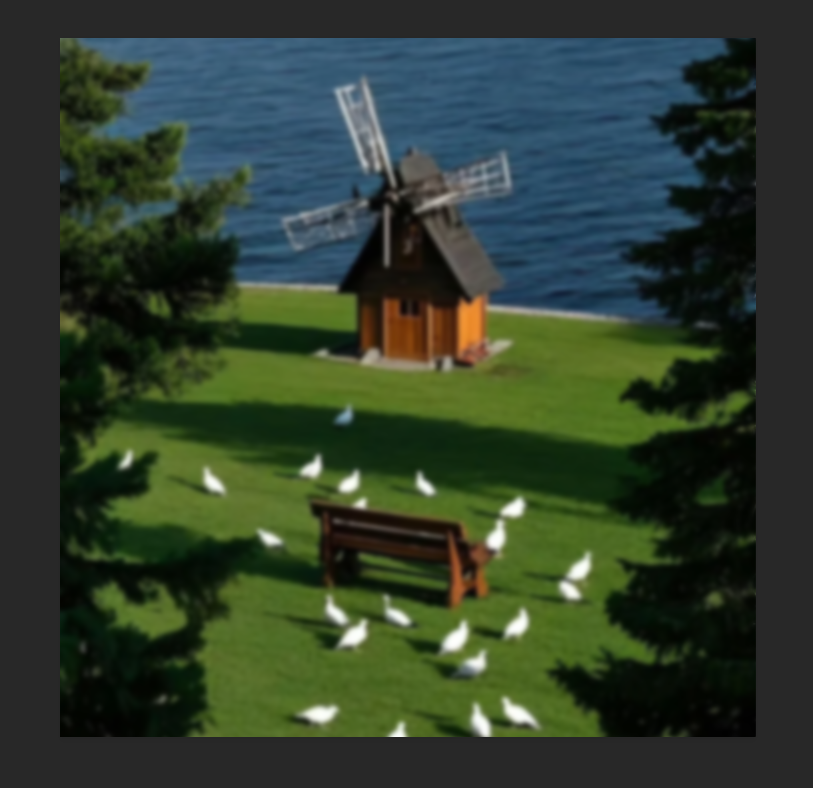
Launch your blurry landscape photo in Photoshop. This could be a misty mountain scene, a soft-focus forest, or a hazy beach shot. The method works on various types of atmospheric blur and focus issues.
Step 2: Command the Pro AI with a Simple Hint
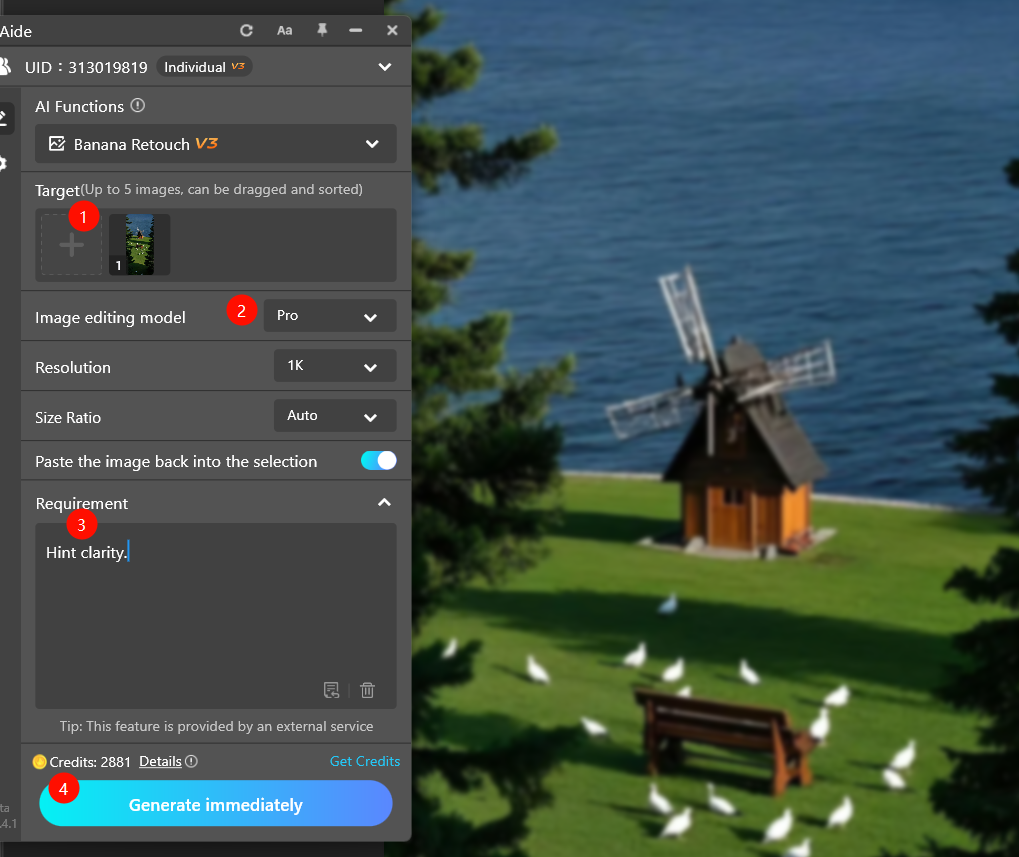
In the PsAide panel, open Nano Banana and ensure the Pro version is selected. Upload your single landscape image. In the prompt box, you only need to provide this succinct, powerful instruction:
“Hint clarity.”
This concise prompt is all the Pro version’s advanced model needs to activate its optimal landscape restoration algorithms.
Step 3: Generate the Restored Scene
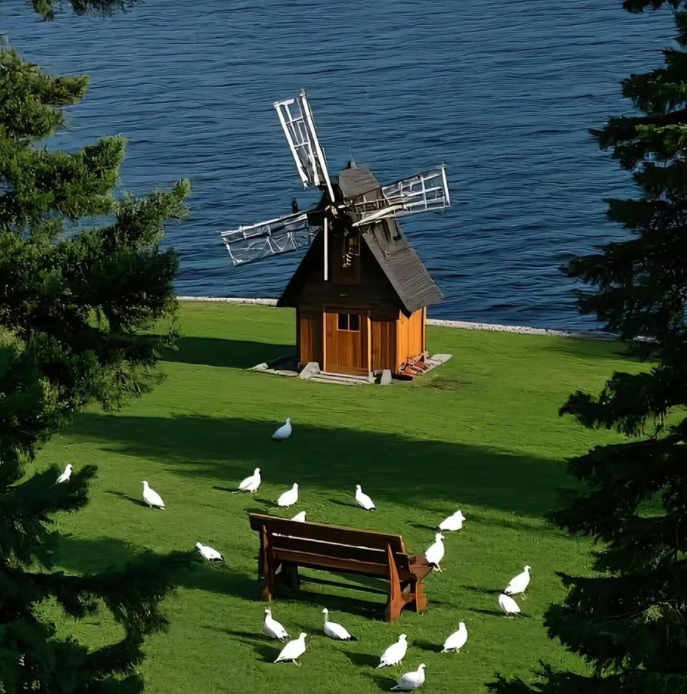
Click “Generate.” The AI will analyze the image, identifying different regions (sky, foliage, water, terrain) and applying tailored enhancements to each. It will reduce atmospheric haze, define natural textures, enhance structural edges, and boost overall micro-contrast. The result is a landscape photo with regained depth, sharpness, and vibrancy that still looks natural.
5.Practical Applications & Pro Tips
Iterative Refinement: If the first “Hint clarity.” pass is good but you want more, you can run the output through the process again, or use a slightly more descriptive prompt like “Hint clarity and reduce haze” for foggy scenes to guide the AI more specifically.
Perfect for: Travel photography, nature shots, real estate images, or any scenic photo that didn’t turn out as sharp as you hoped.
Pro Tip: For best results, the AI needs a foundational image structure. It works miracles on slightly soft or moderately blurred photos but cannot invent perfect detail from extreme motion blur or extremely low-resolution thumbnails.
Download link
https://psaide.com/?sfrom=A86R4u
Invitation Code: A86R4u
Click here to discover more usage tips and in-depth information on Nano Banana Pro!

