Table of Contents
TE-commerce jewelry retouchers frequently need to swap necklaces on model photos to showcase new accessories without reshooting, yet native Ps tools create a long list of frustrating limitations. Manual necklace editing relies on slow Pen Tool cutouts, Puppet Warp adjustments and tedious shadow painting. Thin pearl chains, tiny pendants and reflective metal surfaces often develop jagged edges, unnatural stretching or inconsistent highlights when edited by hand. It is extremely hard to match the necklace’s angle to the model’s neck curve, and mismatched lighting makes jewelry look like a flat sticker instead of a wearable accessory. A single model shot can take 20–40 minutes to perfect, which heavily slows down batch product listing updates. All these common pain points of traditional Ps retouching are solved by Nano Banana, the AI retouch module inside the Psaide plugin, which completes realistic necklace replacement in seconds with professional commercial quality.
1、Step-by-Step Workflow to Swap E-commerce Necklaces with Psaide Nano Banana in PS
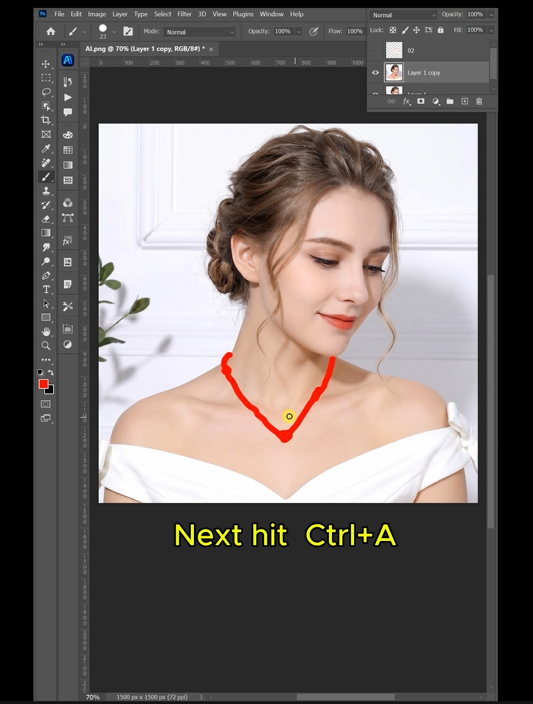
Step 1: Mark the original necklace area with red in Photoshop
Launch Ps, then import two images: the model portrait (Figure 1) and the reference pearl necklace asset (Figure 2). Press Ctrl+J to duplicate the model layer to safeguard the original photo. Select the Lasso Tool, draw a tight full selection around the old necklace on the model’s neck. Set foreground color to solid red and press Alt+Delete to fill the selected zone; this red marker lets Nano Banana precisely target the area for jewelry replacement and avoid misalignment.
Step 2: Configure Nano Banana Pro with high-definition output settings
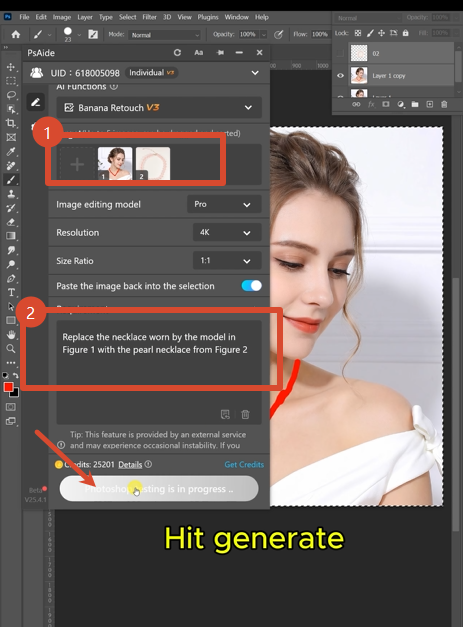
Open the Psaide plugin panel within Photoshop and enter the Nano Banana retouch module. Switch to the Pro version for superior metal texture recognition and natural neck curve fitting. Set output resolution to 4K and aspect ratio to 1:1, the standard square size for e-commerce main product images. Upload your red-marked model image (Figure 1) and standalone pearl necklace image (Figure 2). Paste this fixed prompt into the text field:
Replace the necklace worn by the model in Figure 1 with the pearl necklace from Figure 2.
Step 3: Generate and preview the finished e-commerce jewelry shot
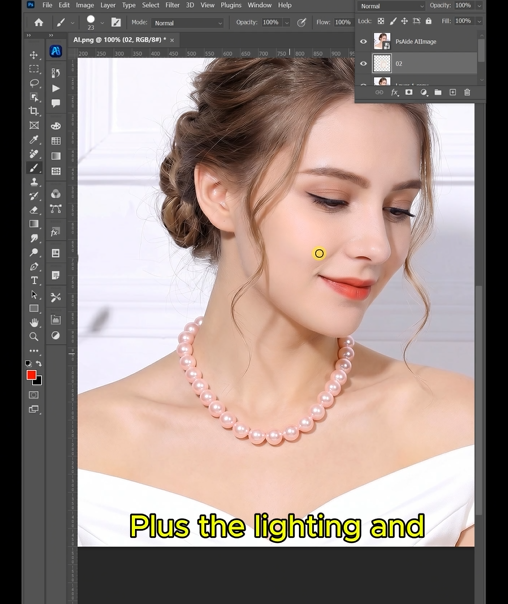
Click Generate and wait 20–30 seconds for AI rendering. Nano Banana automatically conforms the pearl necklace to the model’s neck posture, generates realistic metal reflections, and syncs shadows with the original scene lighting. The polished 4K 1:1 result will pop up as a new editable layer in your Ps workspace, ready to upload directly to online retail platforms without extra manual adjustments.
2、Practical Tips for Perfect Nano Banana Necklace Swaps
Always activate Nano Banana Pro instead of basic mode for delicate pearl or thin-chain jewelry to prevent texture distortion. Stick to the 4K 1:1 setting to meet mainstream e-commerce image standards. Ensure your red lasso selection fully covers every part of the original necklace; incomplete marking leads to awkward partial replacement. Keep the provided prompt unchanged for stable, accurate jewelry fitting. For bulk model batches, reuse identical Nano Banana resolution, ratio and prompt settings to maintain uniform visual consistency, drastically cutting your daily Ps editing time.
3、Download link

https://psaide.com/?sfrom=A86R4u
Invitation Code: A86R4u