Table of Contents
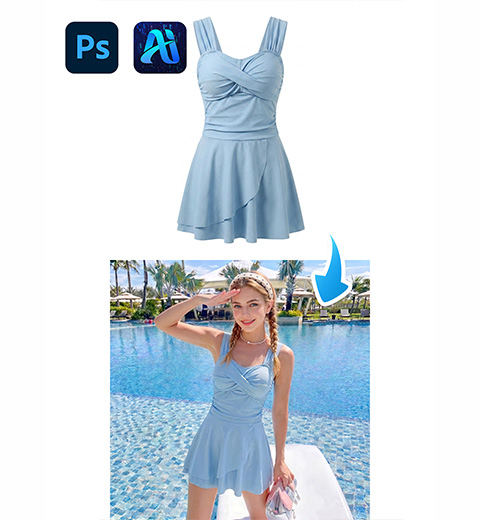
E-commerce fashion designers and Photoshop retouchers constantly need to swap long-sleeve tops on model photos for product listings, catalogs and marketing visuals, yet native Ps tools create endless frustrating roadblocks. Traditional manual top replacement requires tedious Pen Tool cutouts, Liquify warp adjustments, layer masking and hours of lighting correction. Most beginners struggle to match fabric wrinkles, arm curves and environmental light, resulting in stiff, obviously edited clothing that hurts conversion rates. Fine sleeve cuffs, knit textures and tailored fits often stretch or lose detail during manual transformation. Processing a single model shot can take 20 to 40 minutes, making bulk seasonal product updates extremely slow. These common Ps workflow limitations are fully resolved by Nano Banana, the AI-powered retouch module built into the Psaide plugin, which delivers natural, high-fidelity long-sleeve top swaps in under 30 seconds.
1、Step-by-Step Guide to Swap Long-Sleeve Tops Using Psaide Nano Banana in PS
Step 1: Prep the model image with red area marking inside Ps
Launch your Ps program, then import two core images: the reference long-sleeve top image (Figure 1) and the original model portrait (Figure 2).
Press Ctrl+J to duplicate the model background layer to preserve your raw photo. Select the Lasso Tool from the left toolbar, draw a precise selection fully covering the short-sleeve or original top worn by the model. Set your foreground color to solid red and hit Alt+Delete to fill the selected clothing zone.
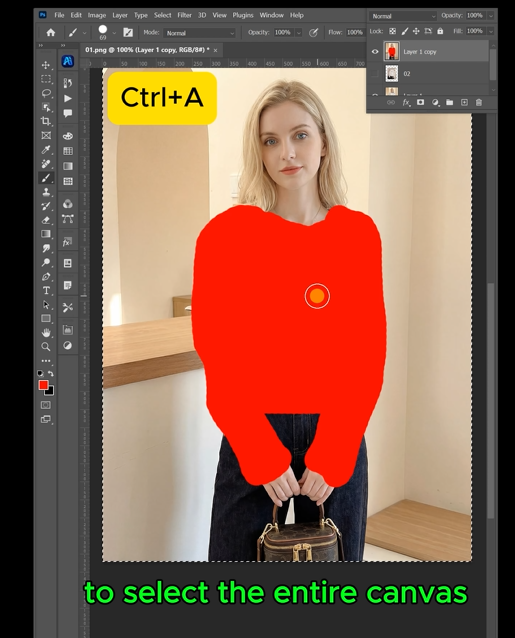
This red marker guides Nano Banana to accurately target the replacement area without misalignment.
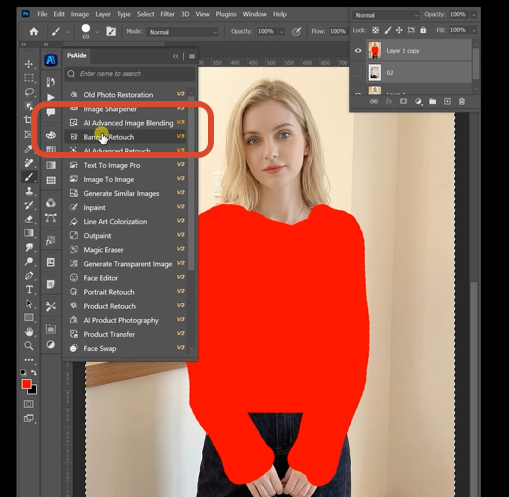
Step 2: Configure Nano Banana Pro and upload image assets
Open the Psaide plugin panel within Photoshop and open the Nano Banana retouch module. Select the Pro version model, which delivers superior fabric texture recognition and realistic body curve fitting. Set the output resolution to 4K to retain sharp sleeve stitching, fabric patterns and soft shadow gradients. Upload the long-sleeve top reference (Figure 1) and red-marked model image (Figure 2) into the plugin’s upload field.
Paste this exact prompt into the text input box: Replace the top that from the model is wearing in Figure 2 with the top from Figure 1.
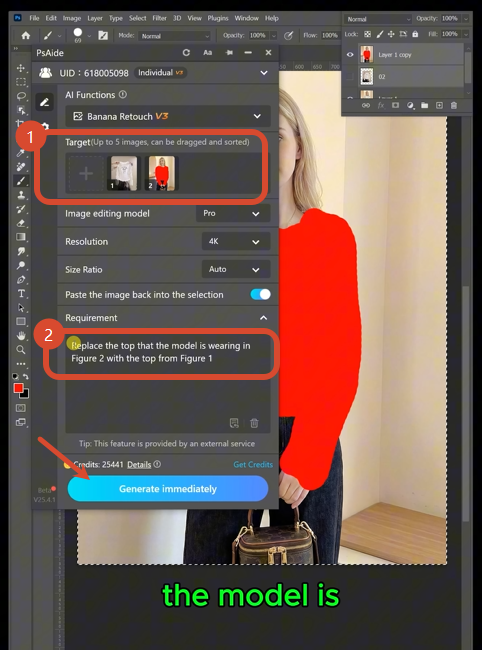
Step 3: Generate and preview the finished swapped garment image
Click the Generate button and wait roughly 25 seconds for AI rendering. Nano Banana automatically fits the new long-sleeve top to the model’s arm posture, syncs ambient lighting and reproduces natural fabric wrinkles. The completed high-resolution result will load as a new editable layer directly inside your Ps workspace, ready for immediate export for e-commerce storefronts or design files with zero extra manual tweaking required.
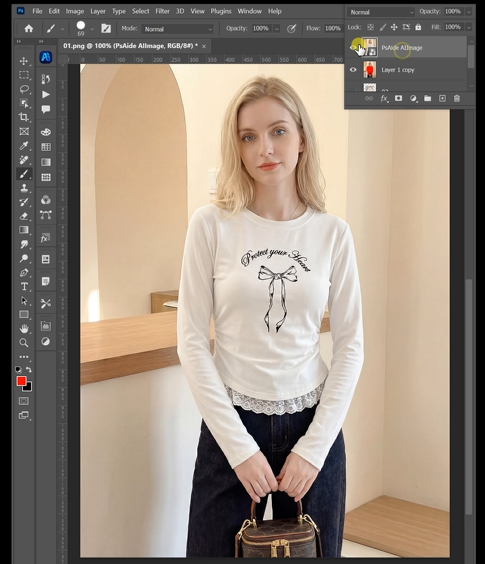
2、Practical Tips for Perfect Nano Banana Top Swaps
Always activate Nano Banana Pro instead of basic mode for complex knit, denim or patterned long sleeves, as it avoids texture stretching. Stick to the 4K resolution setting to maintain commercial-grade image clarity for online retail. Ensure your red lasso selection fully covers every edge of the original top; incomplete marking causes partial, awkward garment replacement. Keep the provided prompt unchanged to guarantee consistent AI logic when swapping tops. For batch model edits, reuse identical Nano Banana resolution and prompt settings to maintain uniform visual style across all product photos and drastically cut your daily Ps editing time.
3、Download link

https://psaide.com/?sfrom=A86R4u
Invitation Code: A86R4u